How to Use the Wait Component
The Wait component lets you pause a workflow for a set amount of time before it moves to the next step. This is helpful for building delays into your automated processes, perfect for timed follow-ups, reminders, or spacing out actions more intentionally.
This guide explains how to configure the settings for the Wait component so you can start adding timed delays to your workflows.
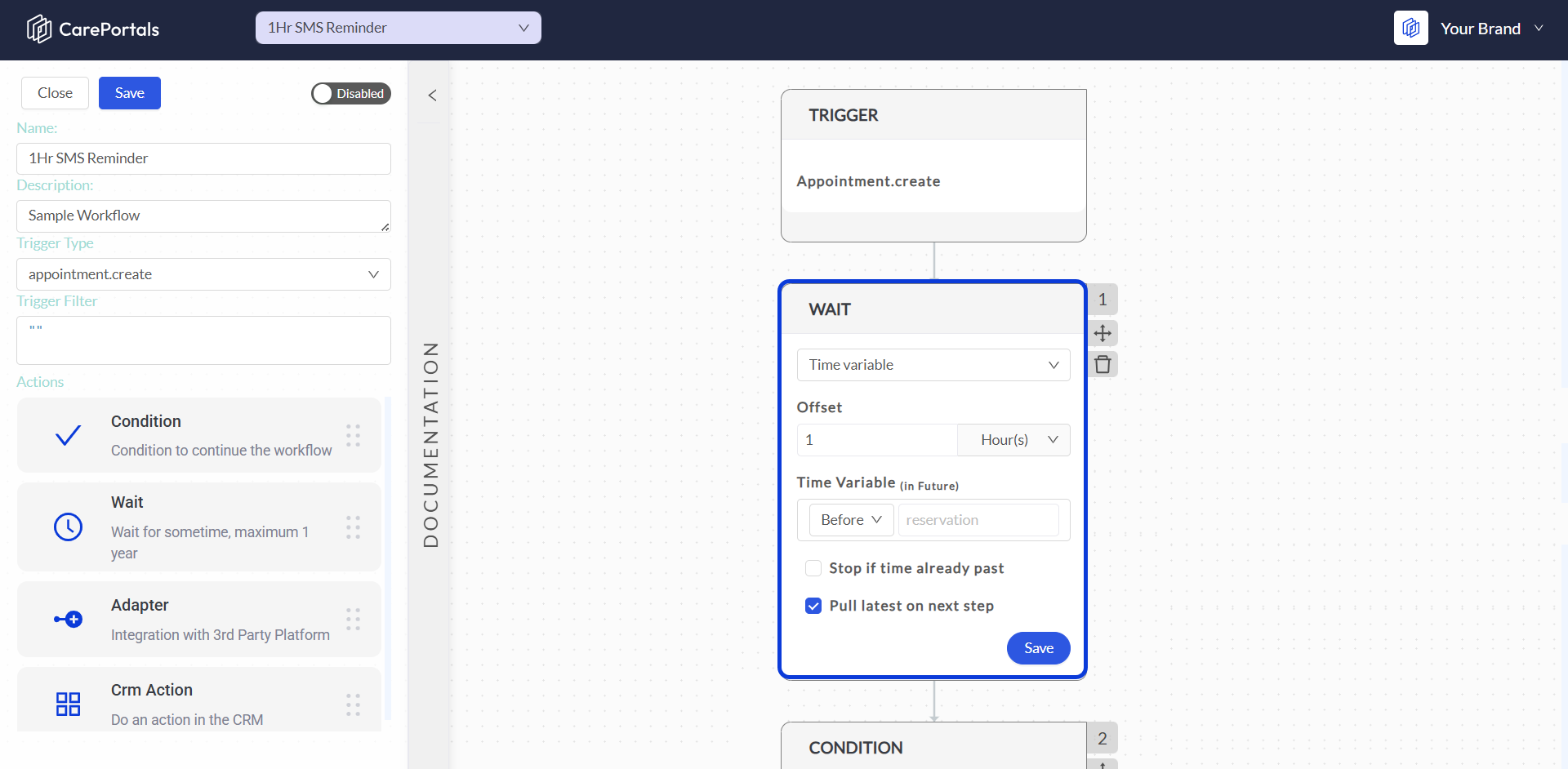
Configuration Options
You can configure the Wait component in one of three ways:
After the Previous Step: Sets a fixed-duration delay that starts after the preceding action is completed.
Time Variable: Pauses the workflow until a time relative to a dynamic date from the workflow's data, such as an appointment time.
Specific Date/Time: Pauses the workflow until a fixed, specific date and time that you choose.
After the Previous Step
Use this option when you need a delay that depends on the action immediately before it in the workflow. For example, this option could be used if you want to send an invoice one hour after an appointment has been completed or canceled. There is one field to complete here:
Delay Time: Enter a number to define how long the workflow should wait. You can set the unit of time to Days, Hours, or Minutes.
Time Variable
This option allows you to set a time based on a dynamic date or time variable from the workflow's data. This is useful when a timed action depends on a specific event, like a scheduled appointment, rather than just the previous step. You can complete the following fields:
Offset: Enter a number to define the time difference from the variable and select a unit from the dropdown menu among Minutes, Hours, or Days.
Time Variable: The Time Variable field allows you to specify a date and time from the workflow's data (the payload) to use as a reference point for the wait period. You can complete this field in two ways:
Leave it empty: If you leave the field empty, the system will automatically default to using the
reservationtime. This is the most common use case and is primarily for workflows related to appointments.Enter a variable key: You can type the key for any date-type variable that exists in the workflow's payload. The date value for the variable must be in the future for the wait to work correctly.
Stop if Time Already Past: Check this box to stop the workflow at this step if the calculated time has already passed. This will prevent any subsequent actions from running.
<aside> 💡
Time Variable Examples
Here are a few scenarios to help you understand how to use the Time Variable field:
Using a Subscription's Next Cycle Date: If a workflow is triggered by
subscription.created, the payload may contain a variable callednextCycleDate. To make the workflow wait until 10 minutes before that date, you would enternextCycleDateinto the Time Variable field, set the offset to 10 mins, and select before from the dropdown.Accessing a Nested Value: If the date variable is nested inside another object in the payload, you can access it using dot notation. For a payload structured like
{ a: { date: "some_date_in_the_future" } }, you would entera.dateinto the field. </aside>
Specific Date/Time
Use this option to pause the workflow until a fixed, specific point in time. It is useful for scheduling actions to occur on a known future date, such as holding a workflow until a product launch. There is one field to complete here:
Date/Time Picker: Select the exact date and time when the workflow should resume.
Pull Latest On Next Step
When a workflow is triggered, it saves the workflow's entire configuration and the associated data at that specific moment. If you use a Wait step, the data from when the workflow was initially triggered could be outdated by the time the workflow resumes.
Checking the Pull Latest On Next Step box ensures that after the wait period is over, the workflow fetches the most current information for the object before proceeding to the next step.
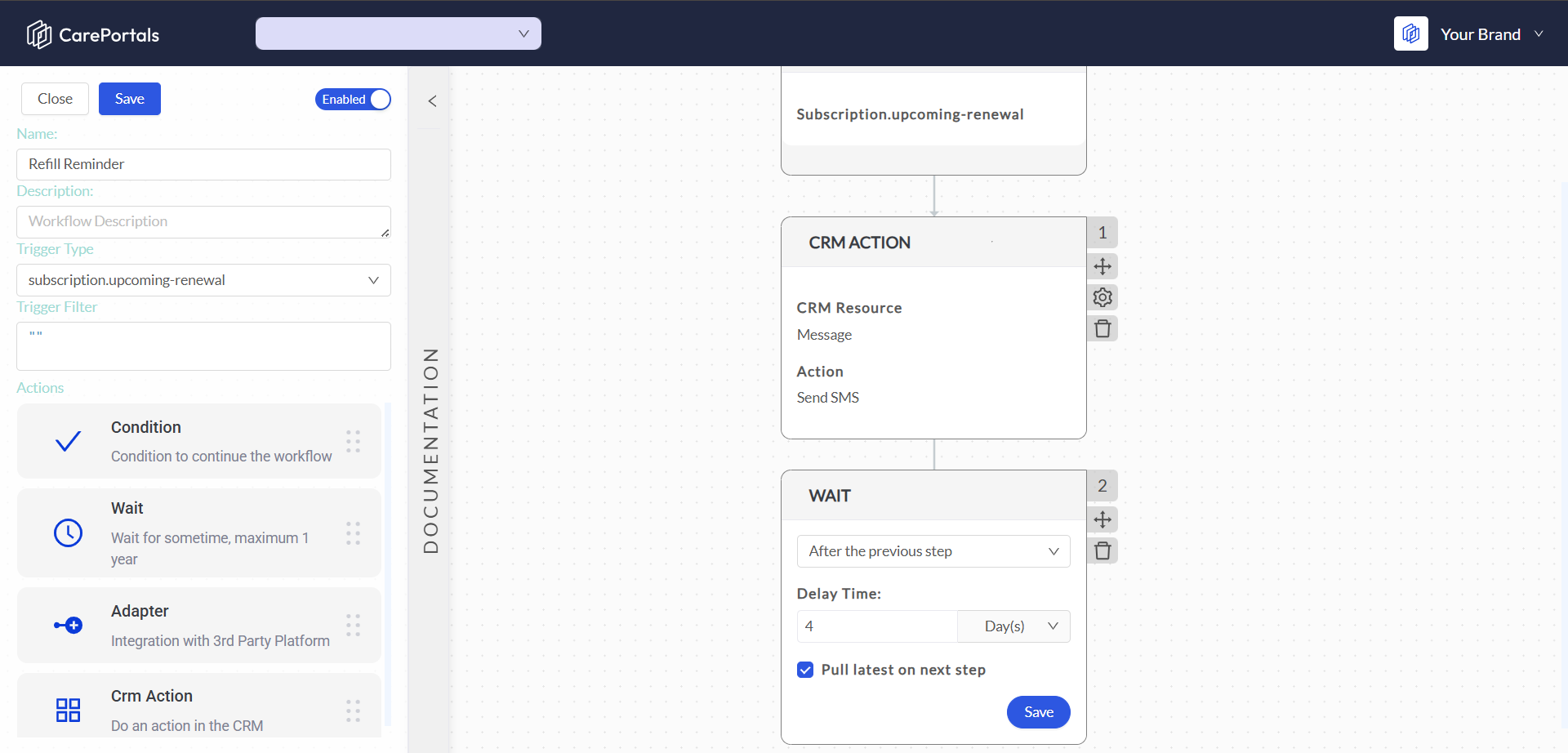
A clear example of this is the refill reminder workflow:
A workflow is triggered by a Subscription Upcoming Renewal event, which by default occurs 7 days before the due date.
A Wait step is added to pause the workflow for four days, with the goal of sending a follow-up reminder three days before the renewal is due.
Crucially, the Pull Latest On Next Step option is used. After the four-day wait, the workflow retrieves the latest subscription data. This allows a subsequent condition to check if the subscription status is still "active" before sending the final reminder email.
This prevents the system from sending a reminder for a subscription that may have been canceled during the four-day wait period. This same logic can be applied to other objects and scenarios to ensure actions are always based on the most up-to-date information available.
Related Articles
Now that you understand what a Wait step does and how you can configure it, you may want to explore the following pages.
How to Use Adapters: Connect your workflow to external services and perform specific actions.
How to Use CRM Actions: Add CRM actions like sending messages or updating records.
Was this helpful?
Still need help? Ask the team