How to Create an Order or Subscription Manually
Sometimes, you will need to create an order or subscription for a patient yourself, directly within the EMR Portal. This is helpful when you are assisting a sales team member or fixing an issue for a patient, like replacing a lost order.
Here’s a quick guide to walk you through creating both one-time orders and new subscriptions.
Create a One-Time Order Manually
While most orders are created automatically when a patient checks out online, you have the possibility to create one manually whenever the need arises.
Follow these steps to create a manual order:
Navigate to the patient's profile page.
Click the Create Order icon, located in the top-right corner of the page, to open the new order form. Alternatively, you can navigate to the patient's Orders tab and click the Create Order button.
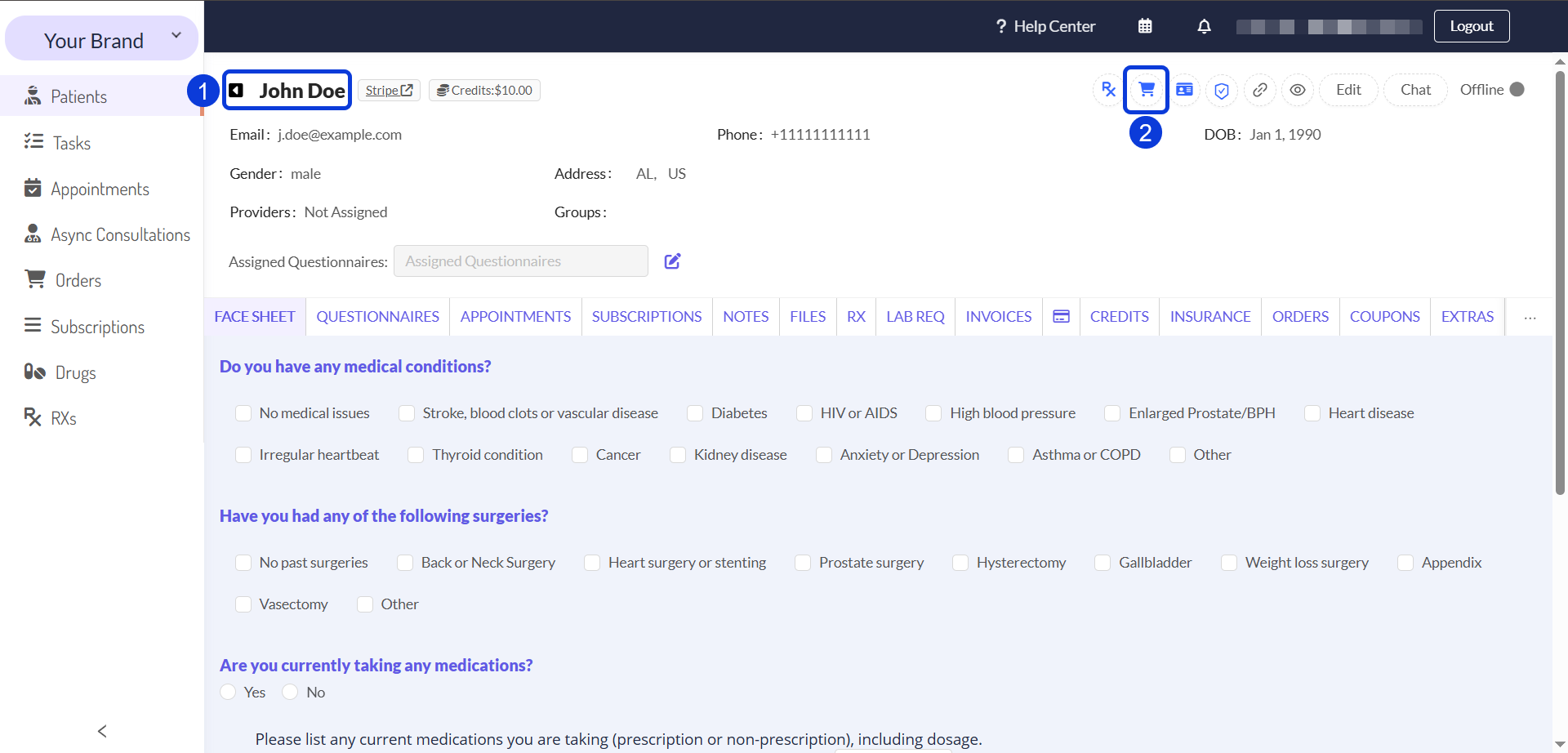
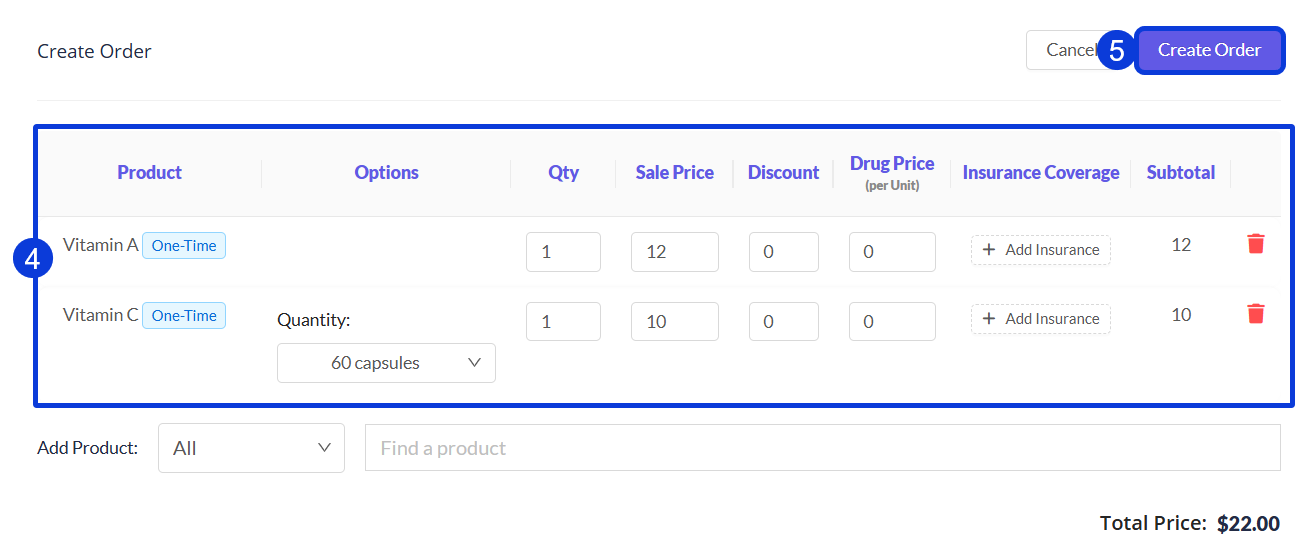
Now, add a Product. This is your chance to confirm all the details are perfect. You can adjust the
Options(e.g., "60 capsules"),Quantity,Sale Price,Discount,Drug Price, andInsurance Coverage.Once you’re happy with the details, click the Create Order button. The new order will immediately appear in the patient's history, ready to move to the next step!
Initiate a Subscription Manually
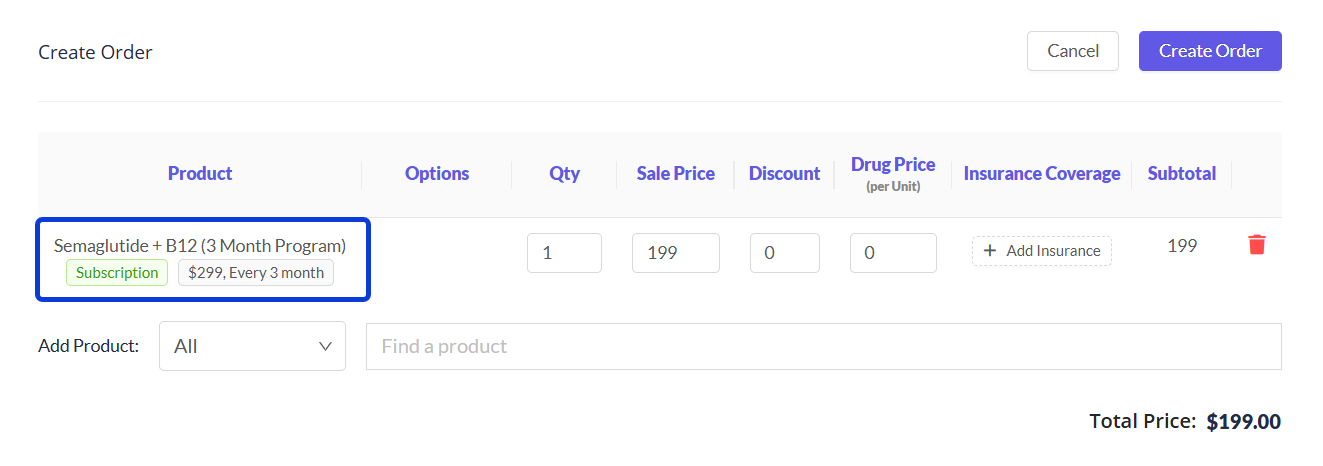
Starting a subscription for a patient is similar to creating a one-time order, but with one important prerequisite: The product you select must be configured for subscriptions.
If you need to set up a product for subscription, or just want to double-check, please follow the instructions in the How to Create a Product (One-Time and Subscription) guide.
Once the product is ready, follow the same steps for creating a one-time order. The only difference is that in step 4, you'll choose the subscription-enabled product.
What happens if I choose a non-subscription product?
No problem! The system is designed to prevent this error. If you accidentally select a product that isn't set up for recurring orders, it will simply create a standard, one-time order instead of a subscription. The patient will receive the product once but will not be subscribed to future shipments.
Next Steps
After learning how to create an order or subscription manually, you can explore these related guides.
How to Manage Patient Subscriptions: Learn how to pause, cancel, or edit the renewal date of a patient's subscription from within the EMR.
How to Add or Deduct Patient Credit: Learn how to add or deduct credits to a patient's profile for future use or debiting their account.
Was this helpful?
Still need help? Ask the team