How to Use CRM Actions
CRM Actions allow you to automate important tasks directly from your workflow. Instead of performing repetitive updates manually, this component can be used to automatically update an order, manage a patient's subscription, auto assign a pharmacy to an order, or send an invoice. This saves you time and reduces the need for manual work.
It’s a great way to make your processes more efficient, reduce the chance of human error, and build advanced automations that handle repetitive tasks for you.
Common Use Cases
CRM Actions allow you to build smart, automated processes. Here are a few examples of what you can achieve:
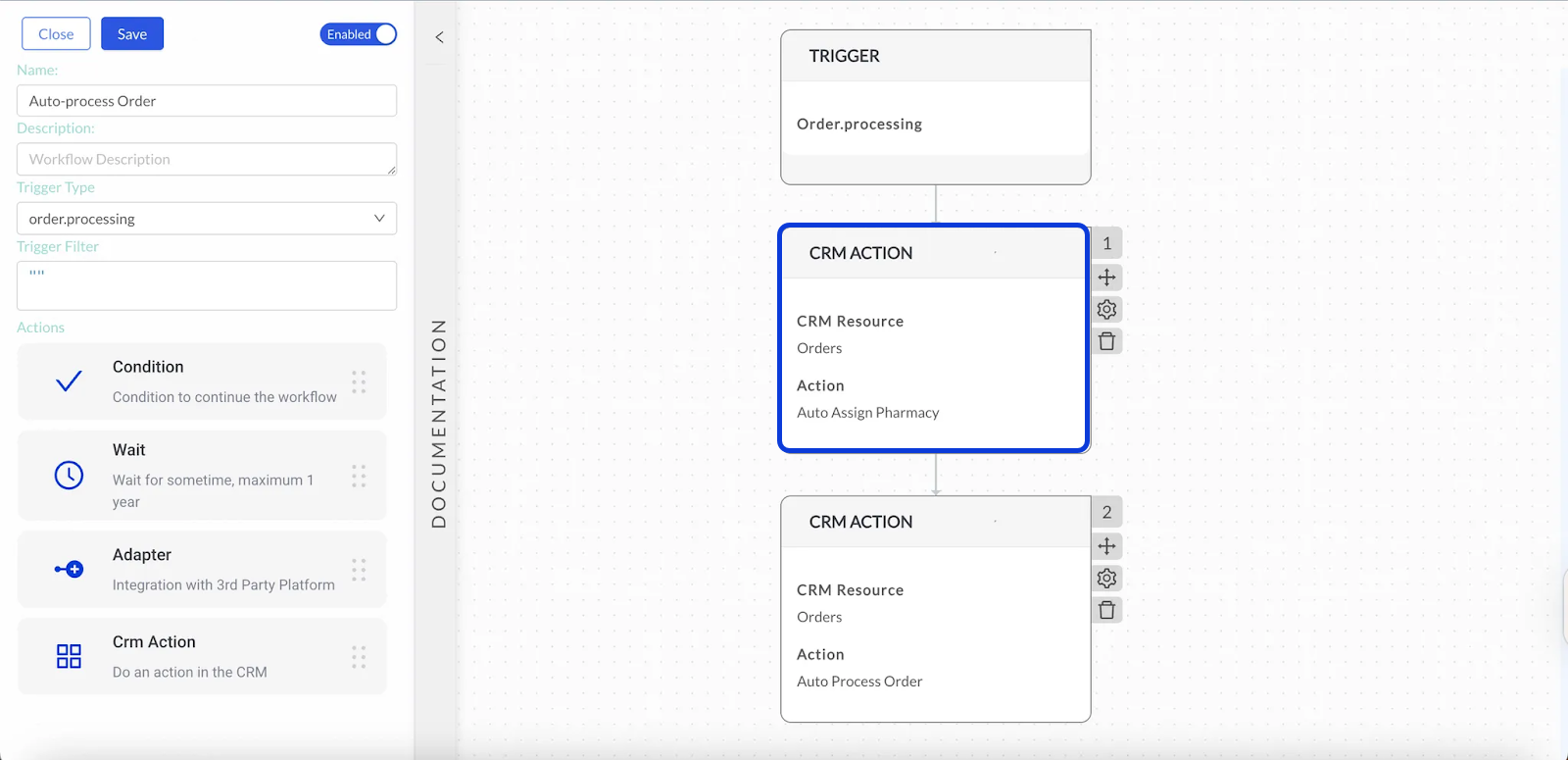
Process or Fulfill Orders: You can create workflows to automatically handle when an order's status changes to
processing. Use a CRM Action to assign it to the correct pharmacy and prepare it for fulfillment.Update or Assign Questionnaires: Automate the assignment of required medical forms. For instance, when a new patient signs up, a CRM Action can automatically assign the required questionnaires to their profile.
Send Automated Email and SMS Communication: This is perfect for automated order updates, booking confirmations, and follow ups.
Get More Information for Your Workflow: Sometimes, a workflow is triggered by an event (like an order being created), but you need more information to continue. You can use a CRM Action like
Find oneon theLeadresource to pull the patient's full lead profile into the workflow. This is useful since it gives you access to more data for later steps.Update a Patient's Profile with Custom Data: You can use a CRM Action to update a lead or patient's profile with custom information. For example, after a workflow confirms a patient has a valid prescription, you can use the
Update Lead by IDaction to add a custom field like"has_prescription": trueto their profile'sextrassection.Update or Create Appointments: Manage patient appointments efficiently. You can use CRM Actions to automatically schedule new appointments or update existing ones with new details.
How to Configure the CRM Action
Configuring the CRM Action component is a sequential process. The selection you make in each field determines the options available in the next, allowing you to build a precise command.
CRM Resource: This is the first dropdown menu. A resource represents a major category or entity within the CRM, such as
Orders,Leads,Customers, orMessages. Think of this as choosing which part of the CRM you want to interact with. Your selection here will filter the list of available actions.Action: Once you select a resource, this second dropdown populates with the specific operations you can perform on that resource. For instance, if you chose the
Leadsresource, the Action list will include options likeUpdate Lead by IDandGet Payment Methods.Action Parameters: After choosing an action, a set of unique fields called parameters will appear. These are the inputs the action needs to run. You must provide the necessary data here, which can be static values, like text or a specific number, or dynamic variables (e.g.,
{{customer.email}}) that pull live data from the workflow's trigger or previous steps.Customization via "Extras": For advanced flexibility, some actions include an Extras section. This feature allows you to add or modify data fields that are not available in the default parameters by providing custom key-value pairs. It gives you precise control for more complex updates.
Automated Order Shipped Confirmation Example
Consider you need to send a confirmation email to a customer as soon as their order is shipped. This keeps your customer informed and reduces support inquiries. To do this, you can create an workflow with the following components:
Trigger: Start the workflow using the
order.shippedtrigger. This event fires automatically whenever an order's status is updated to shipped.CRM Action: Immediately after the trigger, add a CRM Action. This step will be configured to compose and send the confirmation email.
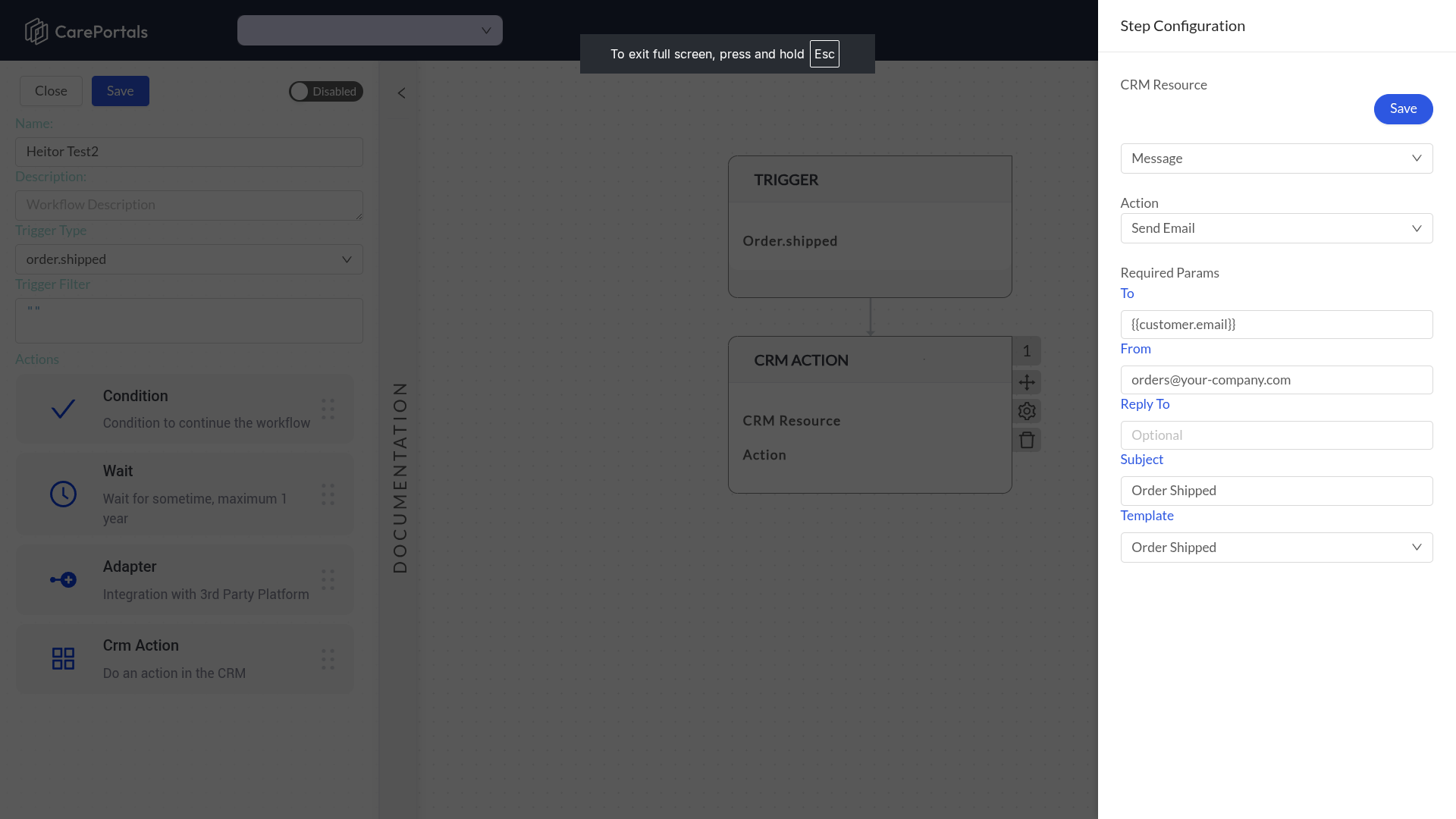
You will configure the CRM Action component with the following settings:
The final configuration in the side panel will look like this:
Related Articles
Now that you understand how to configure a CRM Action in a workflow, you may want to explore the following pages.
How to Use Adapters: Connect your workflow to external services and perform specific actions.
How to Use the Wait Component: Add delays to control when actions happen within a workflow.
How to Use Conditions: Create logic paths by setting rules that split your workflow’s behavior.
Was this helpful?
Still need help? Ask the team