Consultations Overview
The Consultations section helps you manage all patient-submitted forms and documents, such as medical questionnaires or identification files. From here, you can:
Search for asynchronous consultations and files.
Review patients submissions.
Submit requirements on behalf of a patient.
Keep track of all submissions.
Reviewing a Consultation
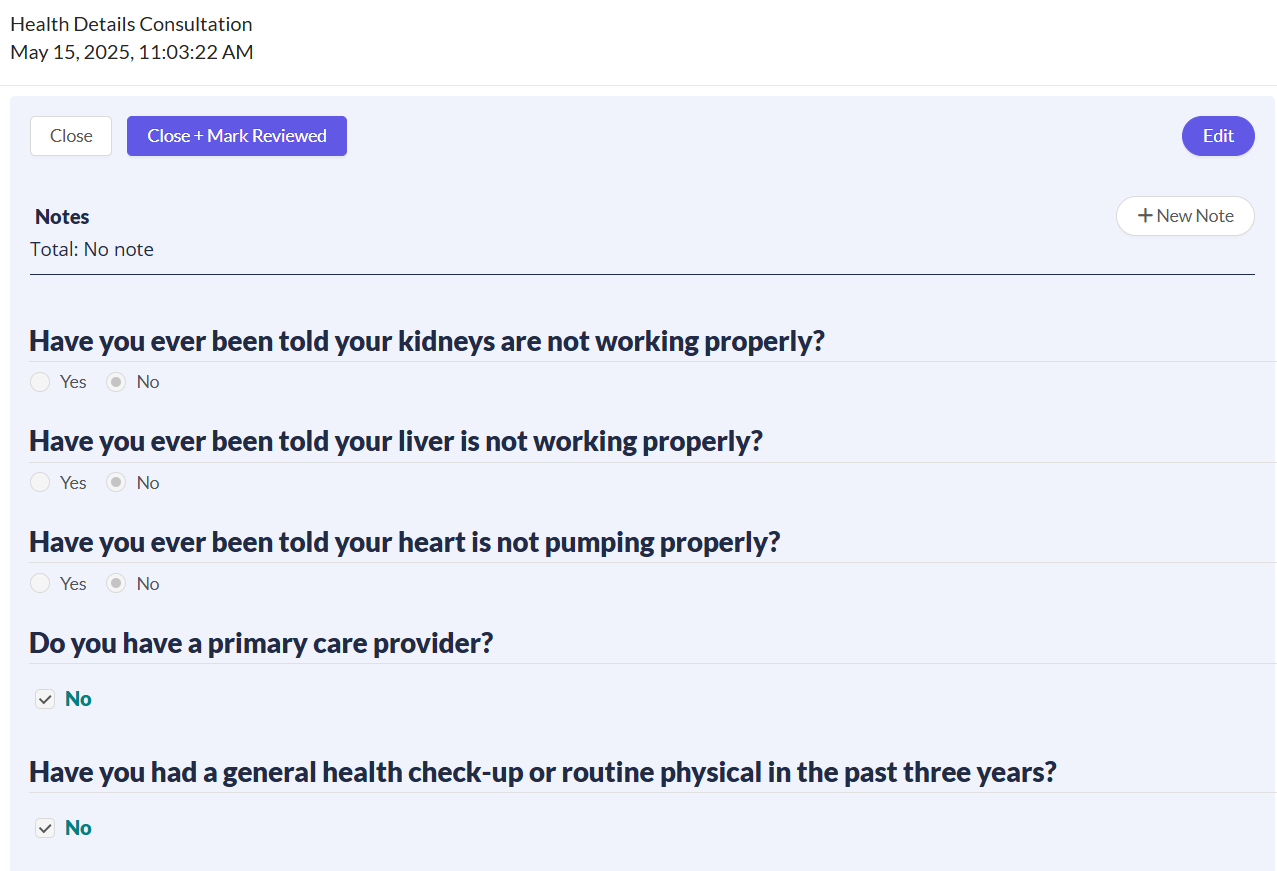
To access, from your EMR portal, navigate to Consultations. To review a specific submission, click on its type in the list. This will open a detailed view where you can see the content, such as a completed questionnaire or an uploaded ID.
As an alternative, you can access consultations by navigating to Patients > Questionnaires. From here, you can view or submit requirements on behalf of a patient. To learn more about this, read the How to Manage Order Requirements (Submit Forms, Upload Files) article.
Common types of submissions include:
Treatment-specific: Intake forms for various treatments like weight loss, hair loss, HRT, anti-aging, and sexual health.
IDs: Patient identification documents.
Selfies: Patient photos for verification.
Consents: Signed consent forms.
Custom Uploads: Any other files uploaded by the patient.
Understanding Statuses
Each consultation has a status that shows its current position in the workflow. The table below explains what each status means:
Searching and Sorting the Consultations List
You can find submissions by sorting the list or using the available filters.
To sort, click any column header.
To filter, use the fields at the top of the list, such as Patient, Type, or Status.
To clear all active filters, click the refresh icon (🔄).
Next Steps
Now that you understand more about Consultations, explore these related guides.
Orders Manager: Get a comprehensive view of all patient orders and the key features available to manage them.
The Patient & Order Journey on CarePortals: Get a high-level overview of the entire order lifecycle, from initial purchase to final shipment.
How to Manage Order Requirements (Submit Forms, Upload Files): Learn how to submit required forms or files on behalf of a patient.
Was this helpful?
Still need help? Ask the team