Twilio Integration Guide
Integrating Twilio with CarePortals enables SMS-based workflows from CarePortals.
You can use Twilio in Workflows to send automated SMS messages based on actions that occur in CarePortals, such as when a patient signs up, places an order, starts a checkout, or triggers another defined workflow event.
Prerequisites
Before you can configure Twilio SMS workflows in the CRM, you must have an active Twilio account with an approved SMS sending number.
To enable the integration, please provide the following details to our support team:
Account SID — for example,
ACxxxxxxxxxxxxxxxxxxxxxxxxxxxxxxxxAuth Token
Twilio Phone Number — the approved number you will use to send SMS messages
Once you provide these details, our team will handle the backend connection for you.
Build a Twilio SMS Workflow
Once our team confirms the integration is active, you can use the Workflow engine to send SMS messages when defined triggers occur in CarePortals.
Follow these steps to configure your workflow:
1. Create a New Workflow or Edit an Existing One
Navigate to the Workflows section in the CRM Portal. You can either create a new workflow or select an existing one where you want to add the Klaviyo event.
2. Define the Trigger
Select the Trigger Type that will initiate the action. For example, you might choose order.shipped to trigger an event whenever a new patient creates an account via the Patient Portal.
3. Add the Adapter Action
In the workflow builder, add a new step and select Adapter.
Adapter Type: Select Twilio from the dropdown menu.
Function: Select sendSMS.
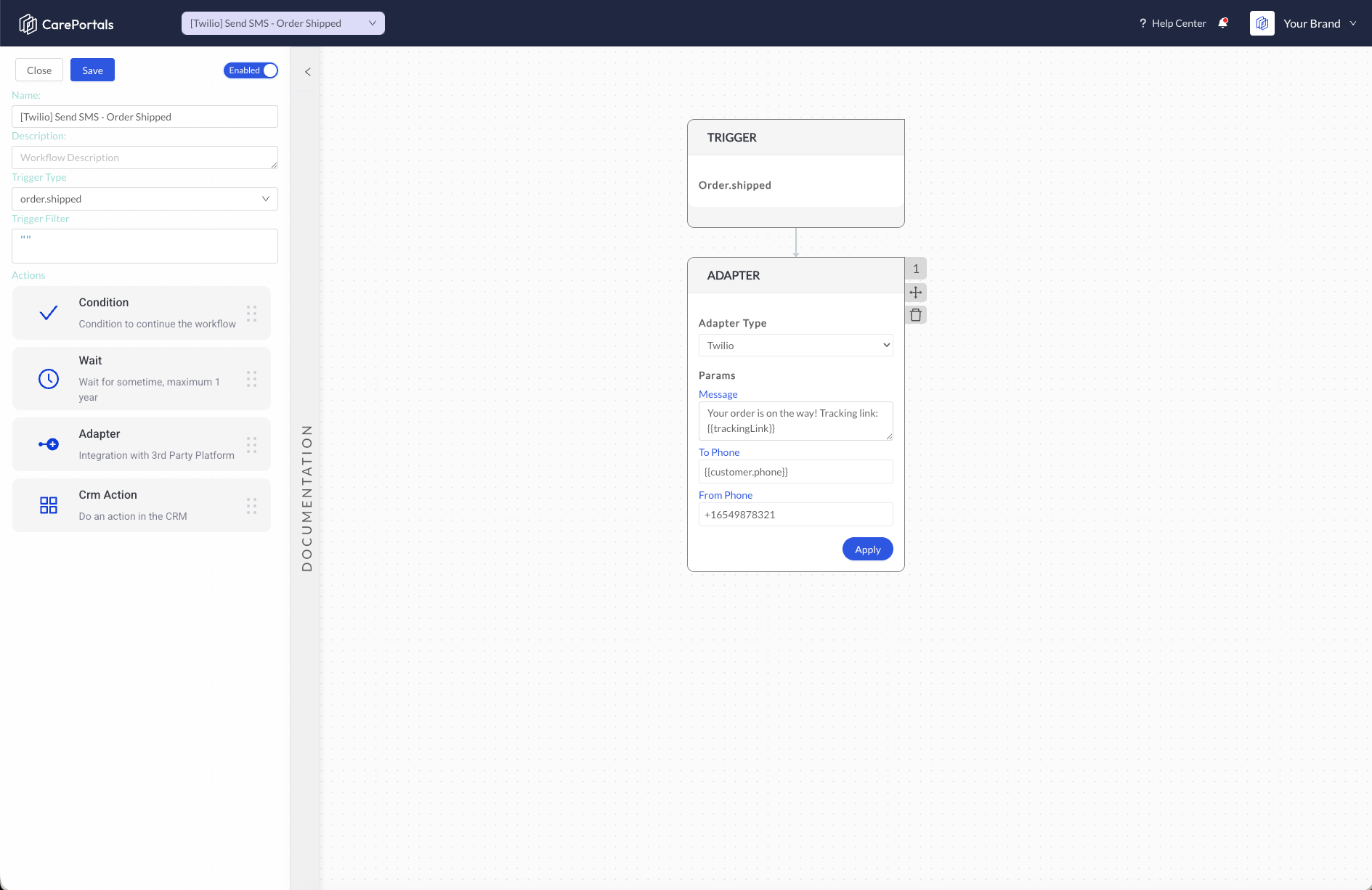
4. Configure Parameters
Configure the SMS fields using the available workflow variables. Typical parameters include:
Message: Enter the SMS message you want to send.
To Phone: Map this to the patient’s phone number using the available variable, such as
{{customer.phone}}.From Phone: Enter your approved Twilio phone number.
You can use dynamic variables from the workflow payload to personalize the message. For example, you may include the patient’s first name, order details, or other available fields based on the selected trigger.
Need to find specific variable names? Refer to the Customer Data Reference guide. It provides a full list of available properties in the payload, based on selected trigger type, such as dob, gender, and defaultAddress, which you can use to map custom data.
5. Test the Workflow
Before using the workflow in production, we recommend testing it with an internal or test patient record.
This helps confirm that:
The SMS sends successfully.
The approved Twilio number is used as the sender.
The recipient phone number is mapped correctly.
The message content appears as expected.
The workflow only sends SMS messages in the intended scenarios.
Important Notes
Clients must use their own approved Twilio sending number.
CarePortals does not register or approve Twilio numbers on behalf of clients. The client is responsible for completing Twilio’s 10DLC/A2P registration and meeting Twilio’s messaging requirements.
SMS messages should only be sent to users who have provided the appropriate consent to receive text messages. Please make sure your signup, checkout, or patient portal flow includes the required consent language before enabling SMS automation.
Need help or have questions? Reach out at support@portals.care, or head to our Support Centre to submit a ticket.
Next Steps
Now that you have set up the Klaviyo integration, you can explore these related guides to further automate your operations.
Workflow Events/Triggers: View the complete list of events available in CarePortals.
The Workflow Automation Engine: Learn more about how triggers, conditions, and actions work together to automate your platform.
Use Case: Add a New Patient to a HubSpot List Workflow: See an example of adding a new patient to a contact/lead list in HubSpot as soon as they create an account on CarePortals.
Was this helpful?
Still need help? Ask the team