How to Retry a Failed Payment
By default, an order is not created until a patient's payment is processed successfully via the standard checkout flow. However, this behavior is configurable, allowing customers to permit orders to be created regardless of the initial payment status.
This scenario is most applicable to manual and subscription refill orders, where the system is often set to create an order even if the payment does not go through on the first attempt. When this occurs, there is a simple method to resolve the payment issue for the existing order without requiring the patient to go through the checkout process again.
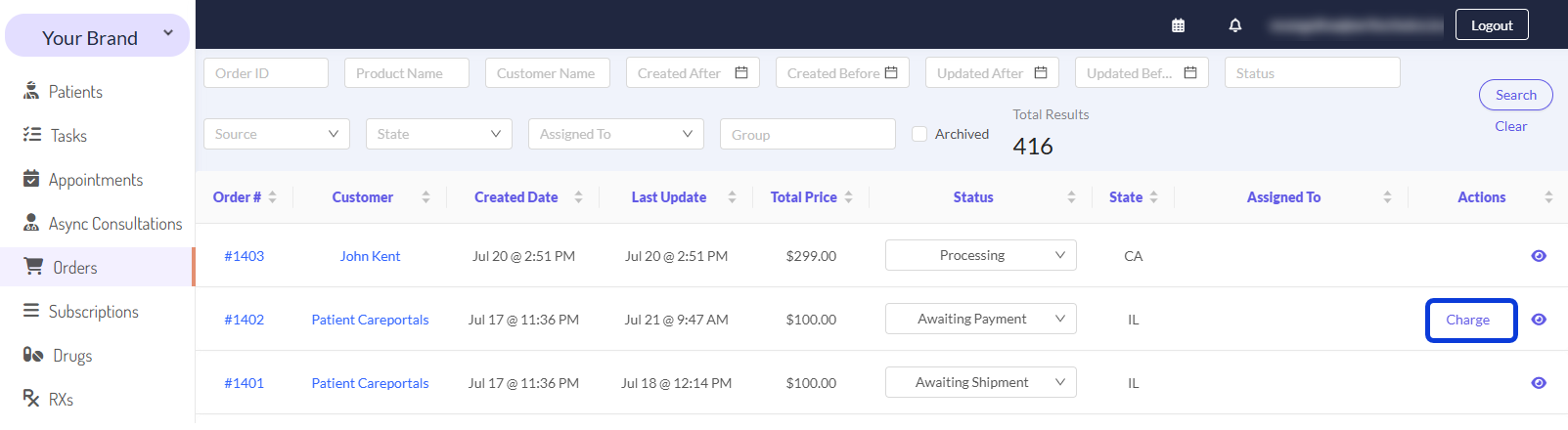
The Charge button, located within the Orders management section of the EMR portal, lets you manually re-attempt a failed payment directly from the order list. This is a quick way to fix payment problems and ensure a smooth experience for your patients.
Note that the Charge action only appears if the order status is either Pending or Awaiting Payment.
Here’s how to retry a failed payment in simple steps:
From the EMR portal, go to Orders.
Locate the order you need to update. Orders with a failed payment often have the Awaiting Payment status.
In the Actions column for that order, click the Charge button. After you click the button, the system will automatically use the patient's saved payment information to try processing the payment again.
If the payment has been processed successfully, the order status will be automatically updated to Processing.
Troubleshooting tips
If you tried using the Charge action, but it didn’t work, you should check the order Extras section for any failure reasons. If you can’t find any failure reasons, try looking into your payment processor dashboard. For more help on Troubleshooting payments, visit the Troubleshooting guide for Payment Processing Issues and Failures.
Next Steps
After learning how to retry a failed payment, explore these related guides to manage the next stages of the order process:
Payment Processing Issues and Failures: Learn what to do if an order's status does not advance after a successful payment.
How to Manage Patient Subscriptions: Learn how to pause, cancel, or edit the renewal date of a patient's subscription from within the EMR portal.
How to Add or Deduct Patient Credit: Learn how to add or deduct credits to a patient's profile for future use or debiting their account.
Was this helpful?
Still need help? Ask the team