Track Stuck Orders
When an order stops progressing, it may be missing a critical piece of data. For this, you can use the built-in Needs Attention filter, a tool designed to quickly find blocked orders that may require manual intervention.
This guide explains the exact logic the filter uses so you can understand why an order is flagged and how to resolve it.
What is the Needs Attention Filter?
This is a pre-built filter that you can use to instantly find orders that are stuck in the production workflow. An order is considered stuck when it cannot move to the next logical step because it's missing a critical piece of information. This filter isolates these specific orders so you can manually review and correct them.
How the Filter Logic Works
The filter automatically flags an order and adds it to the Needs Attention view if it meets either of the following two conditions.
Use Case 1: Stuck in Awaiting Script Status
This rule identifies orders awaiting a visit but lacking the necessary information to create one. The system will filter for orders with the Awaiting Script status and a missing visit's ID.
Use Case 2: Stuck in Awaiting Shipment Status
This rule finds orders that have been processed but cannot be sent to the pharmacy for fulfillment because either a prescription or a drug is missing critical data. The system will filter for orders with status Awaiting Shipment and a missing pharmacy-order ID.
How to Use the Filter
You can find all stuck orders directly from your main Orders page.
Navigate to the Orders management page from the main menu.
In the filter bar at the top, mark the Needs Attention checkbox.
Click the Search button. The list will refresh to show only the orders that match the logic from the Needs Attention filter.
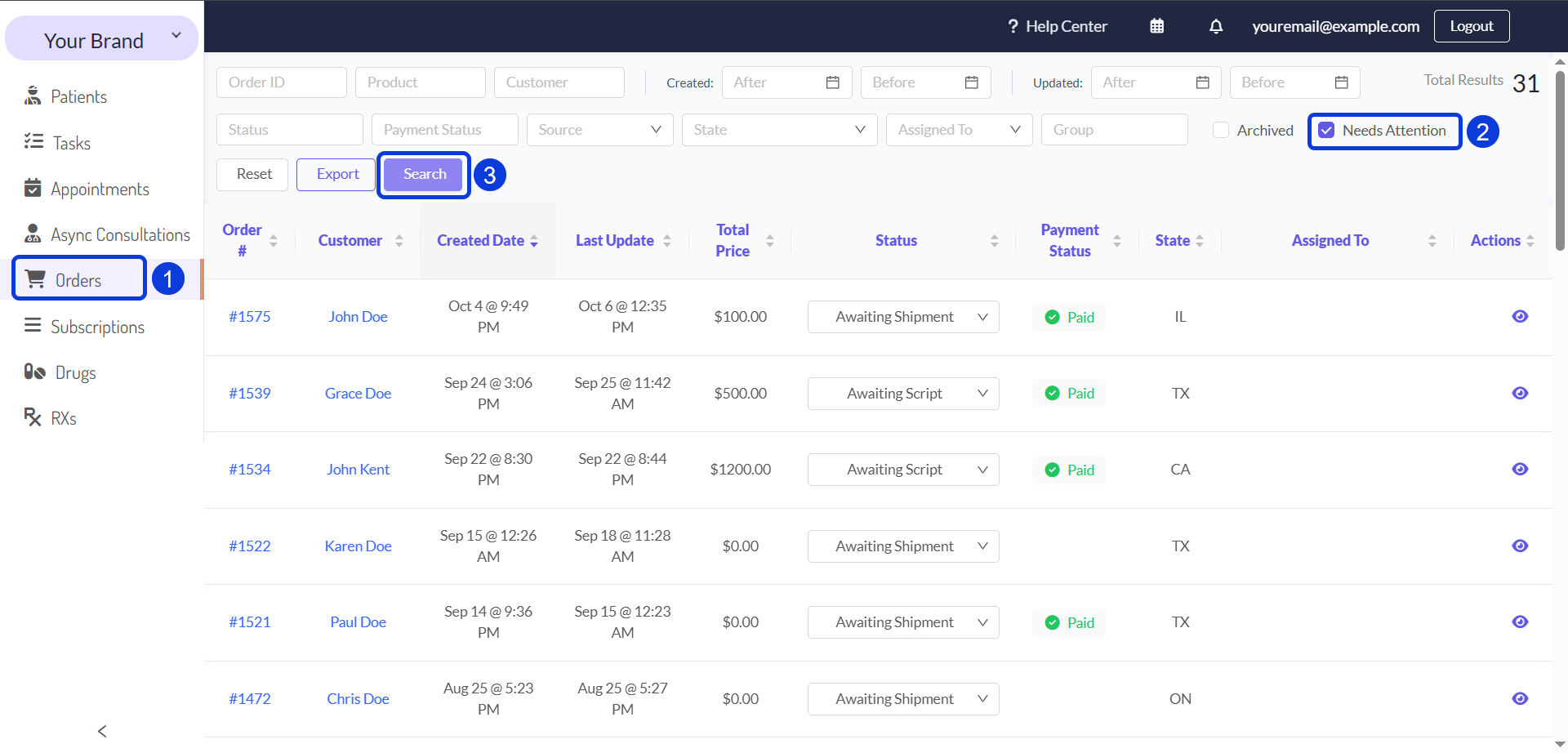
Filters on the EMR and CRM are "sticky." This means that when you apply a filter, it will not be reset automatically. Unless you manually clear them, the filters will remain active, and you will continue to see the same filtered results.
The advantage of this is that you can set up your preferred view. For example, if you want to always see orders that need attention, you can keep the Needs Attention filter on. The next time you visit or refresh the page, your filter will still be active and show you all the orders that need attention.
Next Steps
Now that you have identified the stuck orders, the next step is to diagnose and resolve the specific problem. The guides below provide detailed instructions based on the issue you've identified.
Visit Request Not Sent to Integrated Provider Network: This guide explains how to resolve orders stuck in the Awaiting Script status because the visit request failed to send (indicated by a missing Master ID).
Pharmacy Delays or Integration Errors: Use this guide to troubleshoot orders stuck in the Awaiting Shipment status because the prescription failed to send to the pharmacy (indicated by a missing LifeFile ID).
Missing or Incomplete Order Information: This is a general guide to help you identify other common issues, such as missing pharmacy assignments, that can cause an order to get stuck.
Was this helpful?
Still need help? Ask the team