Incorrect or Incomplete Products Setup
This guide helps you troubleshoot and resolve issues related to the configuration of your drug and product catalog, which can cause visit requests and prescriptions to fail.
How to Identify the Issue
An incorrect product/drug setup can cause several problems. The most common indicators are:
A visit request fails: The order is stuck on Awaiting Script with no
MasterID.An incorrect prescription is generated: The default details for a drug (like quantity or refills) are consistently wrong, leading to confusion or improper prescriptions.
Common Causes and Solutions
The following section outlines the most frequent configuration issues. Each cause includes diagnostic steps and a possible solution.
1. The Drug Is Not Mapped to a Product
This is a critical setup requirement when using an integrated physician group.
MasterID Requirement for Physician Groups
When using an integrated physician group, a MasterID is required to process a prescription. This ID is generated only when a drug is correctly mapped to a product in your catalog. Ensure this mapping is complete to prevent visit requests from failing.
Diagnosis: A visit request fails, leaving the order status as Awaiting Script with a missing
MasterID. If this happens for multiple orders using the same drug, the mapping is the likely cause.
Solution:
Navigate to the Drugs catalog in the admin panel.
Find the drug associated with the order.
Ensure that it is correctly linked to its corresponding Product.
Remember that Products are configured from the CRM portal. To learn how to do it, read the How to Create a Product guide.
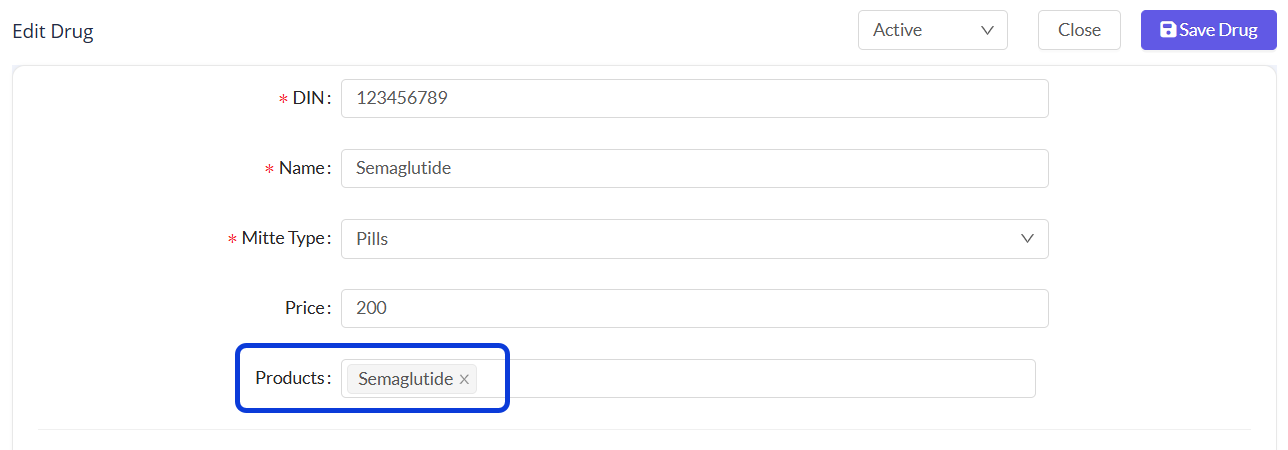
Once the mapping is corrected, re-trigger the visit request by updating the order status. To do this, change the order status to Pending, reload the page, and then immediately set it back to Awaiting Script. This will restart the workflow. If successful, a
MasterIDwill appear in the order details.
2. Incorrect Drug Details
Setting correct defaults in the drug catalog can prevent errors and confusion.
Diagnosis: You’re reviewing prescriptions and notice that physicians are consistently having to manually correct strange or nonsensical default values for quantity or refills.
Solution:
Navigate to the Drugs catalog.
For each drug, review these fields:
Sig (instructions)
Mitte (quantity)
Refills
Extras
Adjust these values according to the prescription or to the information available on your physician group’s dashboard.
Was this helpful?
Still need help? Ask the team