Manage an Order from Start to Finish
As part of the operations team, you play a key role in ensuring every order moves efficiently through the automated journey. While much of the process runs on its own, your oversight keeps things on track, spotting issues early, resolving exceptions, and helping deliver a smooth experience from start to finish.
To monitor an order, find it in the Orders list in the EMR portal and click on the order ID or in the eye icon (under the Actions column) to open its detailed view. Here are the key sections you should check:
Statuses and technical details in the Metadata section may differ from one order to another, depending on the treatment type, physician model, and integrations. The following sections provide common examples.
Status History
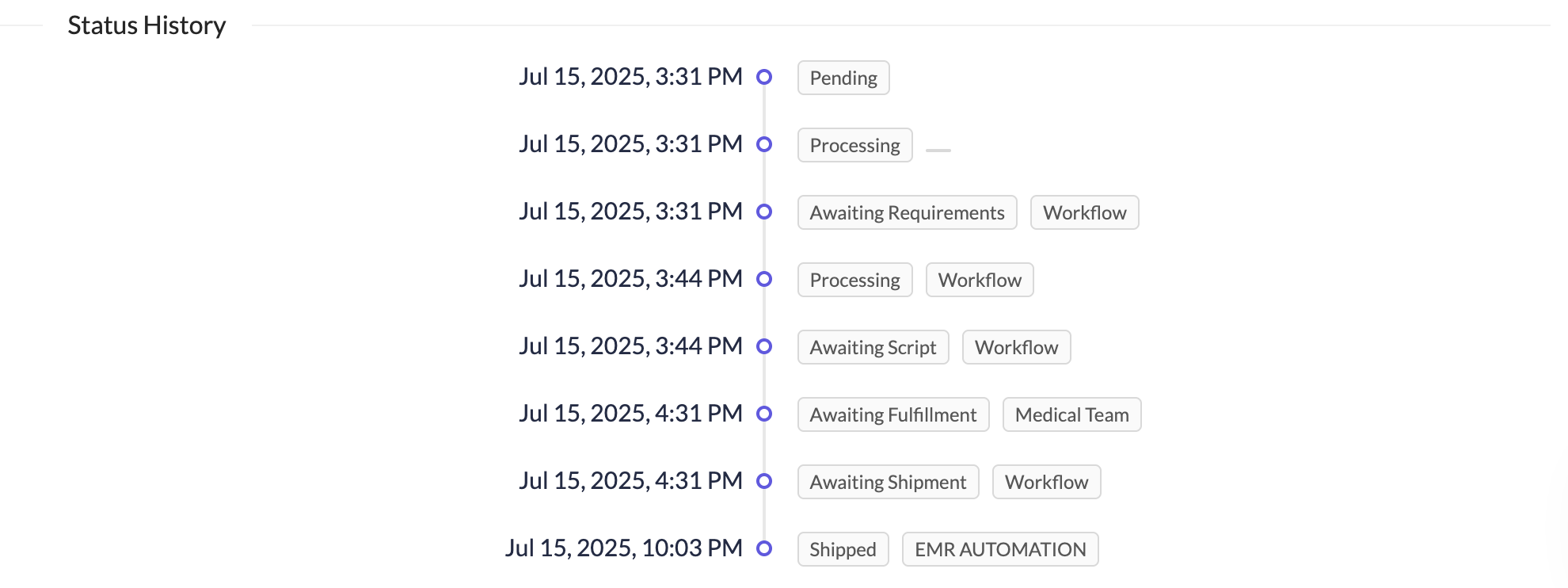
Use the information from this section for monitoring purposes. The Status History shows every status change the order has gone through, who or what made the change, and when it happened. This helps you understand the order's history at a glance.
You can see if a status was changed by:
A user: The name of the team member will appear next to the status change (e.g., "Chris Doe").
An automation: A system name like "Workflow" or "EMR Automation" will appear. Most changes in a typical patient journey should be automated.
Automations are created using CarePortals’ built-in Workflow engine available in the CRM Portal. For more information, refer to The Workflow Automation Engine page.
Here’s an example of how a typical Order journey would look like this in the Status History section:
Key Order Details
To better understand an order’s status and context, several fields are available to guide you. These details help you identify where it came from, how far it has progressed, what the patient ordered, and who is handling fulfillment.
Source
The Source field shows how the order was created (and is also available as a filter in the Orders view). Here’s what each option means:
Order Status and Pharmacy
At the top of each order, you can find key indicators of the order’s current status:
Status: Shows how the order is progressing (e.g., Pending or Processing). This is also a dropdown menu that can be used to manually update the status if needed.
Payment Status: Shows the payment state and amount (e.g., Paid $299.00). This may be blank for $0 orders.
Stripe: A button that links directly to the transaction details in Stripe.
Assigned User/Group: Indicates the pharmacy currently responsible for fulfilling the order. Assignments are automatic based on system rules.

Patient, Subscriptions, Products, and Requirements
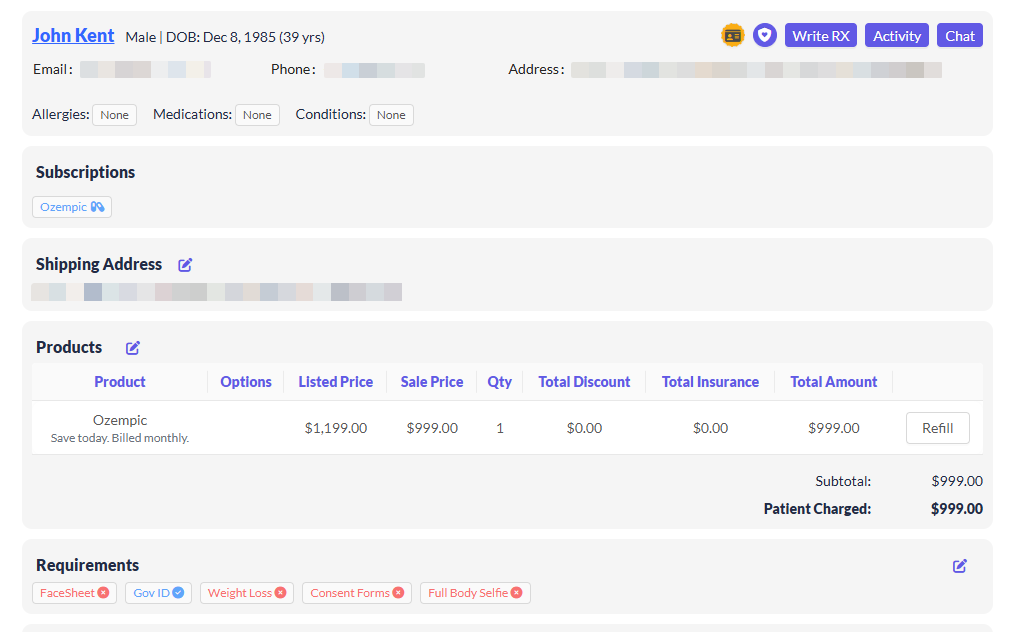
The main body of the order detail view shows the following information:
Patient Snapshot: Includes contact info, shipping address, and any listed allergies or medical conditions.
Subscriptions: Shows the patient’s active subscriptions, if any.
Product List: Lists the items purchased in the order.
Order Requirements: Displays any actions the patient must complete (e.g., uploading ID or filling out a health form) before the order can proceed.
Prescriptions
When you manage an order, you will find a section dedicated to prescriptions. This section is dynamic. Its title and the information it displays will change, depending on whether a prescription has been linked to the order.
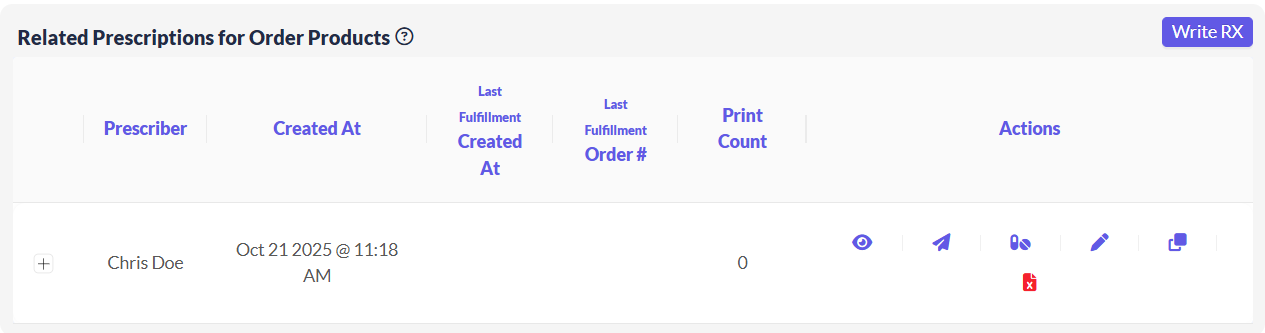
1. Related Prescriptions for Order Products
When an order is still in process and a specific prescription has not yet been linked to it, this section is titled Related Prescriptions for Order Products.
It shows any existing prescriptions on the patient's profile that match the products in the current order, helping your team identify whether a valid prescription is already on file and available to fulfill for this order.
2. Fulfilled Prescriptions
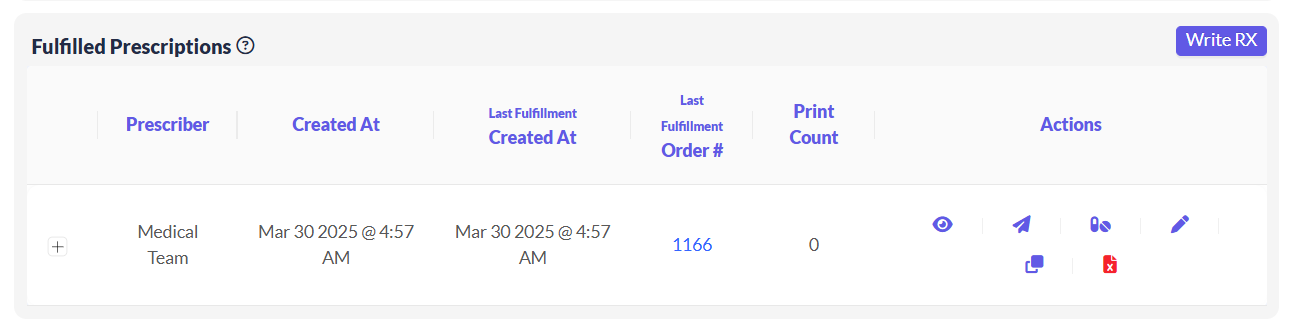
Once you link a specific prescription to this order (the step that often moves an order to Awaiting Shipment), the section's title will change to Fulfilled Prescriptions.
This section serves as a record of the specific prescription attached to this order. The Last Fulfillment Created At and Last Fulfillment Order # columns are populated by this linking action, confirming when the prescription was applied and which order it was applied to.
The Metadata Section
Contains technical IDs that confirm if integrations with third-party systems were successful. This is useful for troubleshooting if an order is stuck. Here are some IDs you might find here:
Order & Payment IDs
Order ID (_id):
68764a1d85f394cb7dc71ebaThis is the primary identifier for the entire order transaction.
Orders have two separate IDs (a long one such as 68764a1d85f394cb7dc71eba and a short one like 13245). The short ID is mainly used in this case.
Payment ID (paymentId):
pi_3RI815GiltQPbBO71nHw26fEThis is the Stripe Payment Intent ID. It is used by the payment processor Stripe to track the status of this specific payment attempt. For example, if thepaymentStatusisrequires_payment_method, it indicates that the payment has not been completed.
Session & User IDs
Beluga Visit ID (belugaVisitId):
68764d1fb1e2a8d021e1056band Master ID (masterId):1531#your_brand@1752583454435These ID track a specific consultation visit, like physicians from Beluga.
If these IDs do not exist, it means the visit was not successfully submitted to Beluga Health. These IDs are generated only after successful visit submission.

Handle Stuck Orders
Most orders move through the journey without issues. A primary tool to find orders that need investigation is the Needs attention filter on the main Orders list. If an order appears there, or you suspect something is wrong (e.g., it has been in the same status for a while), you can investigate using the sections above.
Start with:
Status History: See where/when it last progressed.
Metadata Section: Look for missing or failed IDs (e.g., no
paymentIdor missingbelugaVisitId).Requirements Section: Check if the patient still needs to complete something.
For more detailed guidance, refer to any of these guides:
NOTES
While the order journey is highly automated, you can manually update an order’s status from a dropdown menu if you need to resolve an issue or correct an error . To learn more about what each status means, refer to the Typical Order Lifecycle Summary section of The Patient & Order Journey on CarePortals article.
If you need to resolve an issue or correct an error, you can change an order's status manually. For step-by-step instructions, see our guide How to Create an Order or Subscription Manually.
Next Steps
Now that you have a good handle on managing orders, you might find these related guides helpful.
How to Manage Order Requirements (Submit Forms, Upload Files): A patient can't submit their files? This guide shows how to upload documents or complete questionnaires for them to resolve pending order requirements.
How to Create an Order or Subscription Manually: Learn how to manually create a new one-time order or a recurring subscription for a patient.
Was this helpful?
Still need help? Ask the team