Create a Product (One-Time and Subscription)
Setting up your products is one of the most important first steps in configuring your telehealth brand on CarePortals. The way you define a product here will shape the entire patient journey, from what they see on your website to the requirements they must fulfill after a purchase.
CarePortals gives you the flexibility to sell products in two main ways:
One-Time Purchase: The patient pays once, and the transaction is complete. This is perfect for single-sale items.
Ongoing Subscription: This option unlocks the ability to create a more advanced, multi-stage patient journey. This is ideal for treatment plans that evolve, recurring medication refills, or introductory offers that roll into a standard plan. You can define a series of "phases," each with its own unique pricing, duration, and requirements.
This guide will first walk you through the basic steps to create a new product. Then, it will explain how to configure the different phases for a subscription-based product.
Create a One-Time Product
Within CRM Care Portals, expand the Store Manager options menu.
Select Products. Your full product list will now be displayed.
Click the Create Product button to begin adding a new item.
On the Create Product page, you will find different fields to complete. The only mandatory one is the Label field.
To create a single-purchase type of product, just select One Time as the type option from the dropdown menu.
In the Requirements field, select any prerequisites a patient must complete after buying the product. They are the prerequisites that must be completed before a provider visit can take place. These may include intake forms, consents, selfies, government-issued ID, and other custom uploads.
After filling out the necessary details, click on Save. Your product will now be successfully created and available in the system.
To learn more about how to complete each field from the Product tab, refer to the Product Configuration Fields article.
Configure a Subscription
If you select Subscription as the type for your product, a new section named Subscription Phases will appear. This is where you can build a multi-stage plan for your patients. For each phase you create, you will need to specify the following details:
Sale Price: Add here the price the patient pays for each billing cycle during this specific phase. This allows you to have different price points, such as a lower introductory price in Phase 1 and a standard price in Phase 2.
Cycle Duration: Configure here how long a single cycle of the phase lasts, for example, 3 Months.
No. of Cycles: Enter here how many times the phase's cycle will repeat.
Entering 1 means the phase will run for one cycle and then end (or move to the next phase in case you added more than one).
Entering 0 means the phase is "never ending" and will repeat indefinitely until canceled.
Bill every X cycle(s) of this phase: This sets the payment frequency. If the Cycle Duration is 4 Weeks and you set it to Bill every 1 cycle, the patient is billed once every 4 weeks.
Fulfillment every X cycle(s) of this phase: This sets the fulfillment frequency. If the Cycle Duration is 4 Weeks and you set it to Bill every 3 cycles, the patient is billed once every ~3 months.
Requirement every X cycle(s) of this phase: This sets the intake requirements frequency. If the Cycle Duration is 4 Weeks and you set it to every 1 cycle, the patient is required to complete the intake information once every 4 weeks.
Requirements: You can set phase-specific prerequisites. This means as a patient progresses through the subscription, the requirements can change. For example, Phase 1 can require a Face Sheet, while Phase 2 may require a Weight Loss Check In.
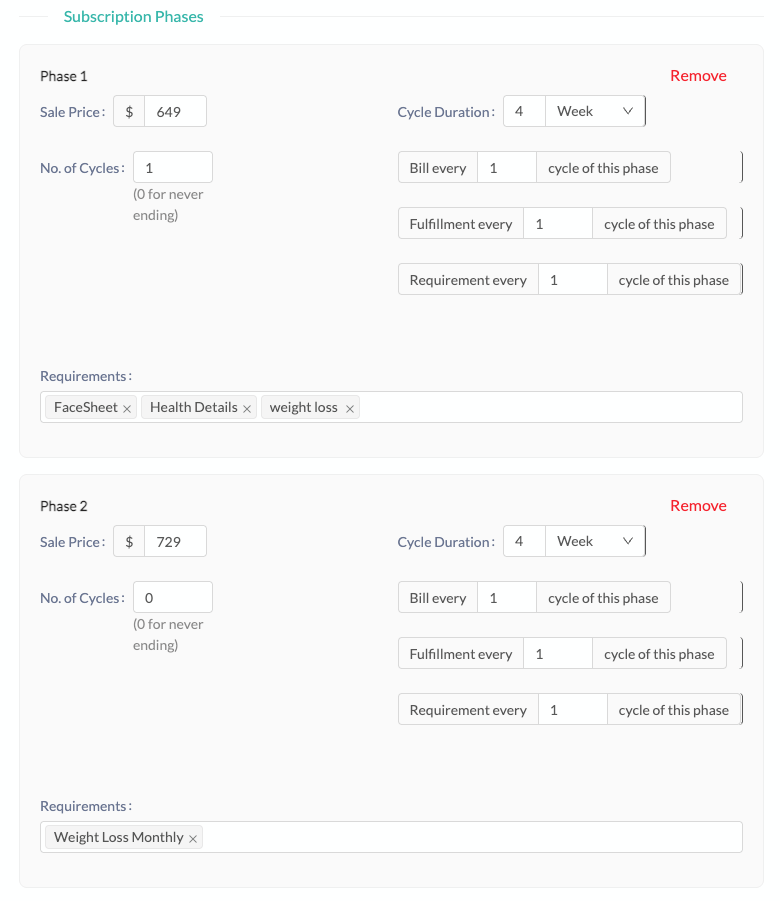
The number of cycles of the last phase has to be a finite number to add a new phase.
You can only include one phase with 0 cycles (a “forever” phase) in your subscription plan. If you try to add more than one, you'll see the warning: "Only one zero cycle phase is allowed."
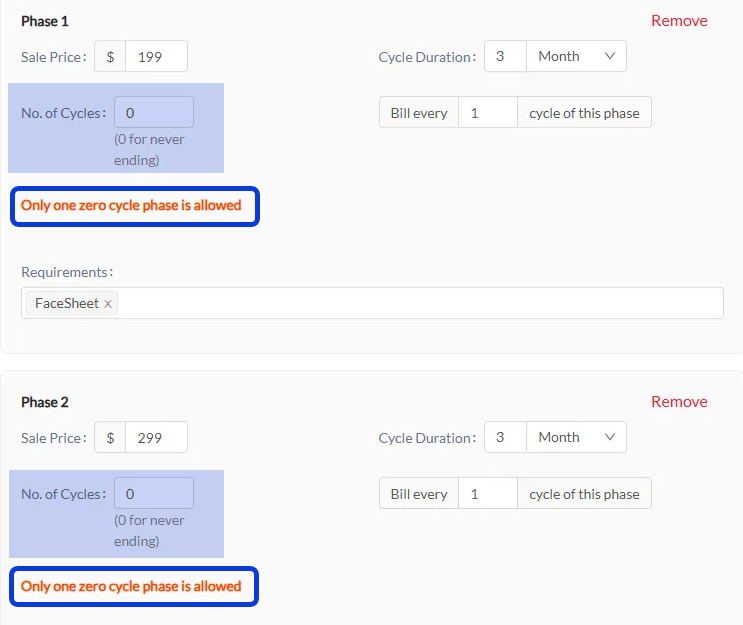
Normally, the 0-cycle phase should be the final phase of the plan, such as in the following example:
Phase 1: 1 cycle
Phase 2: 3 cycles
Phase 3: 0 cycles (recurring/forever)
Product Relations
You can link products to each other to offer variations, suggest complementary items, or recommend alternatives. This helps you create a richer shopping experience for your patients.
There are three types of relations that can be established:
Variant: Represents different versions of the same core item, such as different package sizes or subscription plans.
Consider this example establish a 3-month supply variant for the prescription medication Semaglutide:
Consider this example establish a 3-month supply variant for the prescription medication Semaglutide:
Display Name: 3-Month Supply.
Product: Semaglutide - 3-Month Supply (You would search your product list and select this existing item).
Relation Type: variant.
Upsell: Typically, product variants appear as upgrade options on the related item in the cart. They appear as upgrade options on the related item in the cart.
Consider this example to recommend a complementary Vitamin B12 kit for a patient viewing Semaglutide:
Consider this example to recommend a complementary Vitamin B12 kit for a patient viewing Semaglutide:
Display Name: Add a Vitamin B12 Kit for an energy boost.
Product: Vitamin B12 Injection Kit (You would search your product list and select this existing item).
Relation Type: up-selling.
Cross-Sell: Recommends a different, but often complementary, product to the item added to the cart. This could be a one-time or a subscription plan, and it is displayed as a separate item in the cart.
Consider this example to suggest Metformin as an alternative medication for a patient viewing Semaglutide:
Consider this example to suggest Metformin as an alternative medication for a patient viewing Semaglutide:
Display Name: Explore another weight loss option: Metformin.
Product: Metformin (You would search your product list and select this existing item).
Relation Type: cross-selling.
Next Steps
Now that you’ve learned how to set up your products, we suggest you to continue exploring these guides.
Product Configuration Fields: Find here a complete reference for all fields available when creating or editing a product.
How to Create a Coupon: Learn how to create and configure coupons with specific rules, redemption limits, and targeting to fit your marketing goals.
Was this helpful?
Still need help? Ask the team