Visit Request Not Sent to Integrated Provider Network
This guide helps you troubleshoot and resolve issues when a patient's visit request doesn't successfully send to an integrated physician group partner. Following these steps will help you identify the root cause and get the order back on track.
How to Identify the Issue
A visit request has failed if you see the following combination of indicators on an order. Each one provides a clue that the automated process has failed.
The order status is Awaiting Script: This status means the system has completed the initial steps and is now waiting for a prescription from the physician. However, if the visit was never sent, a prescription can't be created, and the order will likely get stuck here.
The
MasterIDfield in the order details is blank or missing: This is the most definitive indicator. TheMasterIDis the unique confirmation number provided by the physician group's system when they successfully receive a visit request. If this field is blank, it confirms the request was never processed on their end.
There is no confirmation from the physician group's system: This is a general check. You won't find any record of the visit in the partner's portal or receive any related notifications because, from their perspective, the visit doesn't exist yet.
Common Causes and Solutions
The following section outlines the most frequent reasons a visit request may fail. We recommend checking them in order, from patient-facing issues to background system configurations. Each cause includes diagnostic steps and a clear solution to get the order moving again:
1. A Patient Requirement is Incomplete
The automated workflow to send a visit request will not begin until all required patient information has been submitted.
Diagnosis: In the order details, look at the Requirements section. If any item has an (x) next to it, the requirement is incomplete. The order status will likely be Awaiting Requirement.
Solution:
Navigate to the patient's Activity tab to verify if an automated reminder email was sent.
If the patient has not responded, follow up with them directly via the in-platform chat or by email/phone.
Once all requirements are marked with a checkmark (✅), the workflow will resume automatically and send the visit request.
2. The Order is Missing a Pharmacy Assignment
A pharmacy must be assigned to the order before a visit request can be sent.
Diagnosis: In the order details, check the top-right corner for the assigned user dropdown menu. If this field is blank, no pharmacy has been assigned.
Solution:
If the pharmacy field is blank, assign the appropriate pharmacy to the order.
This will unblock both the visit request and the fulfillment workflows, allowing the order to proceed.
3. The Drug Isn't Mapped to a Product Correctly
The system sends drug information to the physician group, but this must be correctly linked to a product for the request to be processed.
Diagnosis: This is a common background configuration issue. If multiple orders with the same drug are failing, the mapping is a likely cause.
Solution:
Navigate to the Drugs catalog in the EMR lateral menu.
Find the drug associated with the order and ensure it is correctly mapped to a Product.
Remember that Products are configured from the CRM portal. To learn how to do it, read the How to Create a Product guide.
If the mapping is missing or incorrect, update it.
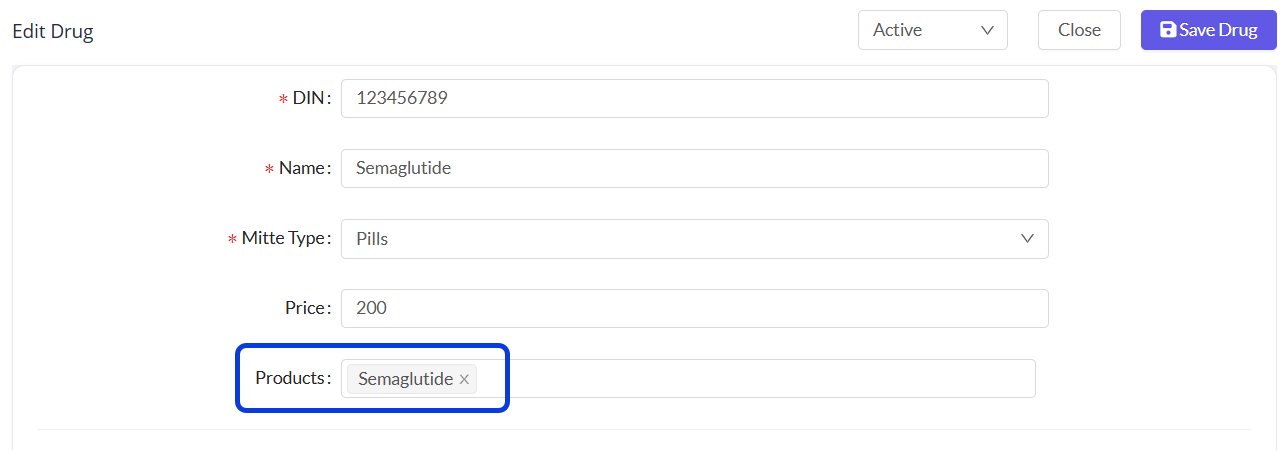
Once the mapping is corrected, you can re-trigger the visit request by updating the order status. To do so, update the status to Pending, reload the page, and set it back to Awaiting Script. This will trigger the workflow to send a new visit request to the physician group.
4. The Patient's Zip/Postal Code is Invalid
Partner APIs may reject visit requests if the patient's postal code is invalid.
Diagnosis: If the other steps don't resolve the issue, an invalid address is a possible cause.
Solution:
Review the patient's shipping address on their profile.
Verify that the zip/postal code is valid and formatted correctly.
If you make a correction, update the patient's profile and re-trigger the order workflow. To do so, update the status to Pending; you will get a success notification. Then, set it back to Awaiting Script.
5. Possible Integration Issue
If you have verified all the steps above and the visit request still fails to generate a Master ID, the integration itself may be experiencing a technical error. In this case, you may need to get support.
Diagnosis: This diagnosis is appropriate after you have confirmed that the issue is not related to incomplete patient requirements, pharmacy assignment, drug mapping, or an invalid postal code.
Solution:
Check previous support tickets for similar issues.
If it appears to be a new problem, submit a support ticket including the Order ID, Patient Name, and a description of the steps you have already taken, with screenshots, if applicable.
If it’s urgent, please use your dedicated Slack channel for the quickest response.
Was this helpful?
Still need help? Ask the team