What to Do when a Pharmacy Product is Out of Stock
When a product becomes unavailable from a pharmacy, it is crucial to manage both existing and future orders to ensure a smooth experience for your patients. This guide outlines the steps to take depending on the situation.
Scenario 1: A Patient's Current Order Is Affected
This situation occurs when a patient has already purchased a product and received a prescription, but the pharmacy runs out of stock before the order is shipped.
In this case, the patient will need an updated prescription for a new medication. To resolve this issue, you will need to request a new prescription from your physician.
Please follow the steps in our guide, How to Resend a Visit Request to a Physician Partner, to begin this process.
After you have resolved the current patient's order, you’ll need to return to this guide and follow the steps in Scenario 2: Preventing Future Orders for an Out-of-Stock Product to make the item unavailable for new purchases.
Scenario 2: Preventing Future Orders for an Out-of-Stock Product
This situation occurs when you need to stop future purchases of a product that is no longer in stock.
If There is No Alternative Pharmacy
If you do not have another pharmacy that can supply the product, you must make the item unavailable for purchase.
First, set the product as out of stock on your DTC telehealth brand's website.
Next, disable the product in CarePortals to stop future checkouts and new subscription orders. To do this, follow these steps:
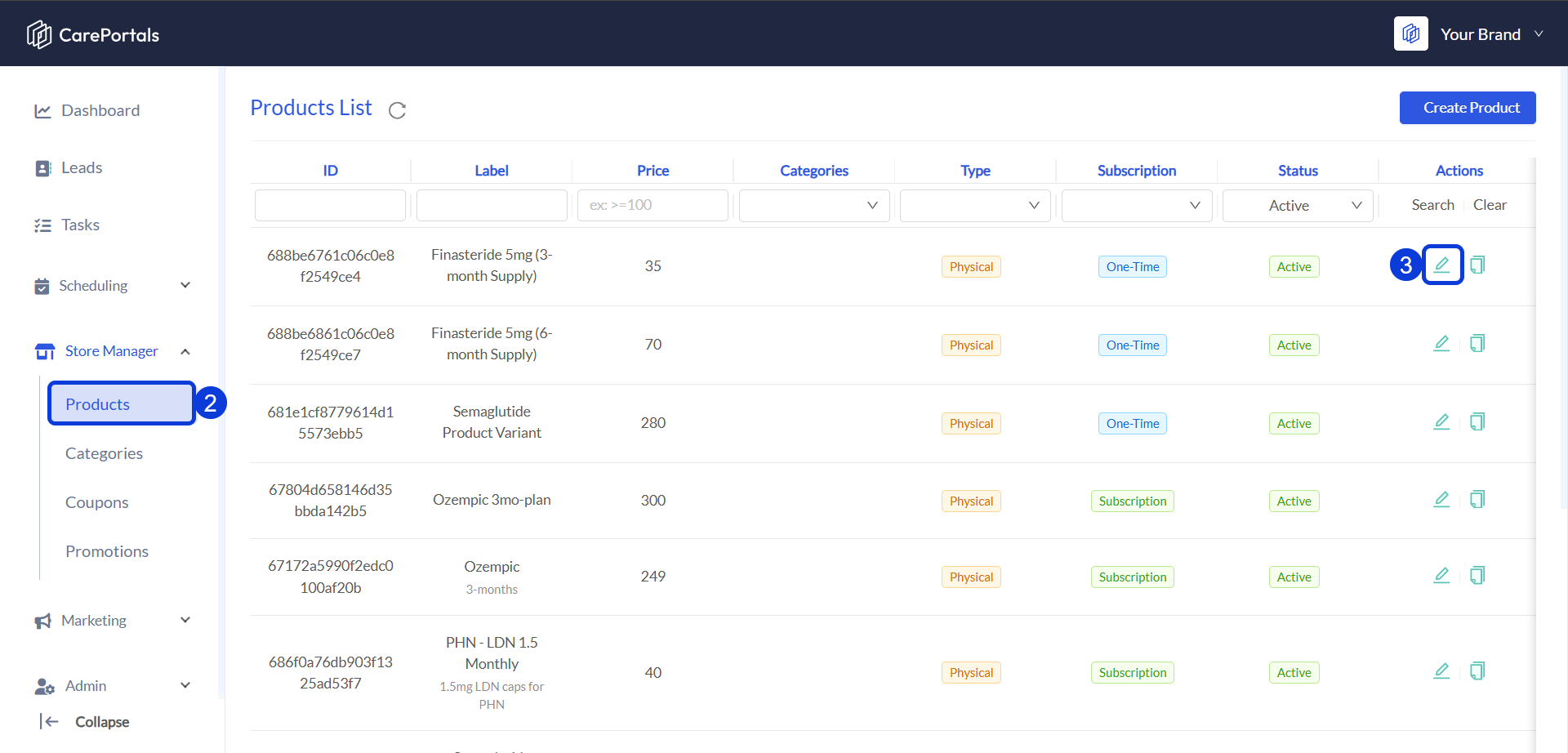
Go to the CRM portal.
From the side menu, go to Store Manager and select Products.
Locate the out-of-stock product in your list and click Edit.
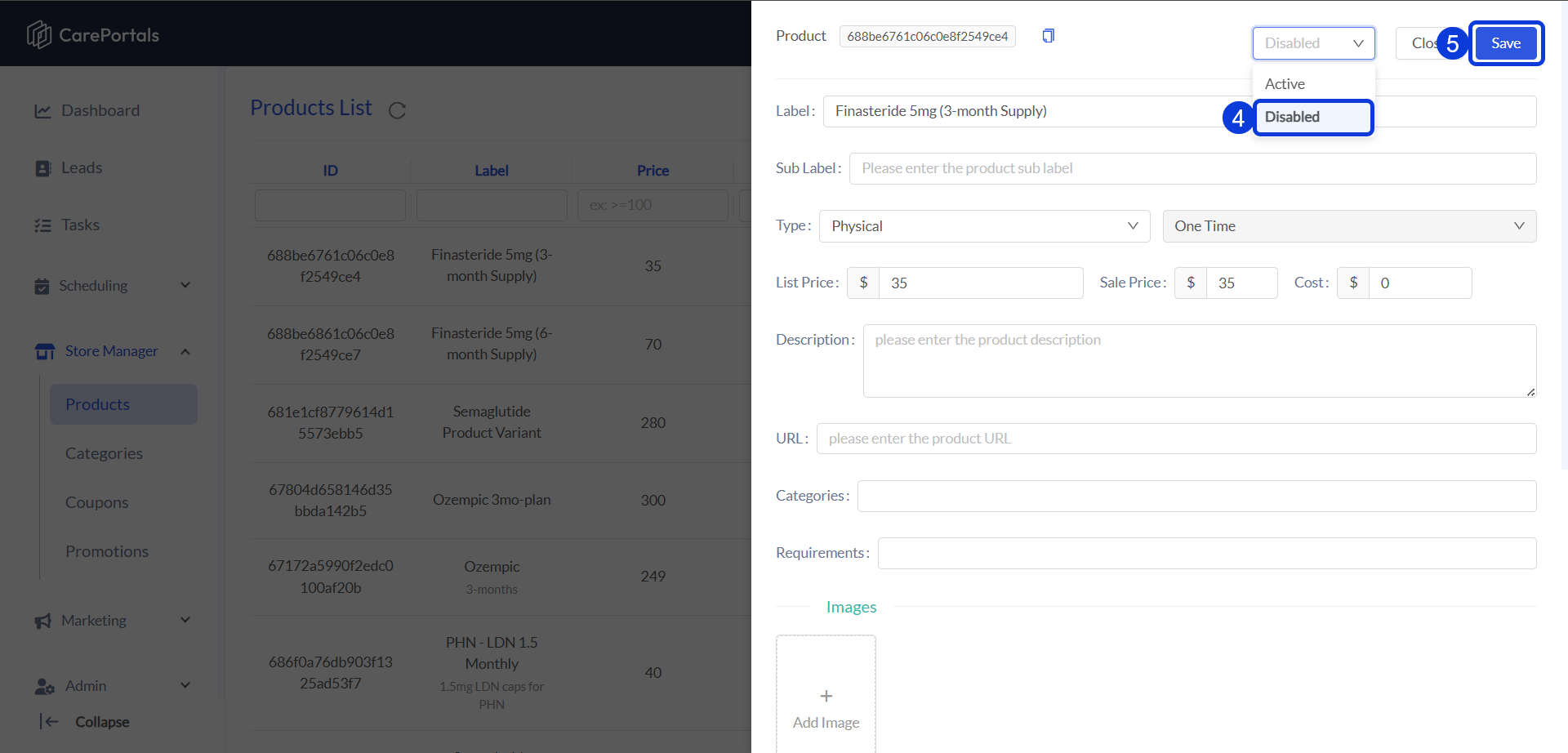
Near the top right of the page, click the dropdown menu that currently says Active and select Disable.
Click Save to apply the changes.
If There is an Alternative Pharmacy
If you have an alternative pharmacy or medication and would like to redirect future orders, please contact the CarePortals team for help. This process requires additional steps from our team to ensure a smooth transition for your patients.
Next Steps
After managing your out-of-stock products, you may find these related articles helpful:
Create a Product: Learn how to add new or alternative items to your product catalog in the Store Manager.
Missing or Incomplete Order Information: This guide helps you troubleshoot orders that are stuck because a patient has not submitted required information, such as a health questionnaire.
Fulfillment Delays or Integration Errors: Find out how to resolve issues with orders that have been sent to a pharmacy but have not yet been shipped.
Was this helpful?
Still need help? Ask the team