How to Reset a Team Member’s Password
If a user forgets their password, an admin user can initiate a password reset for them. To do that:
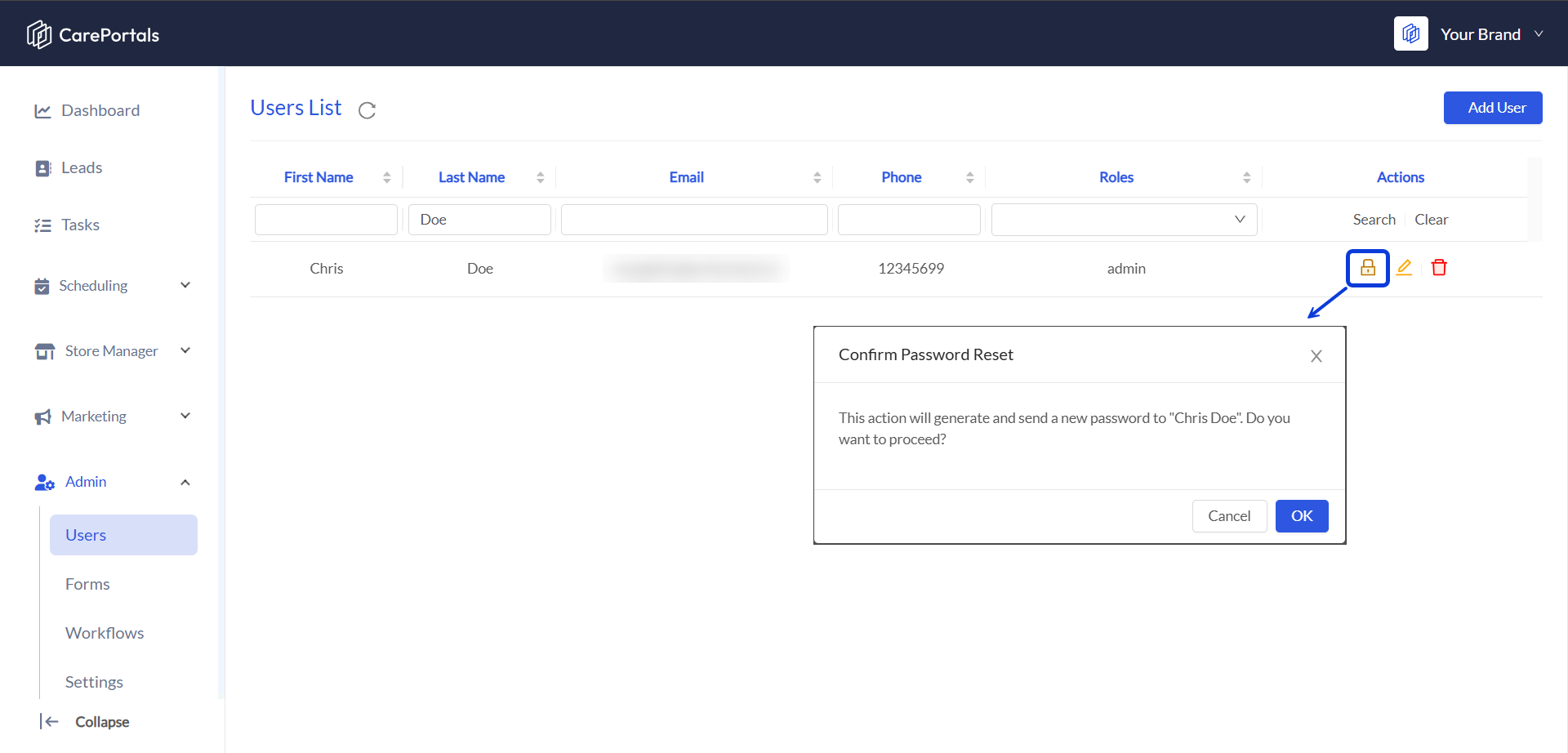
Go to the Admin section in the CRM Portal and select Users.
Locate the user in the list.
In the Actions column, click the lock icon.
The Confirm Password Reset modal will open. Click on OK to proceed.
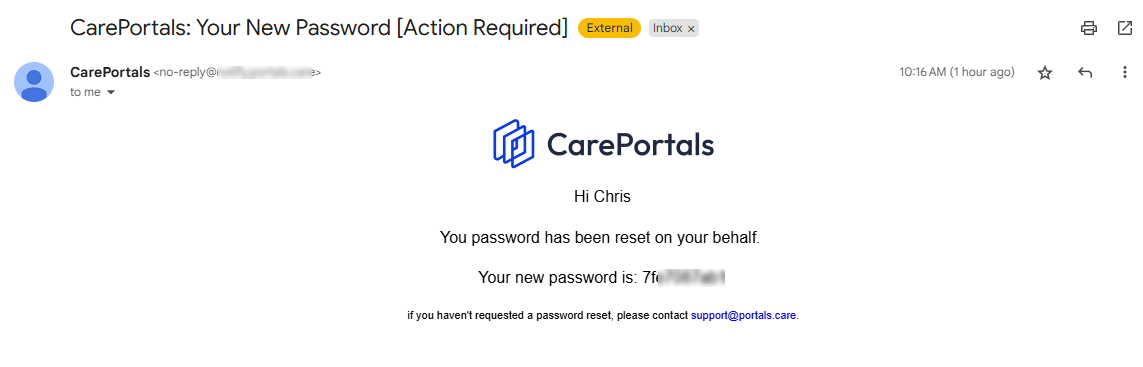
When you reset a user's password, a new one is automatically sent to their email. The user must log in using that new password.
Currently, users cannot change their password themselves after logging in, they must continue using the one provided via email.
Next Steps
Now that you know how to reset a user’s password, here are some key guides for setting up and managing your team members:
User Roles and Permissions: Understand the different user roles and what each can access within the CarePortals platform.
How to Manage Team Members’ Access: Follow a step-by-step guide to invite, manage, and remove team members from your organization.
Was this helpful?
Still need help? Ask the team