Payment Integrations & Supported Methods
This guide outlines the payment gateways supported by the platform, the specific payment methods available to patients, and how to access them during different stages of the patient journey.
Supported Gateways
We currently support integrations with two primary payment processors to handle secure transactions:
Stripe: A comprehensive payment infrastructure platform.
NMI: A standard payment gateway solution.
Stripe: Supported Methods
Through this integration, we support a variety of payment methods that Stripe supports. This comprehensive integration includes:
Credit & Debit Cards (Visa, Mastercard, American Express, etc.)
HSA/FSA Cards (If approved by Stripe)
Digital Wallets (Apple Pay, Google Pay)
Buy Now, Pay Later (Klarna, Affirm)
Method Availability & Device Compatibility
While all methods above are supported, the options you see at checkout may vary by location and device. Stripe automatically determines which methods to display based on these factors.
1. Initial Purchase (Checkout)
You can use any supported payment method for your very first order. Whether you prefer standard credit and debit cards, digital wallets, or buy-now-pay-later options, you are free to choose the method that works best for you at checkout.
2. Future Payments (Billing Settings)
Manage your payment methods for subscription renewals and future orders through the Patient Portal.
How to add or switch your payment method:
Log in to your Patient Portal.
Navigate to the Billing tab. This will securely redirect you to the Stripe billing portal where you can update your details.
Alternatively, you can navigate to a specific Treatment page and click Manage > Manage Auto-refill > Manage Payment Method.
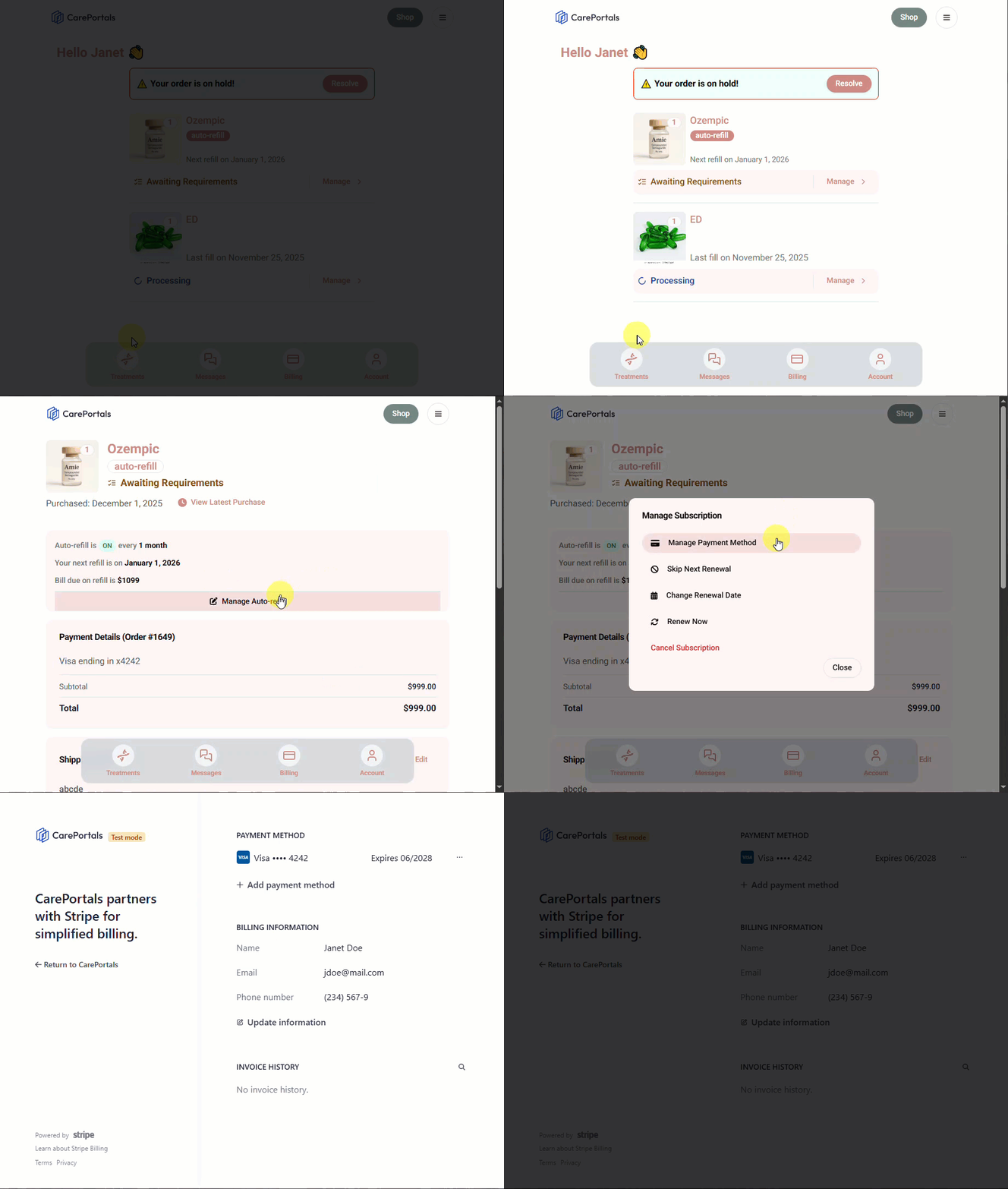
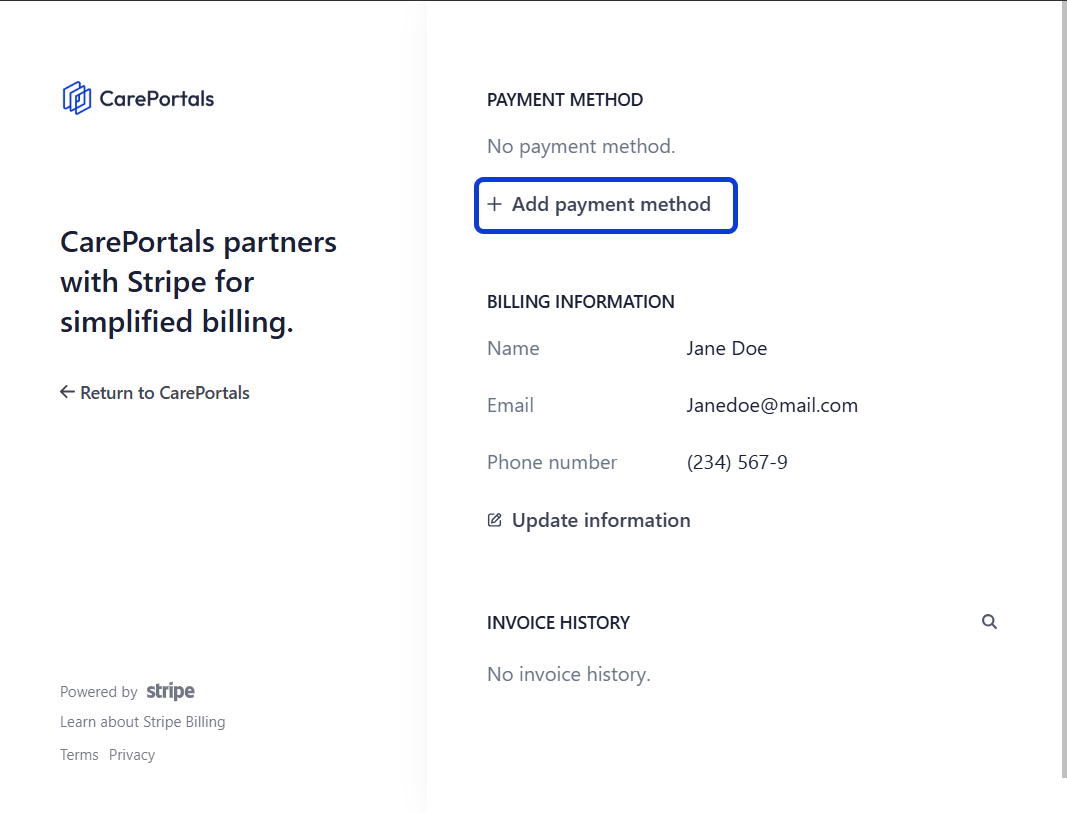
Select Add or Update Payment Method.
⚠️When you add a new payment method, it automatically becomes the default for all future charges. If your default payment method fails, the system may attempt to charge other methods you have saved on file.
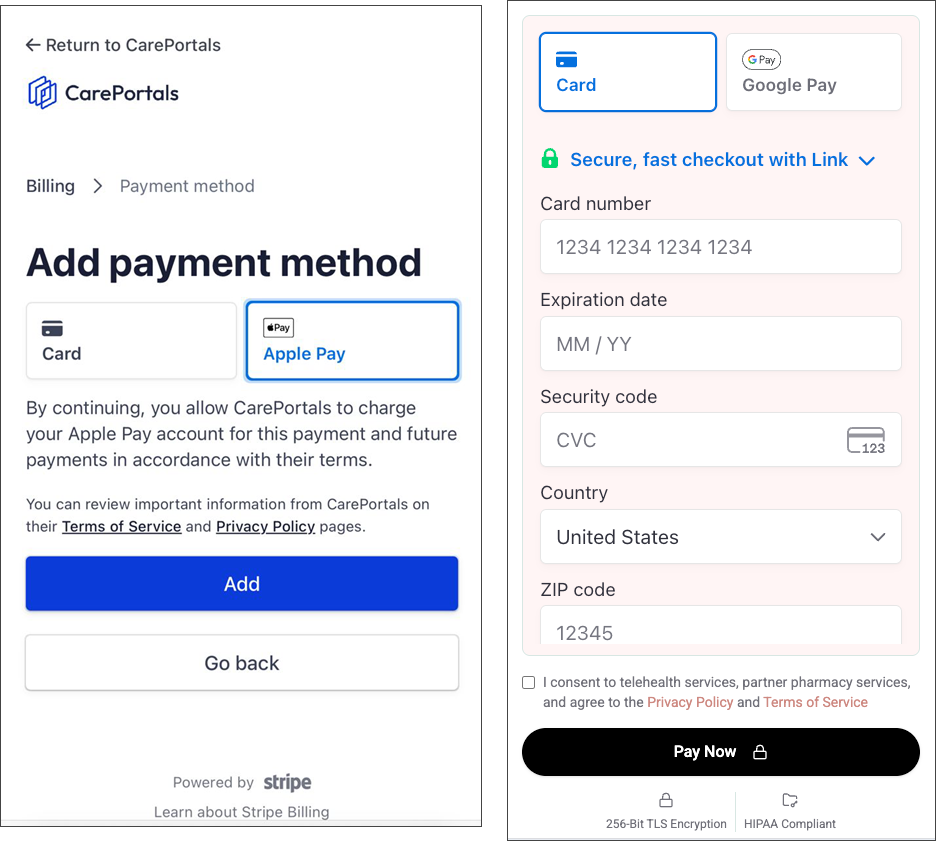
💳 Why don't I see Apple Pay or Google Pay?
Digital wallets are "dynamic." This means Stripe automatically decides whether to display them based on your current location, device, and browser settings.
Apple Pay: Make sure you have a valid card in your device's Wallet. If it doesn't appear, check your region settings or try using Safari as a troubleshooting step.
Google Pay: Make sure you have a card saved to your Google account. If missing, try using Chrome.
Next Steps
Now that you understand the available payment methods and how they appear to your patients, you may explore the following guides:
Payment Processing Issues and Failures: Troubleshoot and resolve issues related to failed or unprocessed payments for an order
How to Add or Deduct Patient Credit: Managing credits is a useful way to handle refunds, correct billing errors, or offer a gesture of goodwill to resolve an issue. Learn how to add credit to a patient's profile for future use or debit from their account.
Was this helpful?
Still need help? Ask the team