How to Manage Failed Workflow Runs
Workflows may fail due to configuration issues or external problems. When an event triggers a workflow, it creates a single instance called a run. The Runs page in the CRM portal serves as your troubleshooting hub for finding and managing failed workflow runs.
Now, you can get detailed error messages and tools to diagnose and resolve issues effectively. This guide explains how to access Runs in the CRM to manage failed workflow runs.
Access and Understand the Failed Runs List
To troubleshoot workflow issues, start by reviewing the list of failed runs.
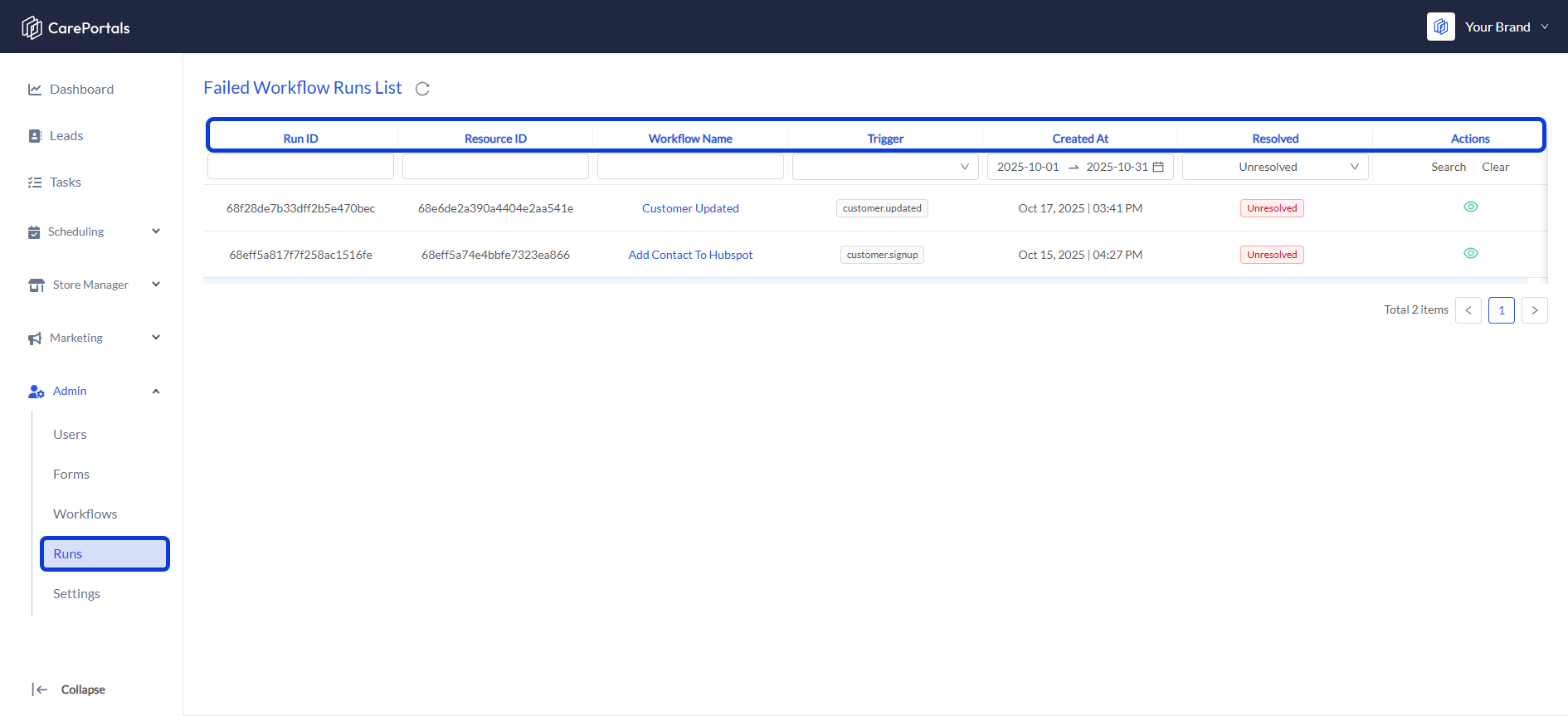
From the CRM portal, navigate to Admin > Runs in the main navigation menu.
A list of all workflow instances that have failed will be displayed. Successful runs will not appear on this page.
The list contains several columns to help you identify each failed run:
Diagnose a Failed Workflow Run
Once you have located a failed run, the next step is to identify the cause of failure.
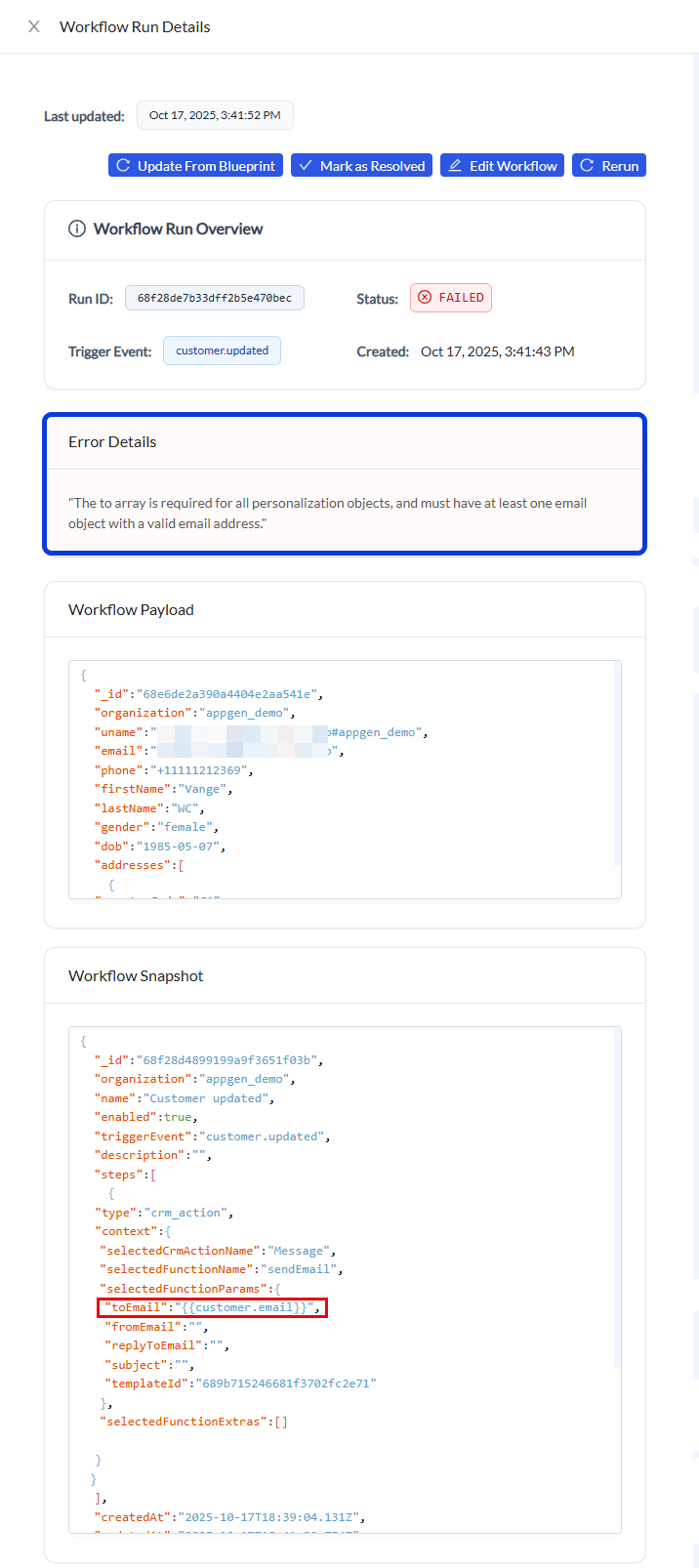
In the Actions column for the failed run you want to investigate, click Details (the eye icon).
The Workflow Run Details page will open, providing all the information you need to diagnose the problem. This page is divided into the following sections:
Resolve a Failed Workflow Run
After diagnosing the cause of a failure, you can take several actions directly from the Workflow Run Details page. The appropriate action depends on the nature of the issue.
Common Scenarios
A workflow configuration issue: A step in the workflow itself is set up incorrectly.
An external or data issue: The workflow blueprint is correct, but the run failed due to invalid or missing data in the payload such as a missing patient birthdate or invalid phone number.
External issue: The workflow failed due to a temporary problem with an external service. For example, a third-party API timeout or server outage.
Available Actions
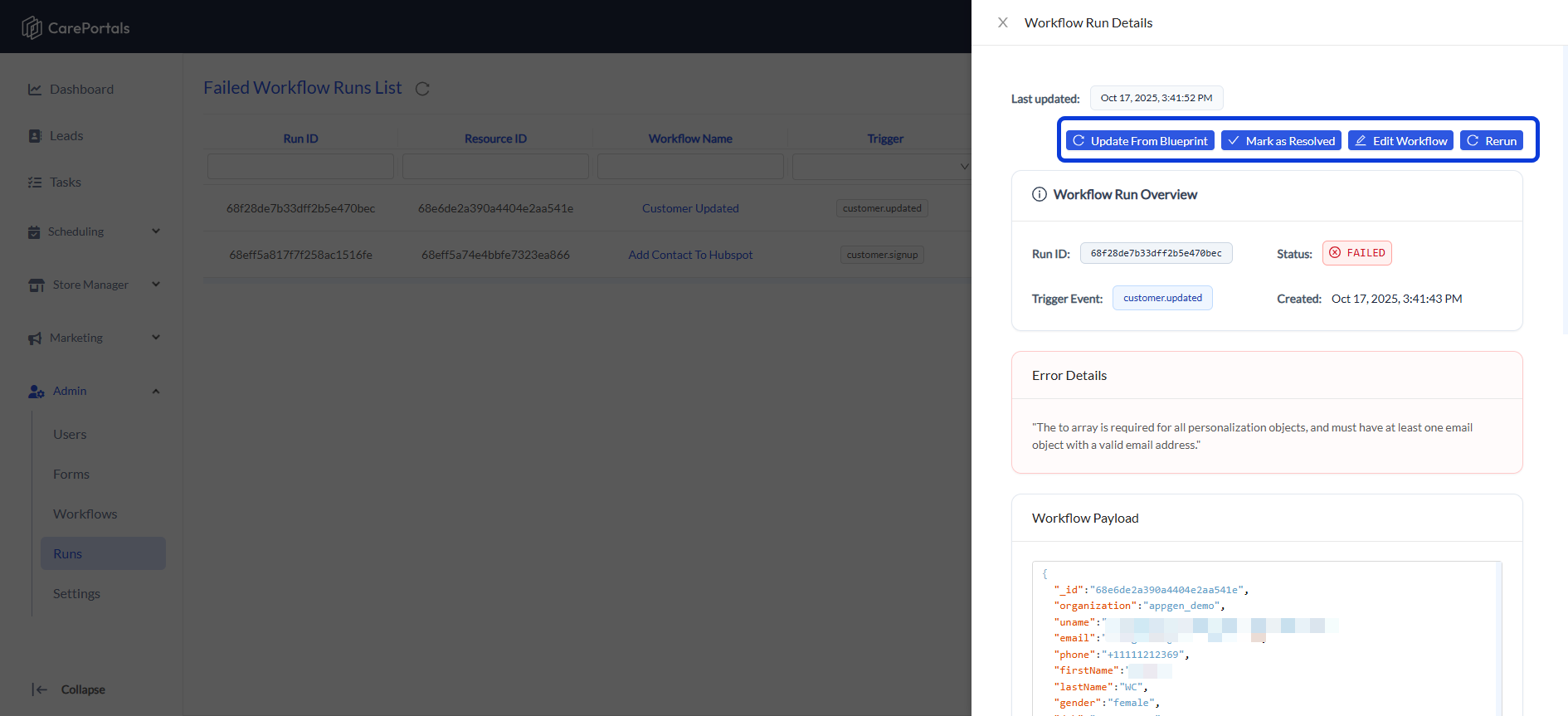
Use the actions below to address the issue, whether you need to fix the blueprint, apply updates, rerun the workflow, or mark it as handled.
Edit Workflow: Use this to go to the workflow editor and fix a problem in the main workflow blueprint (Scenario 1).
Update from Blueprint: After editing the blueprint, use this to apply your new changes to this specific failed run.
Rerun: Use this to try running the workflow again, starting from the step that failed. This is useful after you fix a configuration issue or after an external data issue has been corrected.
Mark as Resolved: Use this to update the run's status for your team's tracking. This shows that you have investigated and handled the failure, even if you did not need to rerun it.
Related Articles
Now that you know how to manage and resolve failed workflow runs, you can explore these related guides.
Available CRM Actions: Consult this reference page for all the available CRM Resources and the specific actions you can perform with each one.
How to Send a Webhook Using Workflows: Learn how to use the Workflow Automation Engine to send real-time updates to external systems.
Was this helpful?
Still need help? Ask the team