Send a Slack Notification for New Patient Messages Workflow
This guide explains how to build a workflow that automates two key actions when a patient sends a new message:
Forward the message to the integrated physician group for a clinical response.
Send a real-time notification to an internal Slack channel to alert your support team.
This workflow improves both clinical and operational response times. The medical team receives the message promptly, and your support team is kept aware of the interaction without needing to constantly monitor the EMR portal.
Before You Start
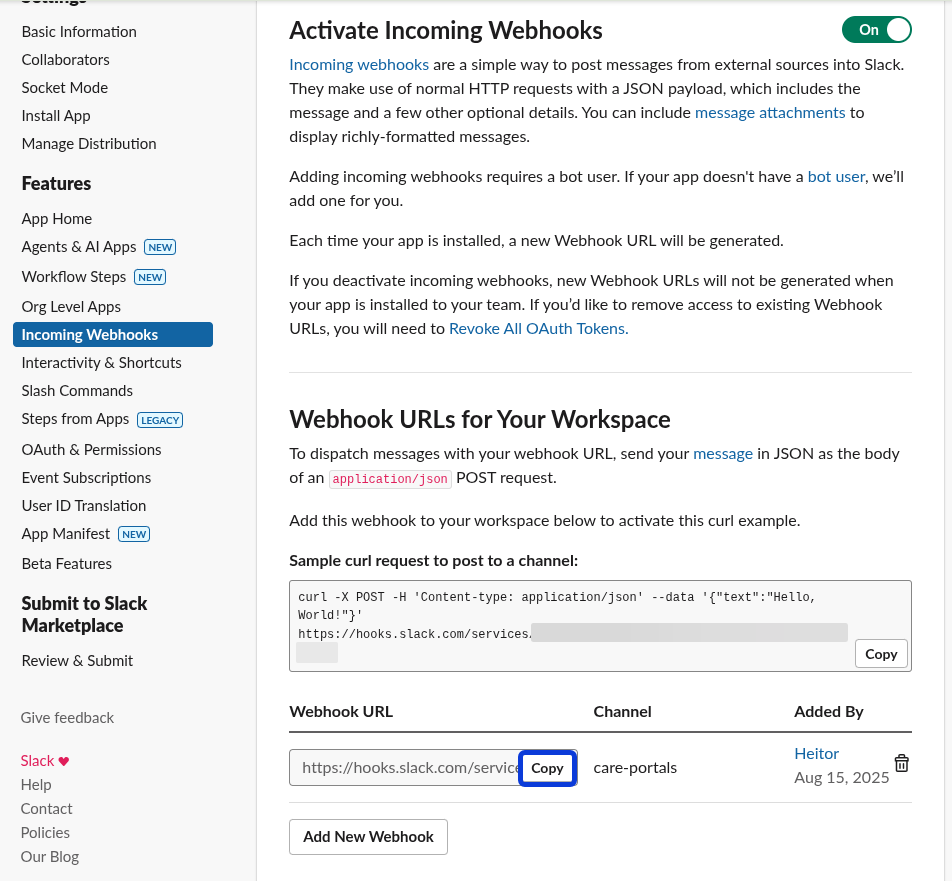
Before building this workflow, you first need to create an Incoming Webhook in your Slack workspace. This process generates a unique URL that CarePortals uses to send messages to a specific Slack channel.
To create your webhook, follow the official guide Creating Incoming Webhooks from Slack.
Once you have finished the setup in Slack, you’ll have a Webhook URL, which you’ll use in a later step to complete the workflow configuration.
Workflow Overview
This automated workflow consists of three key parts that run in sequence. Here’s a quick look at what you will build:
Trigger: The workflow will kick off automatically the moment a patient sends a new message in the patient portal.
Beluga Adapter: The patient's message is immediately forwarded to your integrated medical team (Beluga) for their review.
Webhook Adapter: Simultaneously, a custom notification is sent to a designated Slack channel to alert your internal team that a new message has been received and forwarded.
Step 1: Set the Trigger
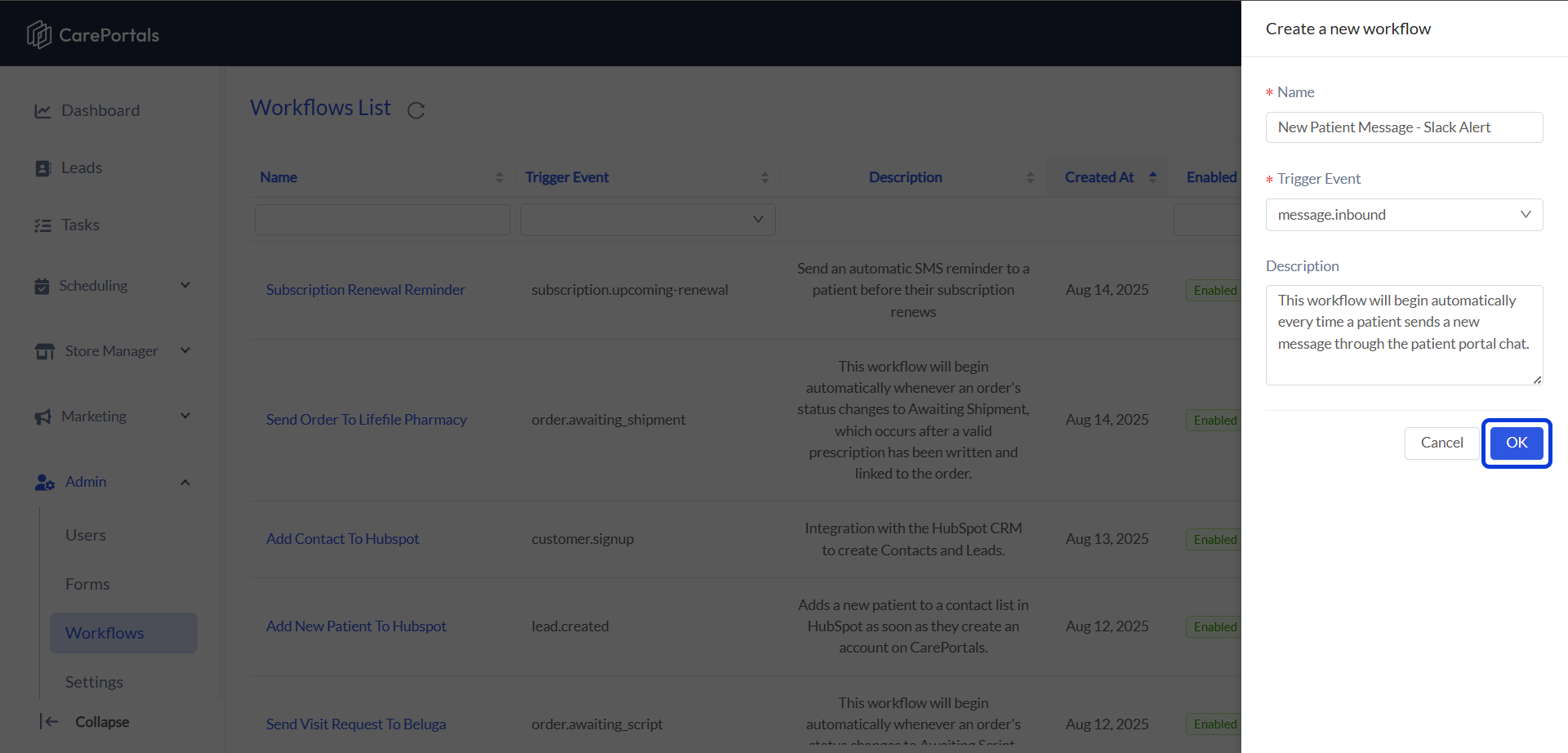
Create a new workflow by navigating to CRM Portal > Admin > Workflows > Create Flow.
Add a Name (e.g., "New Patient Message - Slack Alert") and set the Trigger Event as
message.inbound. This workflow will begin automatically every time a patient sends a new message through the patient portal chat.Click on OK to save this workflow. Then, open it to start building your workflow.
Step 2: Forward the Message to the Medical Team (Beluga Adapter)
The first action is to ensure the patient's message is sent to the medical team. This is done using the specific adapter for the Beluga physician group.
Setup Instructions:
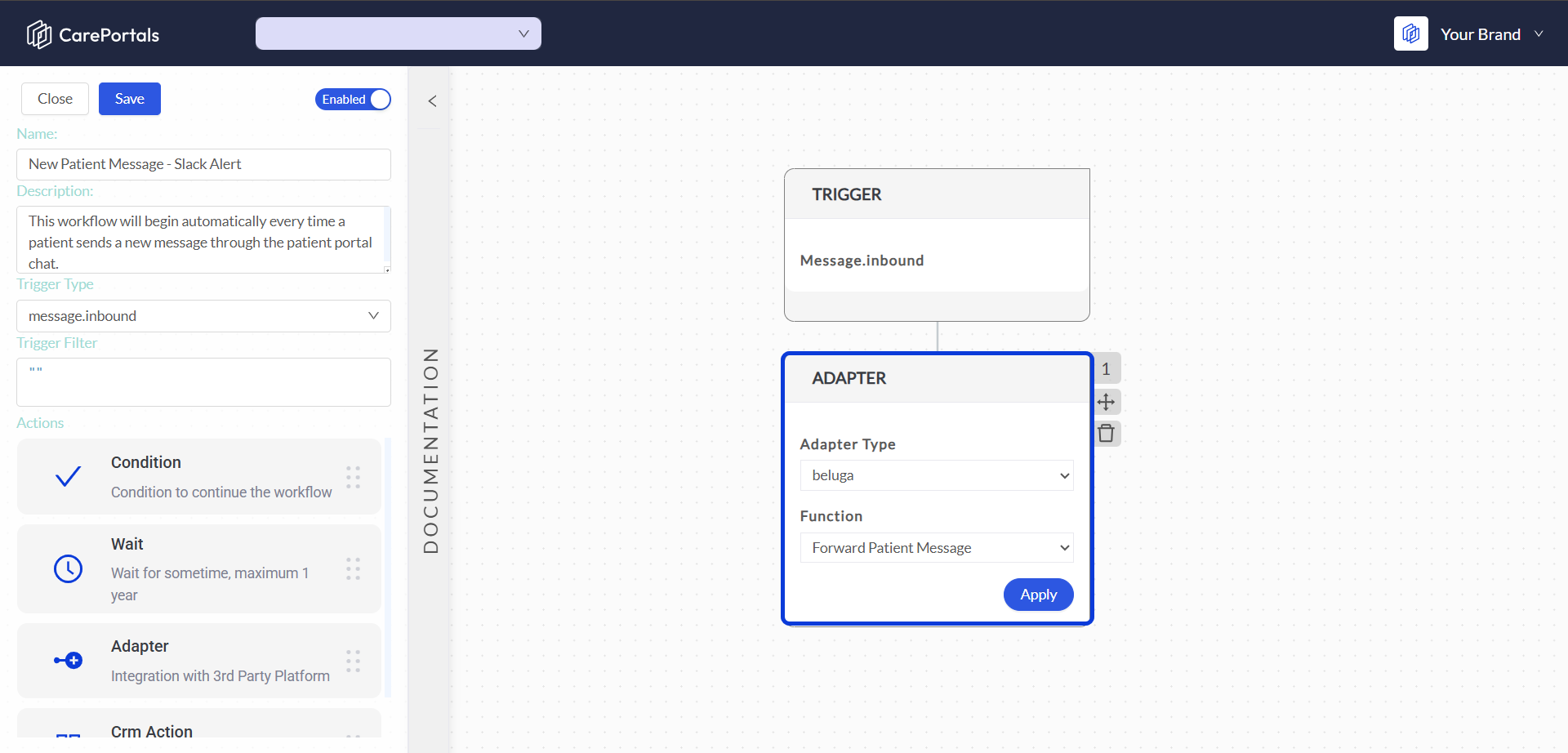
Add an Adapter component to your workflow after the trigger.
Open its configuration and set the following options:
Adapter Type: Select beluga from the list.
Function: Select Forward Patient Message.
This pre-built integration handles the connection to the medical team automatically.
Step 3: Send the Notification to Slack (Webhook Adapter)
Next, add a second adapter to notify your internal team. This step uses the generic Webhook adapter to send a formatted message to a specific Slack channel. To do this, you must first create an Incoming Webhook in your Slack workspace to get a unique URL. With the Webhook URL in hands, you can configure the Webhook step.
The Webhook adapter enables custom connections with third-party platforms. It can send data to any service that accepts HTTP requests, such as Slack or an in-house application, as long as you provide a properly configured Webhook endpoint.
Setup Instructions:
Add another Adapter component after the Beluga adapter.
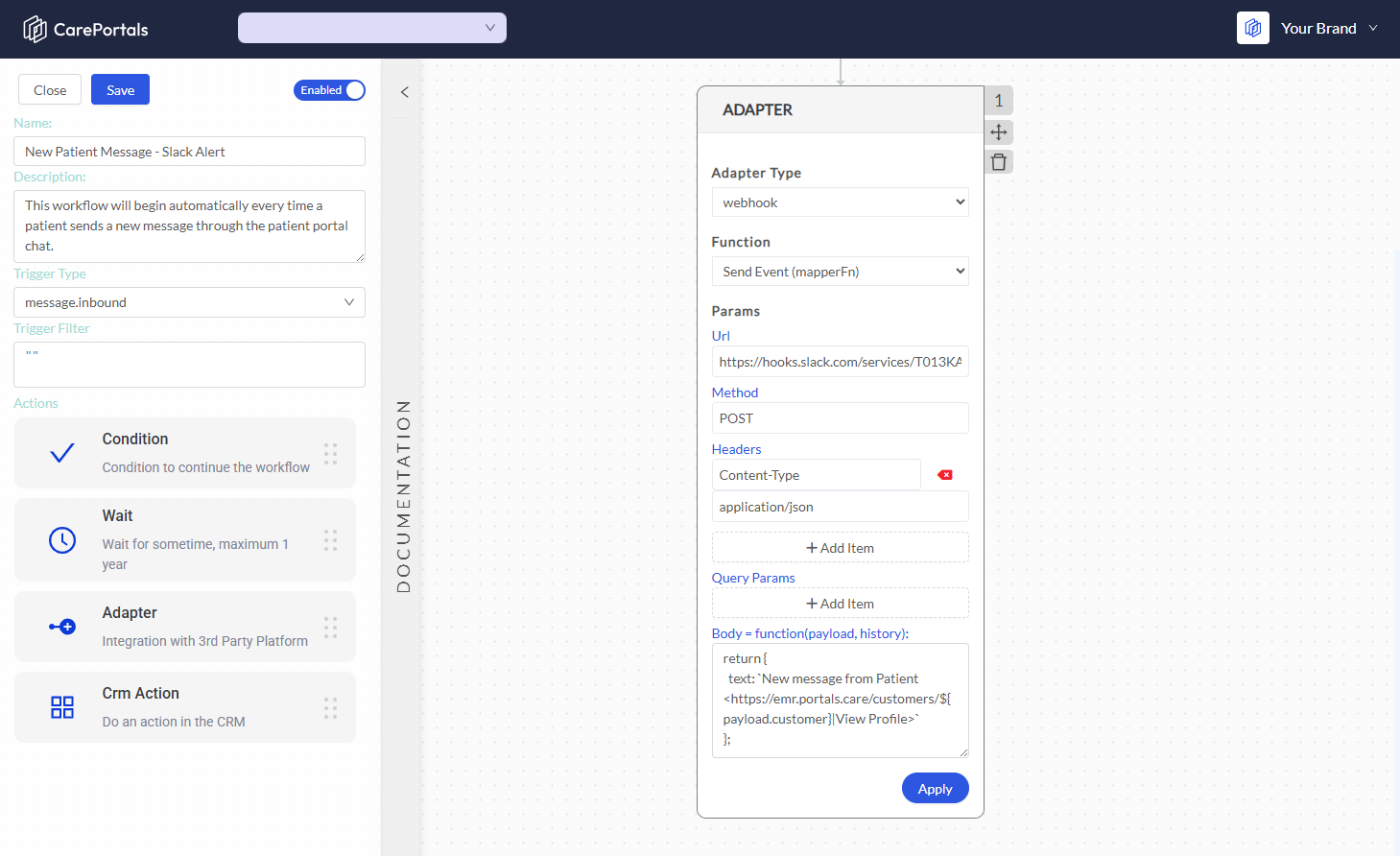
Open its configuration and set the following options:
Adapter Type: Select
Webhookfrom the list.Function: Select
sendEvent (mapperFn).
In the Params section, configure the webhook request:
URL: Paste the Incoming Webhook URL you generated from your Slack account.
Method: Set this to
POST.Headers:
Key: Content-Type.
Path: application/json.
Body: Enter the JavaScript function that defines the content of your Slack message. You can use the
payloadobject to access data from the trigger. You can also add a direct link to the patient profile in the EMR.
Here is an example of a function for the Body:
return { text: `New message from Patient <https://emr.portals.care/customers/${payload.customer}|View Profile>` }; Understanding This Configuration
URL: This tells the workflow where to send the data. Each Slack Webhook URL is tied to a specific channel.
Body: This is a JavaScript function that receives the
payload(all the data from the trigger) and must return a JSON object formatted for the external service. Properties likepayload.customerare automatically replaced with the actual patient's data when the workflow runs.
Next Steps
If you are interested in learning how to create other types of workflows, you can check the following guides:
How to Create a Subscription Renewal Reminder: Learn how to automatically send SMS reminders to patients before their subscription renews.
Send a Visit Request to Beluga: Learn how to automate sending visit requests to your physician partners.
Add a New Patient to a HubSpot Marketing List: Learn how to automatically add new patients to your marketing lists.
Was this helpful?
Still need help? Ask the team