ShipStation Integration Guide
This guide walks you through how to connect ShipStation with CarePortals so your orders flow seamlessly between both systems. By completing this setup, ShipStation will be able to pull order information directly from CarePortals and automatically sync status updates back, ensuring smoother order management and fulfillment.
Create a ShipStation User in CarePortals
First, you must create a user in CarePortals with access to view the orders list. This user will be used by ShipStation to pull the order list and sync the status. To do this:
Navigate to the CRM Portal.
From the side menu, go to Admin and then select Users.
Click the Add User button.
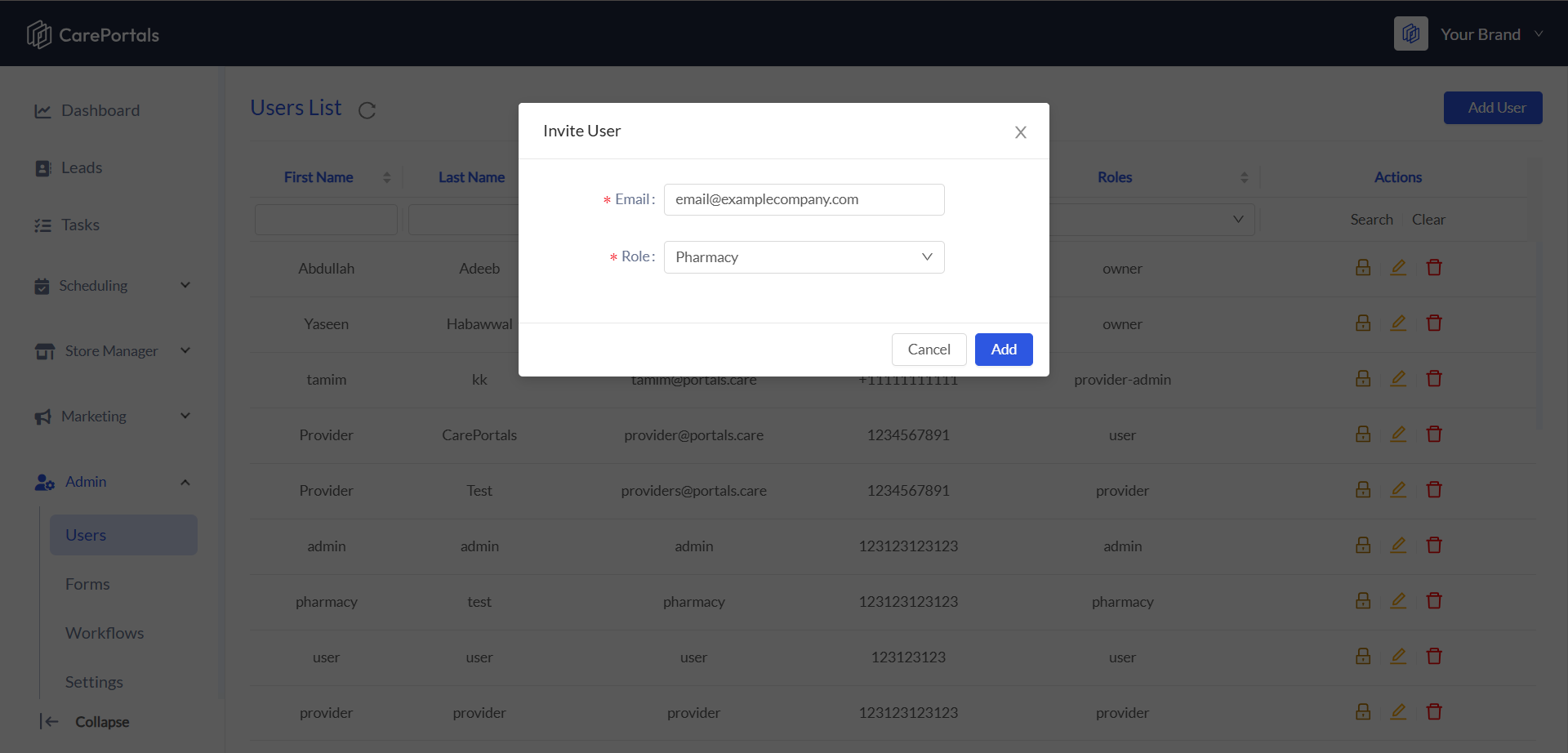
In the Invite User modal window that appears, complete this information:
Email: Enter the email address for the user you want to invite. The invited user will then use this email address to sign in to CarePortals.
Role: Select Pharmacy. This role provides limited access to the EMR Portal, which is ideal for fulfillment partners. It allows them to see information about patients, orders, and prescriptions so they can manage the fulfillment process.
Click on Add to send the invitation. The user will receive an email with an invitation to activate their account, which includes a link to a sign-up page where they can set their password.
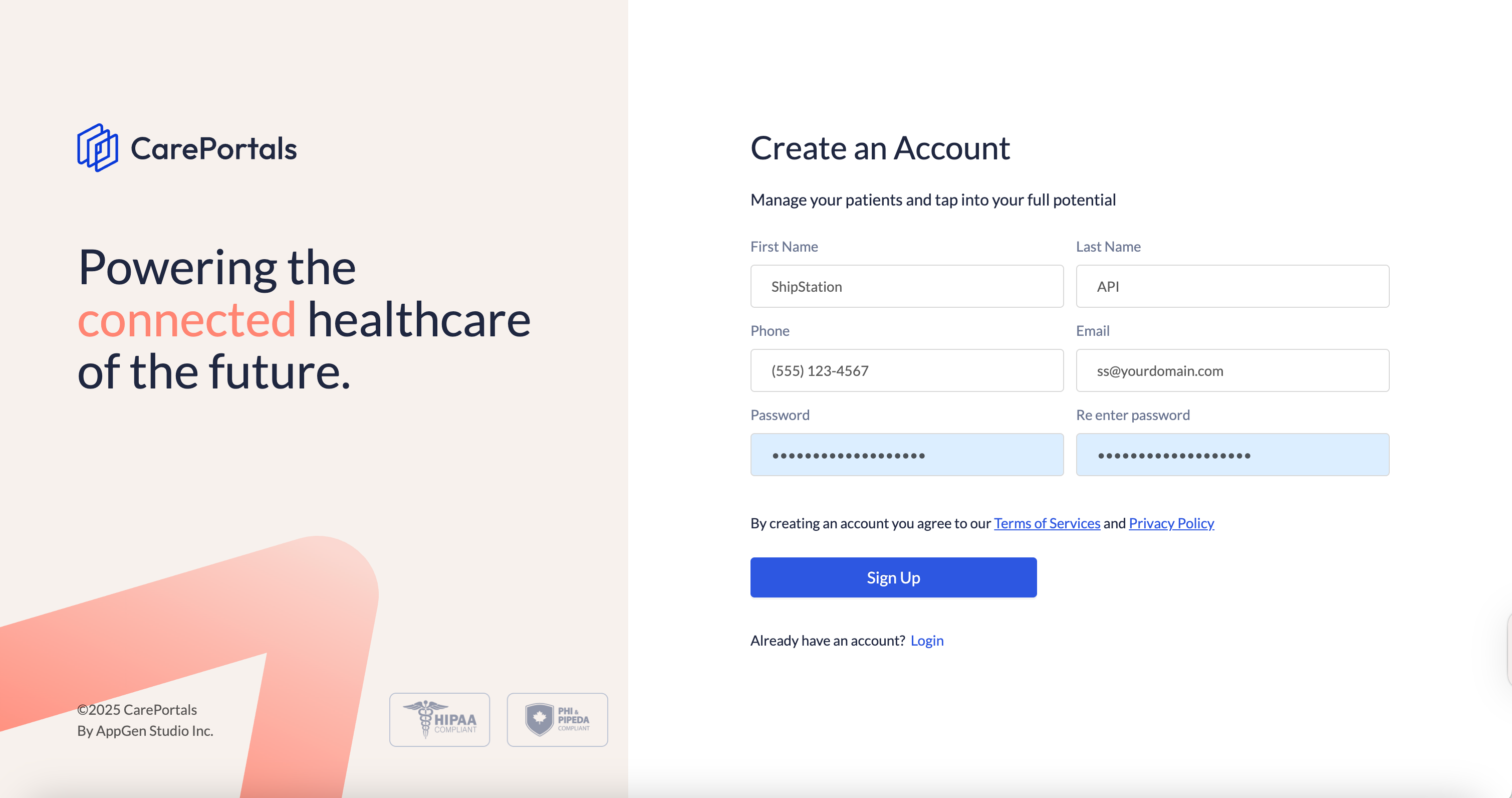
Alternatively, you can sign up directly through the CRM at https://crm.portals.care/auth/register. Once the user is added to the CRM with the same email used for signup, as shown above, it’ll be automatically linked to your organization.
Set Up the ShipStation Store
Once a user has been created, the rest of the setup will be done in ShipStation.
Log in to ShipStation as an admin.
Click on the gear icon in the top right corner.
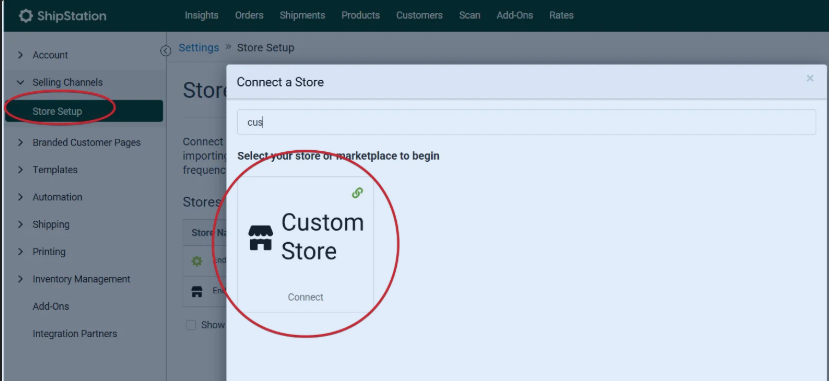
Click on Store Setup and select Custom Store from the list of store types.
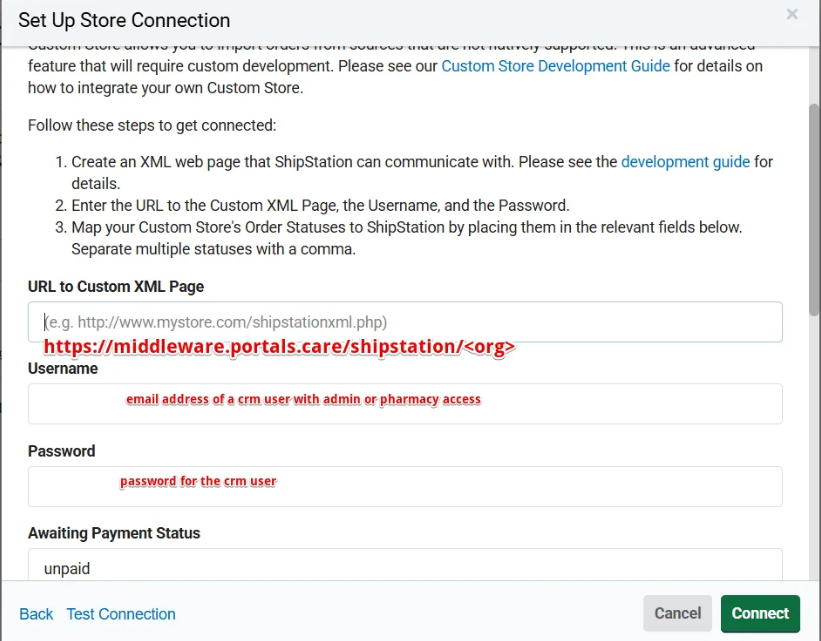
In the URL to Custom XML Page field, enter the following address:
https://middleware.portals.care/shipstation/<org>. Be sure to replace<org>with your organization's unique identifier.For the Username, enter the email address of a user in CarePortals who has Admin or Pharmacy access.
Then, enter the Password for that specific CRM user.
Map Order Statuses
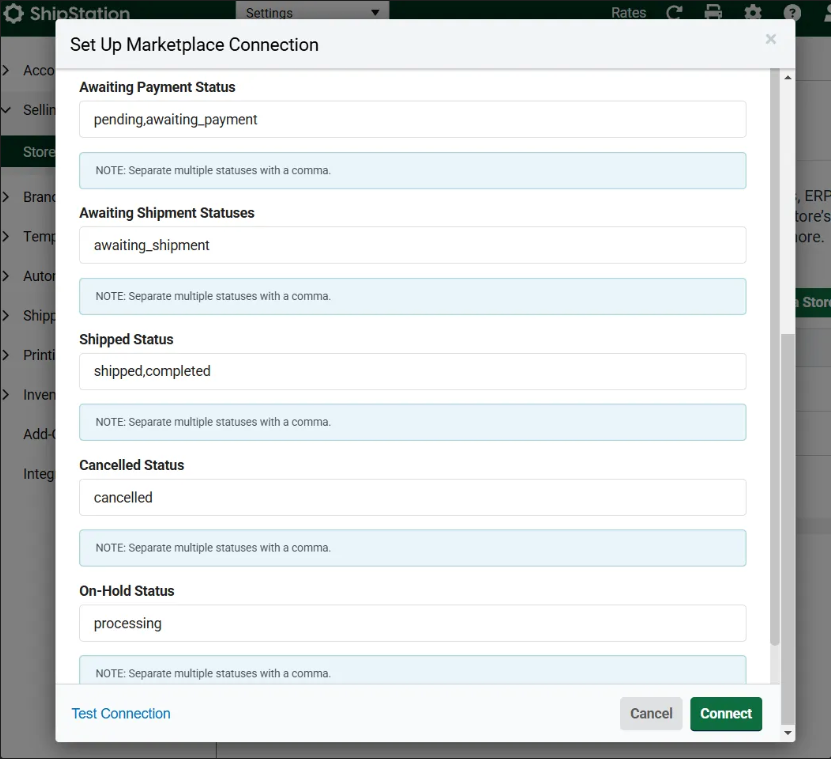
Finally, map CarePortals order statuses to the corresponding ShipStation statuses. We recommend the following mapping:
Awaiting Payment Status:
pending,awaiting_paymentAwaiting Shipment Statuses:
awaiting_shipmentShipped Status:
shipped,completedCancelled Status:
cancelledOn-Hold Status:
processing
Once done, click Test Connection to verify that the settings are correct, and then click Connect to finish the setup.
Next Steps
After setting up your ShipStation integration, these guides can help you manage your fulfillment process:
Fulfillment Delays or Integration Errors: Learn how to troubleshoot issues when an order has not been shipped by the pharmacy.
Manage an Order from Start to Finish: Walk through the entire lifecycle of an order from when it's created until it is shipped.
User Roles and Permissions: Find out more about the different user roles and what each one can do on the platform.
Was this helpful?
Still need help? Ask the team