How to Access Your Account and Recover Your Password
This guide walks you through how to activate your CarePortals admin account, sign in for the first time, and reset your password if needed.
Once you create an account, your login credentials are the same for both the CRM and EMR portals. Move seamlessly across the platform, no need to manage multiple logins.
Before You Log In: Activate Your Account
Before you can log in for the first time, you must activate your account. To get started, ask your Admin for access. The Admin will send you an email invitation, which you’ll use to activate your account.
Look for an Activate Your Account email from CarePortals.
Open the email and click the Sign Up button to begin setting up your account.
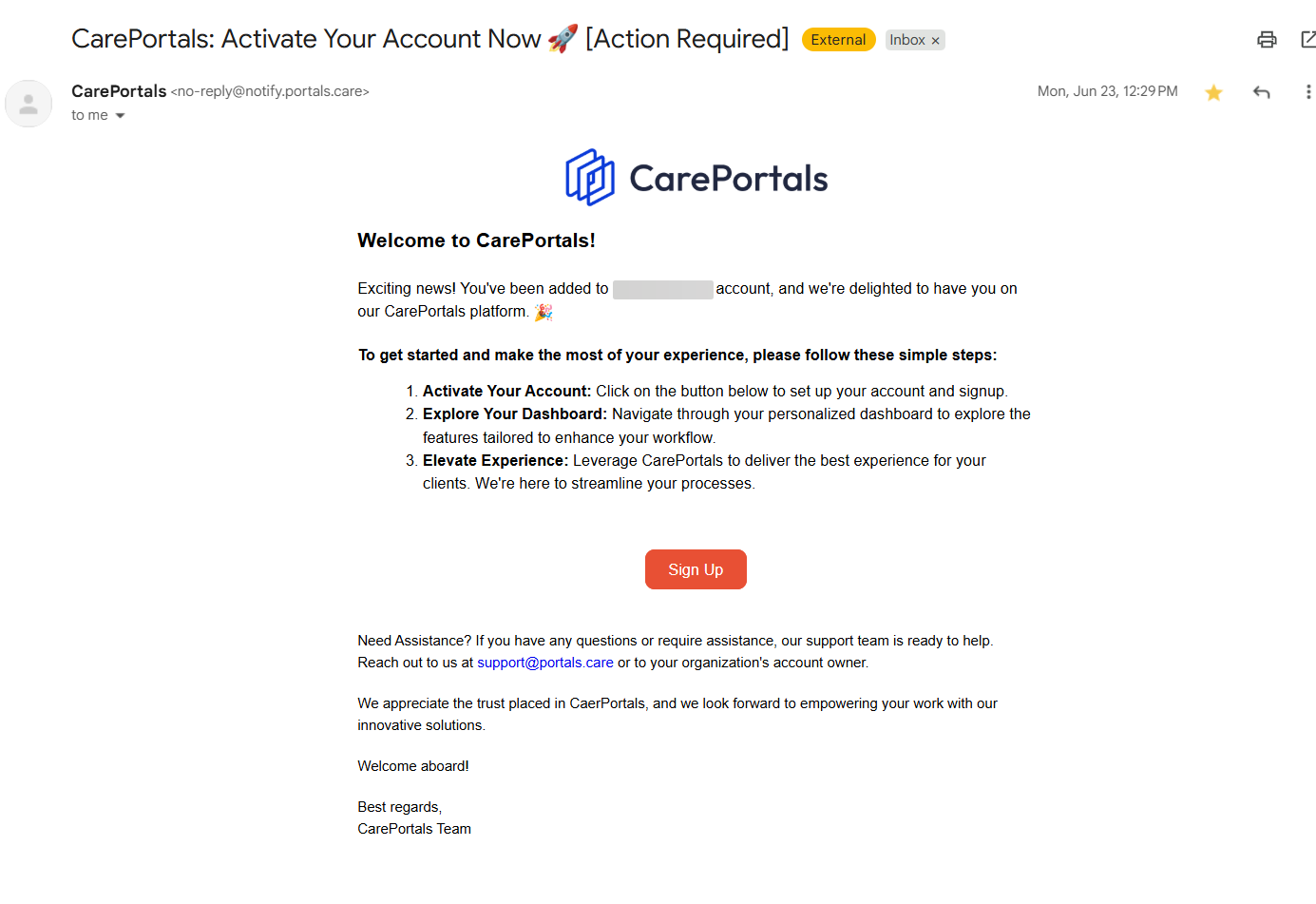
Once your account is activated, you can log in using the instructions below.
How to Log In
Follow these steps to log into your account:
Go to the CarePortals login page. You can access it through one of these links:
CRM Portal:
https://crm.portals.care/EMR Portal:
https://emr.portals.care/
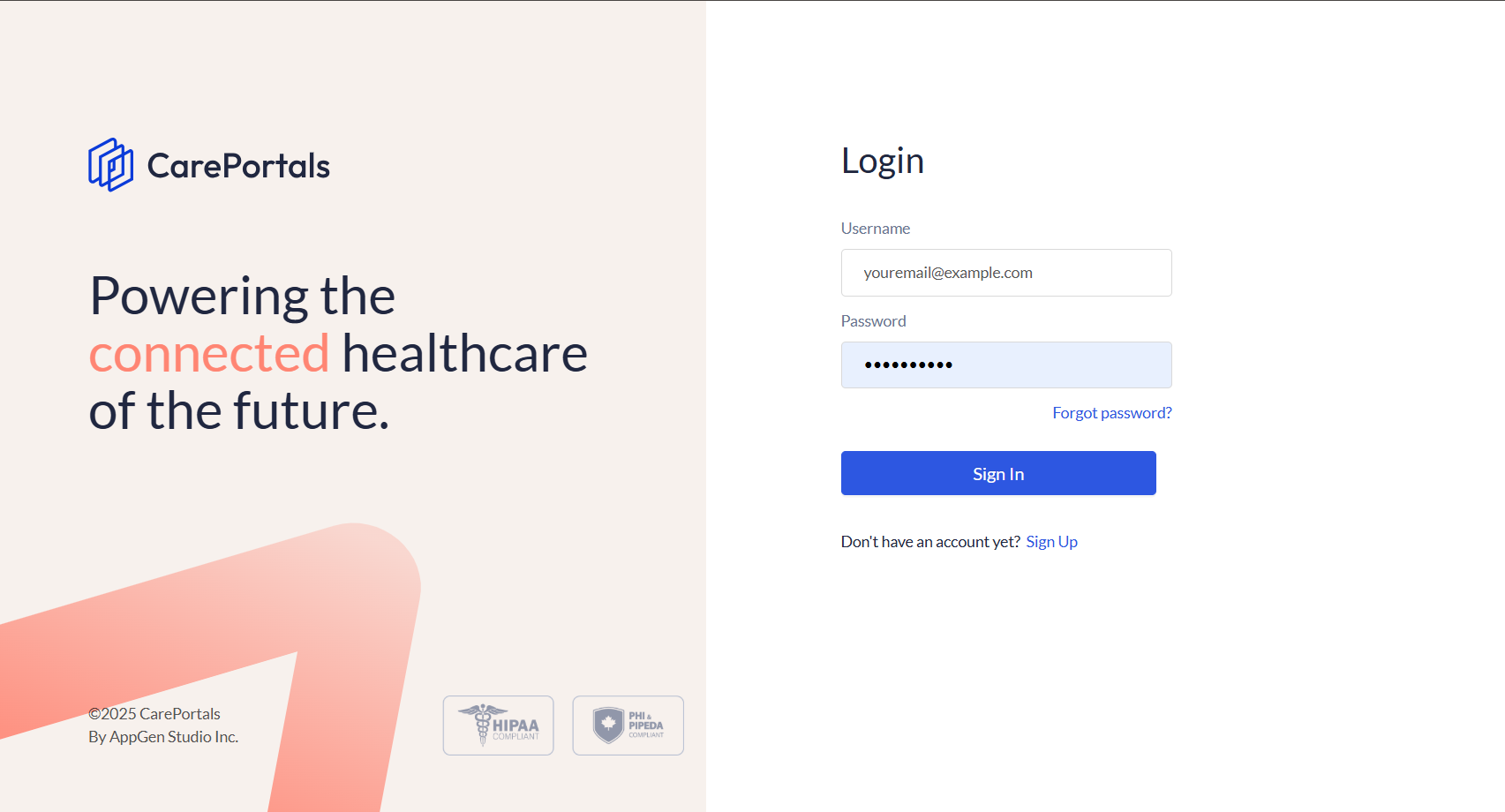
In the Username field, enter your work email address.
In the Password field, enter the password you added when setting up your account.
Click Sign In.
Did You Forget Your Password?
If you can’t remember your password, follow these steps:
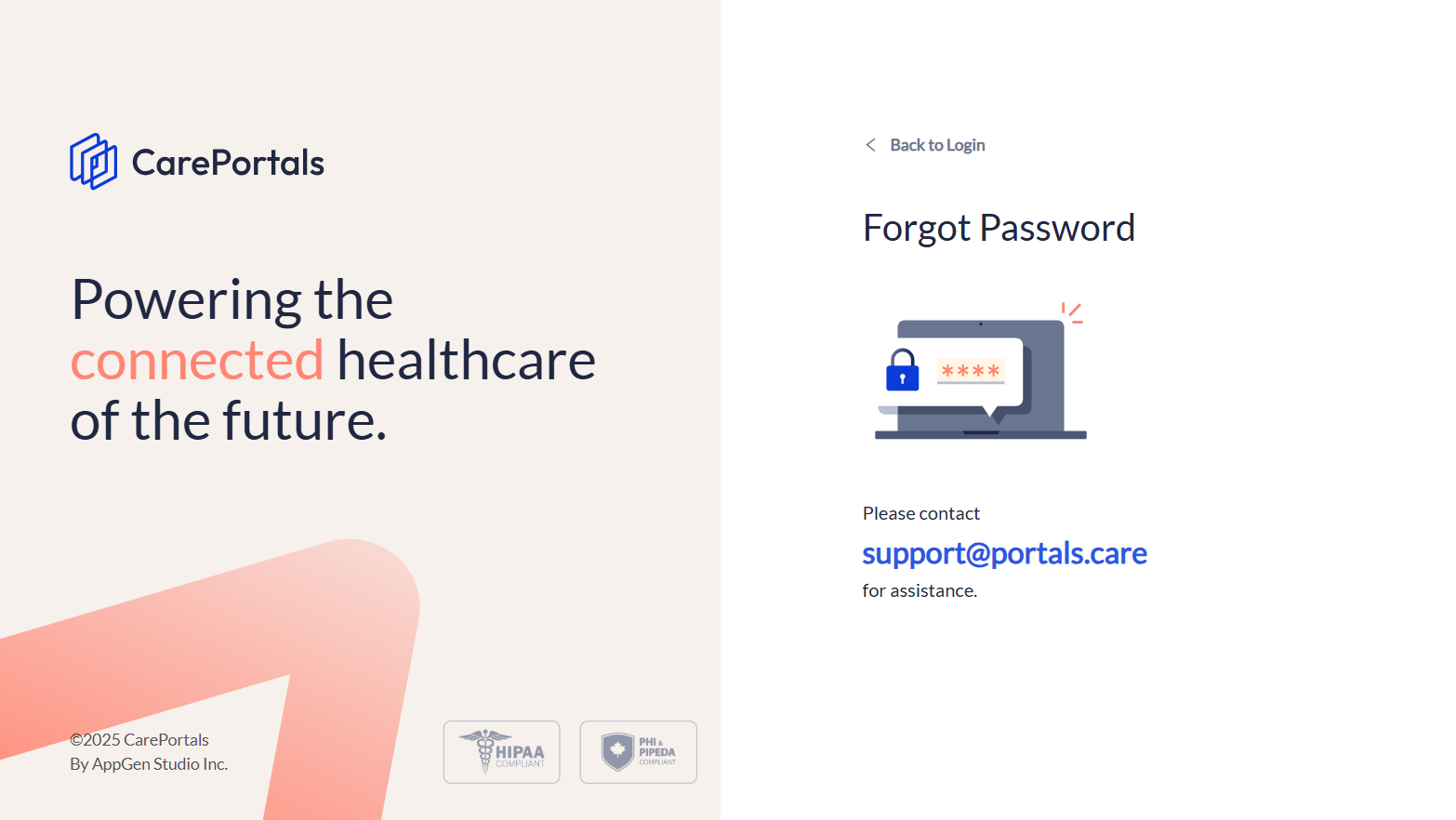
On the login page, click the Forgot password? button.
Contact
support@portals.careor an administrator on your team to request a password reset. You'll receive an email with your new password.
Currently, users cannot change their password themselves after logging in, they must continue using the one provided via email.
Related Articles
Once you log in, you will start exploring the platform. We suggest starting with these two guides:
A Tour of the EMR Portal: This guided tour is for operations and support teams. It navigates through the EMR's key operational areas, including Patients, Consultations, Orders, Subscriptions, Drugs, and RXs.
A Tour of the CRM Portal: This guided tour is for administrative and marketing users. It navigates through the CRM's main configuration areas, such as the Store Manager, the Admin panel, and the Leads list.
Was this helpful?
Still need help? Ask the team