How to Resend a Visit Request to a Physician Partner
Sometimes, an order needs to be sent again to the physician partner. This can happen if some information was not quite right the first time or if a prescription needs to be corrected. This guide will walk you through how to resubmit an order in just a few steps.
You'll typically need to resend a visit request in one of two situations:
Scenario 2: A prescription was not written since the visit information was incorrect (for example, wrong patient details, product information, or questionnaire answers).
Scenario 1: An Incorrect Prescription Was Written
If a prescription was written but it is not quite right for the order, the first step you need to do is to void it. This prepares the order for a new visit request so a corrected prescription can be created.
Here’s a step-by-step guide to voiding the incorrect prescription:
In the EMR portal lateral menu, head to Orders.
The menus in your EMR portal are customizable and may look different depending on your user role.
Find and open the specific order you're working on.
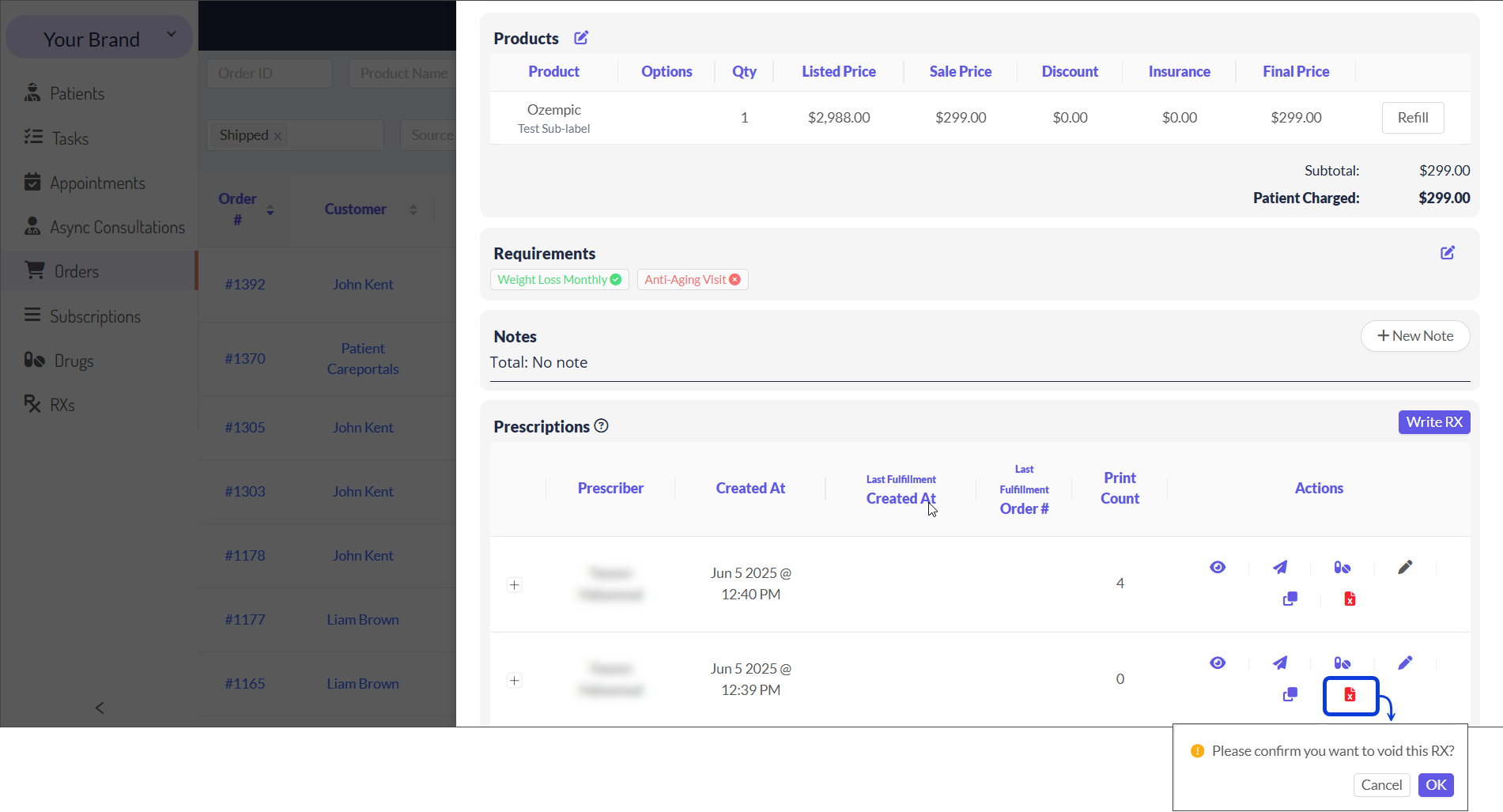
Scroll down to the Prescriptions section in the order details.
Find the incorrect prescription and click the void icon to remove it.
A pop-up message will appear for you to confirm this action. Click on OK to void that prescription.
Scenario 2: A Prescription was not Written
Sometimes, a visit request needs to be sent again because the original information was incorrect and thus, the prescription wasn’t written. This could include issues with patient details, product selection, or questionnaire answers. In this case, no prescription was submitted, and you'll need to update the order before resending the request.
Update the order’s information:
From the EMR portal, go to the Orders list.
Find the order that needs to be updated.
Open the order to view its details.
Scroll down to the Metadata section and click the Edit icon.
Now, continue here to remove the visit IDs and resend the request.
Resend the Visit Request
After voiding a prescription (Scenario 1) or updating order details (Scenario 2), follow these steps to remove the visit IDs and resend the request.
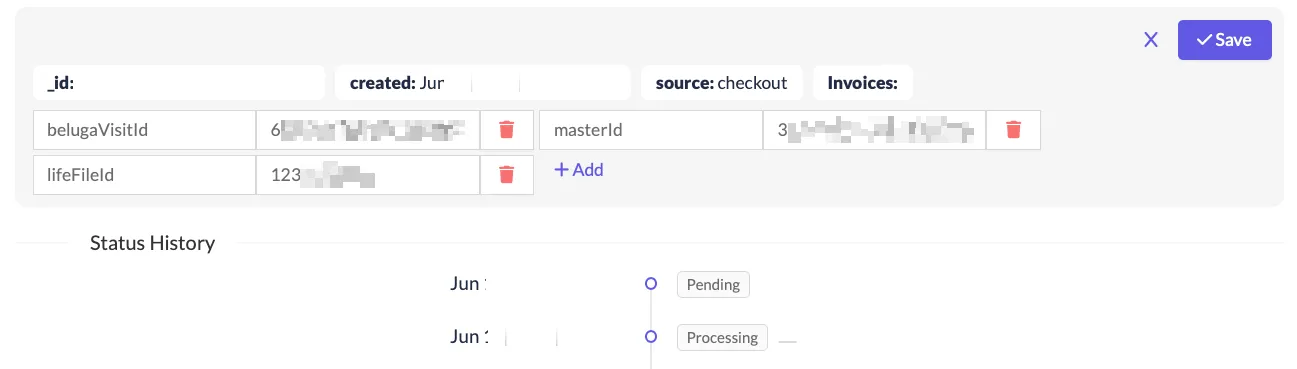
To prepare for the new request, you will need to remove the old visit IDs. In the Metadata section (while in Edit mode), remove the following:
belugaVisitId: The ID for the original visit to the physician partner.masterId: The order's ID in the physician partner's system.lifeFileId: The ID confirming the order was sent to the LifeFile pharmacy. You only need to remove this if you see it.
The physician or pharmacy partner shown here may be different from the one in your actual order. Use the information in this guide as an example only.
Click the Trash can icon next to each ID, and then click Save.
Now, scroll back to the top of the order details. The next step is to update the order's status, which will trigger the new visit request.
If the order status is currently Awaiting Script:
First, change its status to Pending.
Then, change the status right back to Awaiting Script.
This status change kicks off the automation that sends the new visit request.
Give the system a moment to work and process the new visit request. It’s a good idea to wait about a minute before reloading the view.
You can confirm the new visit request was sent by checking the Metadata section again. When you see a new
masterId, you’ll know that it has been sent successfully.
Next Steps
After learning how to resend a visit request, you may find the following articles helpful.
The Patient & Order Journey on CarePortals: To better understand where this task fits into the larger picture, review this overview of the entire order lifecycle, from purchase to shipment.
How to Manage Order Requirements: Learn how to submit a questionnaire or upload files (like an ID or selfie) on behalf of a patient to ensure an order can proceed.
Was this helpful?
Still need help? Ask the team