Managing Orders in CarePortals
The Orders Manager is your team's main workspace for the day-to-day monitoring of patients´ orders. Since most of the order journey is automated, your primary role here is to get a high-level view of all orders, track their progress, and ensure everything is moving smoothly from purchase to shipment.
Interacting with the Orders List
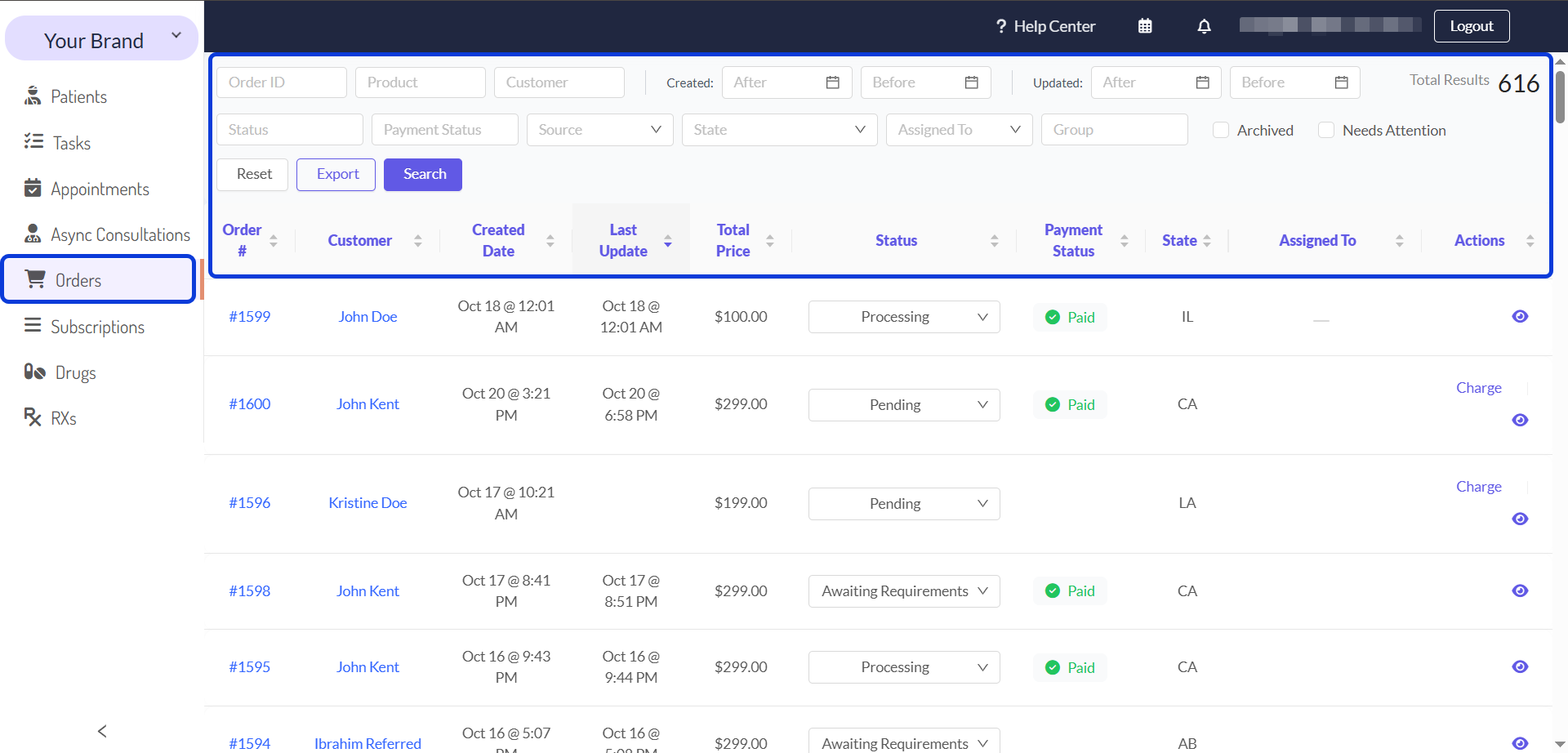
When you navigate to Orders, from the main menu, you will find a list of orders. This section is your central dashboard for overseeing all patient orders. From here, your team can:
Track Order Progress: View the current status of every order in the Status column. This may help you identify which orders are processing correctly and which might be stuck using the Needs Attention filter.
Check Order Information: Review key information at a glance, such as, the patient and product details, consultation requirements, prescriptions created by your medical team, and status history, directly from the list view columns.
Update Order Details: You can manually update an order status or retry a failed payment directly from the list or access an order to manage its products, requirements, or prescriptions, as well as review its full status history and activity log.
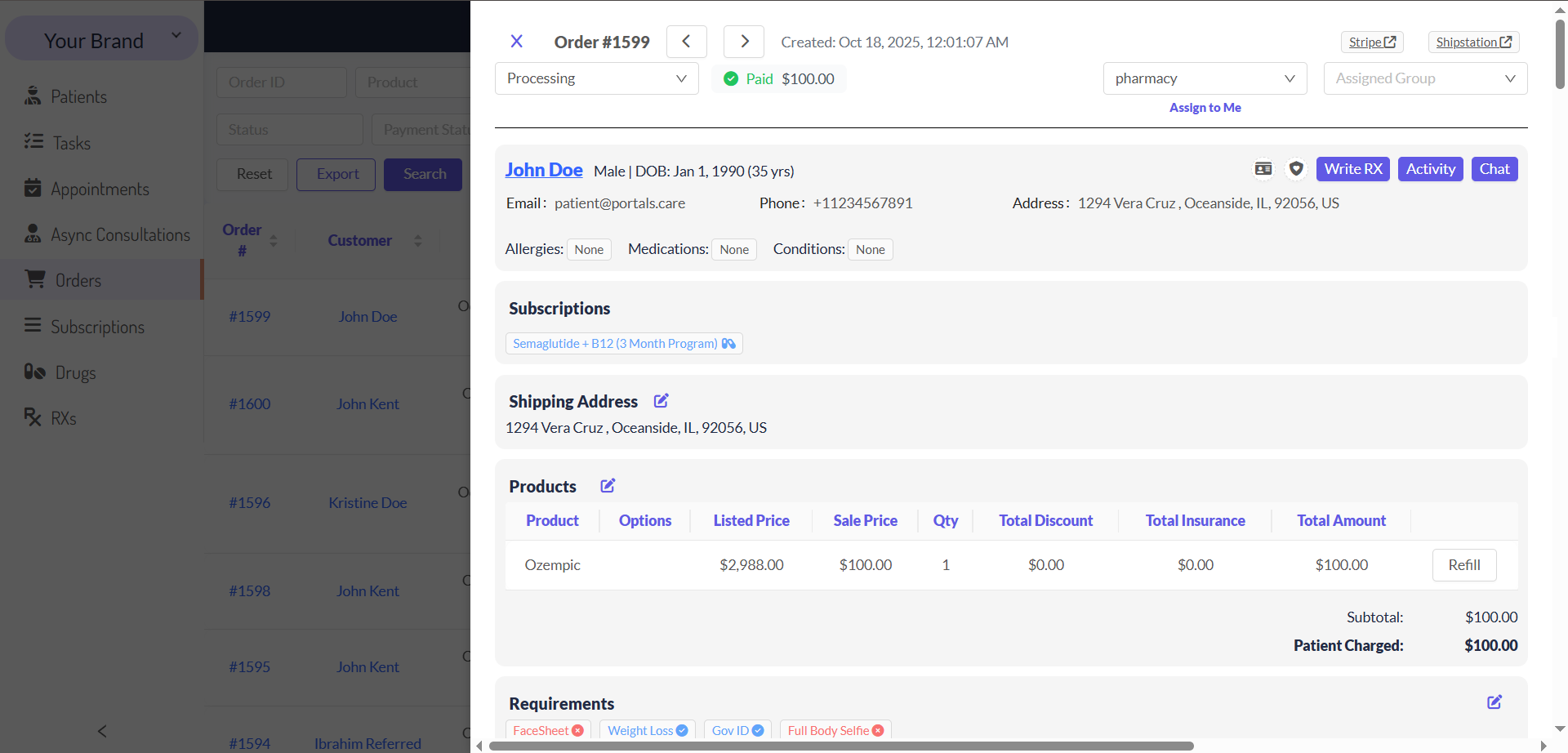
Order Details Page
When you open an order, you will find all the information you need on a single page. Think of this page as the central file for that specific transaction. The page is organized into the following sections:
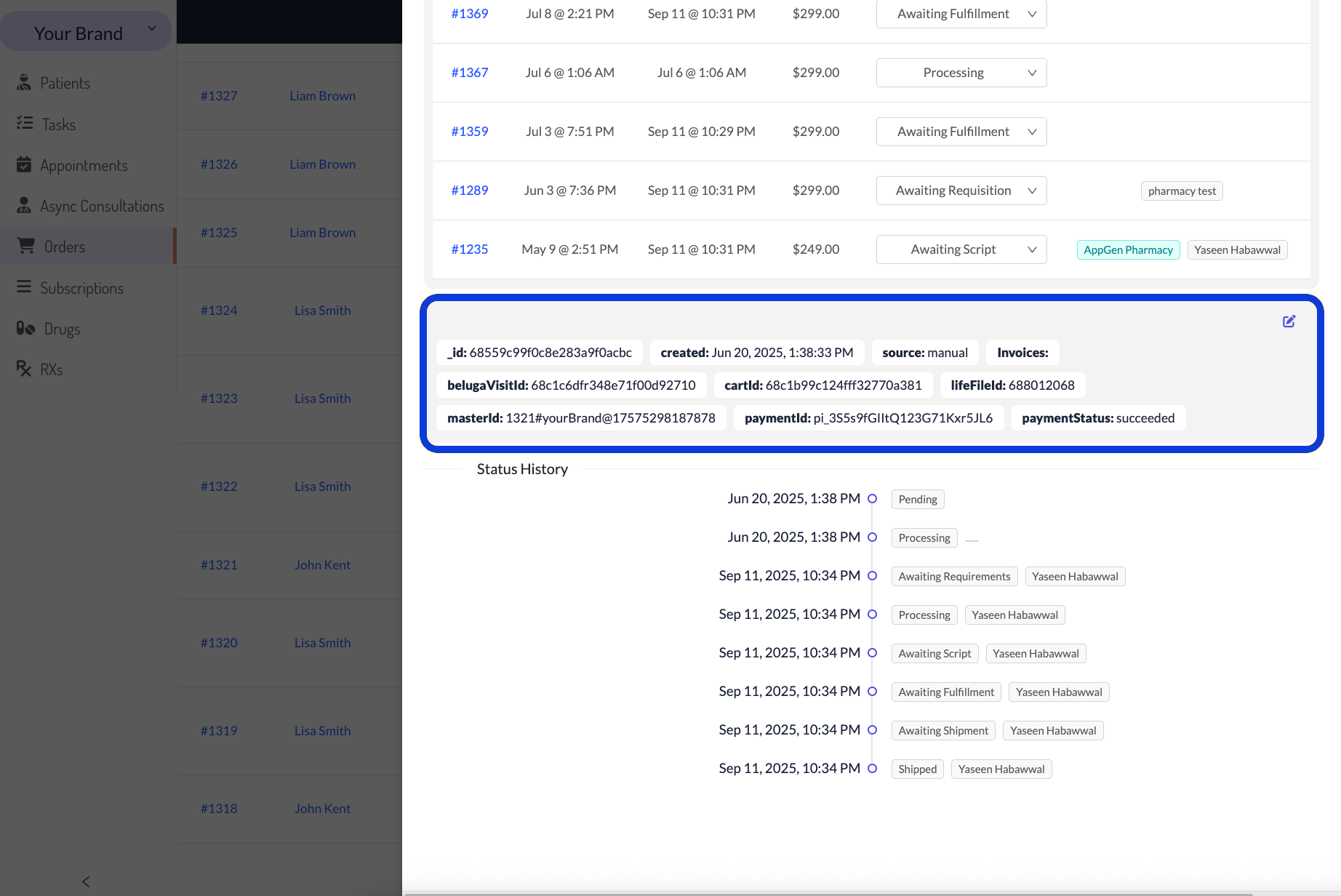
Order Extras/Metadata
As you can see, towards the end of an order record, you can find metadata, also known as extras. This metadata such as source, or subscriptionid, is very important since it provides key details about how the order was created and connects it to external systems. For example, it confirms if a visit request was successfully created with a physician partner or if the order was sent to the pharmacy's management software. Find below a table with details on the order metadata.
Searching and Sorting the Orders List
You can find orders by sorting the list or using the available filters.
To sort, click any column header.
To filter, use the fields at the top of the list, such as Order ID, Product or Customer Name, Status, or Source, among others.
New functionalities added:
The Payment Status column indicates whether an order's payment was Paid or Failed. This field may be blank for zero-dollar ($0) orders, as no payment is processed.
The Needs Attention filter isolates orders that require manual action. It finds orders that are Awaiting Script or Awaiting Shipment but failed to automatically send to the physician group or pharmacy.
To clear all active filters, click Reset.
Next Steps
Now that you understand more about Orders, we recommend exploring these related guides.
The Patient & Order Journey on CarePortals: Get a high-level overview of the entire order lifecycle, from initial purchase to final shipment.
How to Find and Manage a Patient's Profile: Get a comprehensive view of a patient’s profile and the key features available to manage it.
Was this helpful?
Still need help? Ask the team