How to Use the Patient Chat
The patient chat window in the CarePortals EMR portal is your direct line of communication with patients. Think of it as your communication center.
You can use it to answer questions, provide updates, and manage issues related to patients’ orders. From this window, you can also perform several actions, such as starting a video session for an appointment, sending SMS alerts, and forwarding conversations to other teams or partners.
The chat also shows the real-time status of patients, whether they are currently online, offline, or idle. In this guide, we’ll walk you through the chat features and how to use them.
Access the Patient Chat
You have two ways to access the chat window and start messaging with a patient.
A. From the Orders Manager:
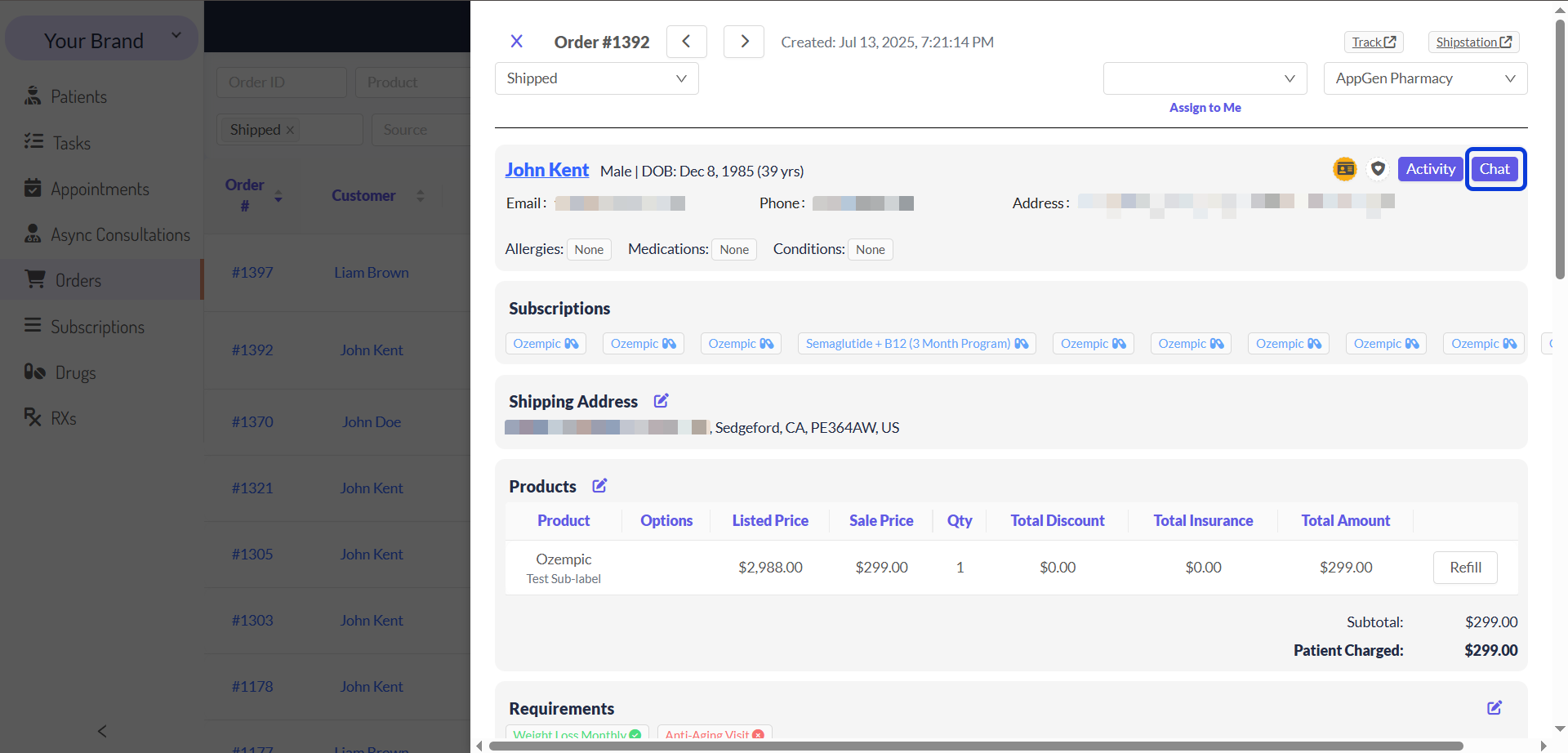
From the EMR Portal, open the order from the patient you’re managing.
In the order’s detailed view, you will find a button to access the chat.
B. From the Patients Manager:
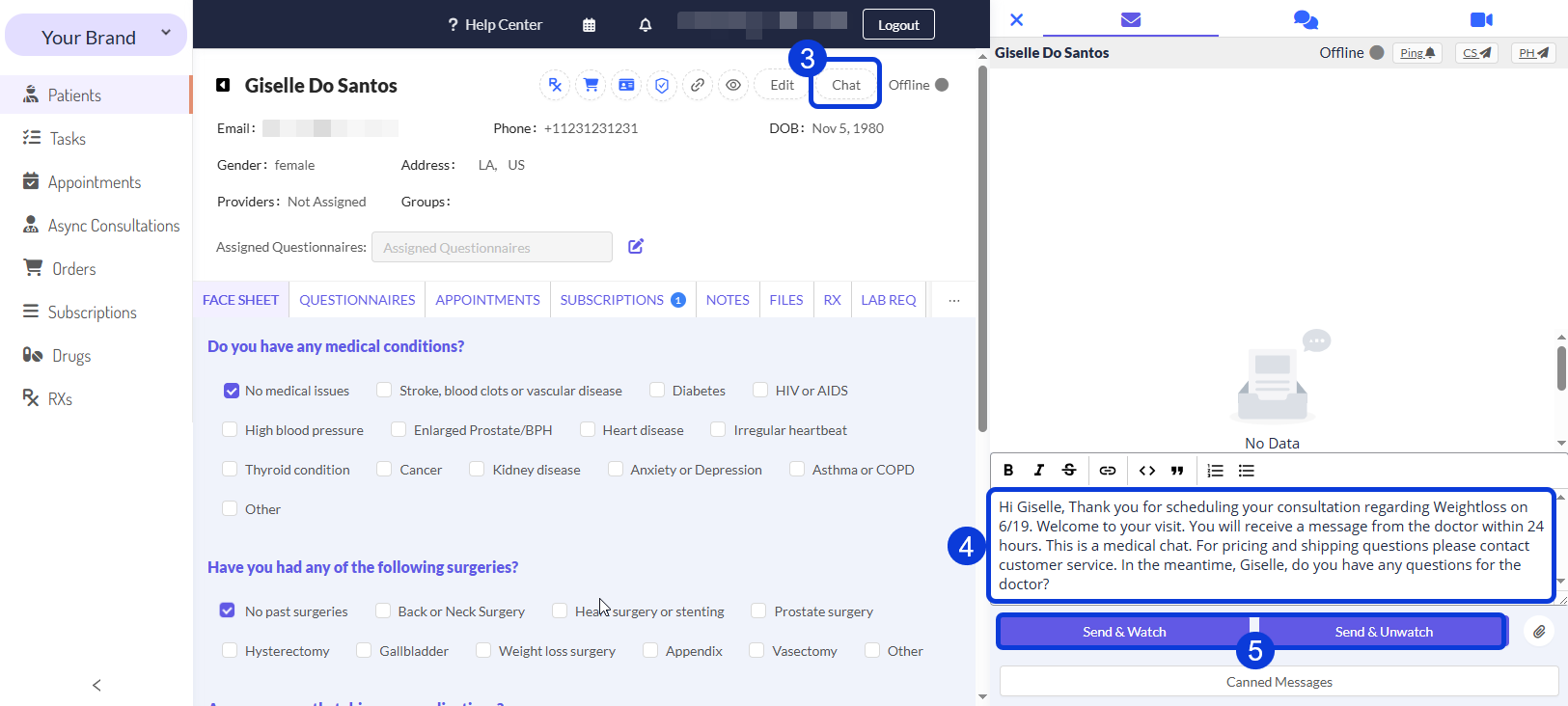
Navigate to the Patients Manager in the left side menu.
Find the patient you wish to contact and click on their name. This opens their patient record.
In the top right corner of the patient's record, click the Chat button to open the chat window.
Once you open the chat window, type your message in the text box at the bottom.
Use the formatting toolbar to style your message if needed (e.g., bold, italics).
To send an attachment, simply click the attachment (paperclip) icon and select the file you wish to send from your computer.
Choose one of the sending options:
Send & Watch: Sends the message and adds you to the patient's watchlist. You will receive notifications for their messages.
Send & Unwatch: Sends the message and removes you from the patient's watchlist. Use this if you no longer need to follow the conversation.
To learn more about keeping track of the patient’s conversation, read the related article How to Manage the Patient Watchlist.
Use Canned Messages
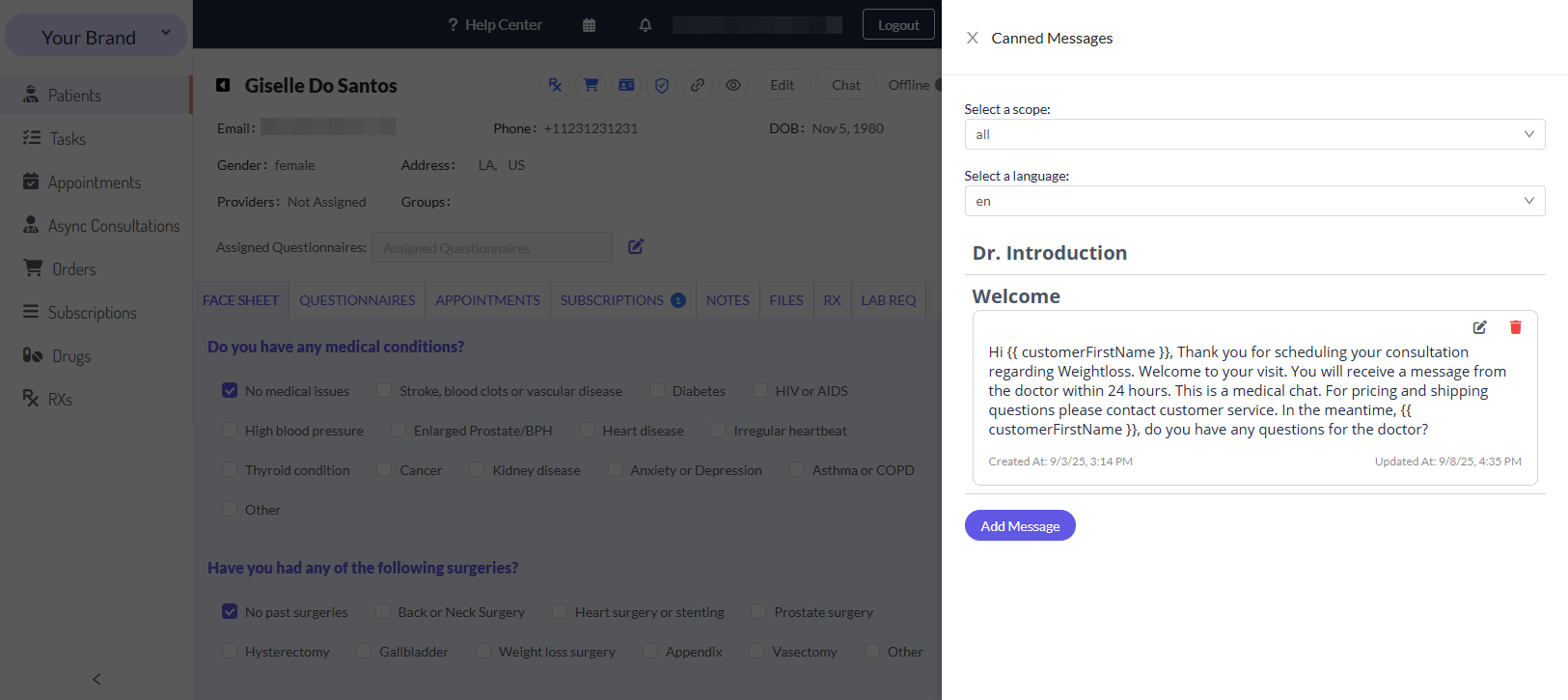
You can use pre-written replies for common questions or welcome messages. To use a canned message:
Click the Canned Messages button below the text box.
Select the appropriate pre-written response from the list.
Click on the message you would like to send. It will be automatically added to the chat text box, ready for you to send. You can make any necessary adjustments to it before sending.
To learn how to create your own responses, see the How to Create a Canned Message guide.
Ping a Patient
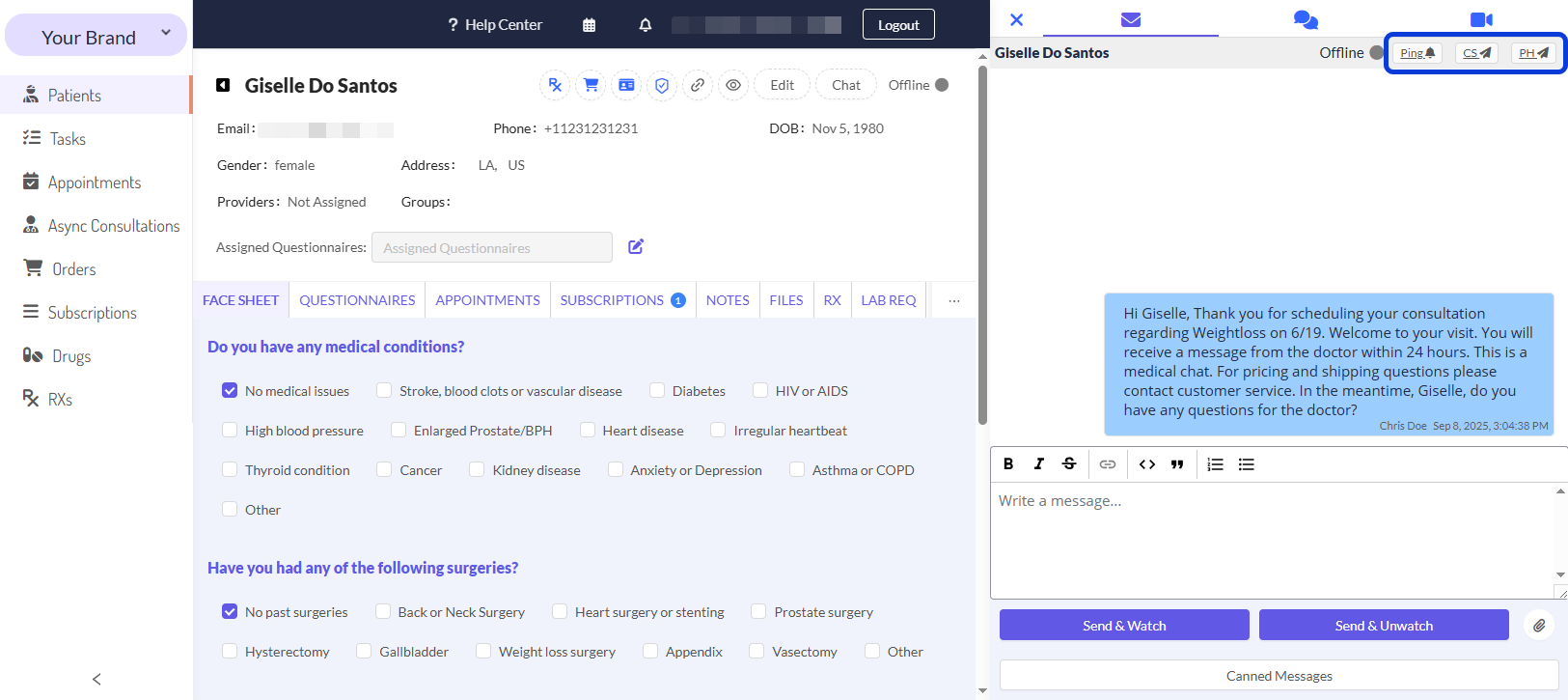
The ping feature sends an SMS notification to the patient, alerting them to a new message in the portal. This is a great way to make sure your message is seen quickly.
In the chat interface, locate the Ping button.
Click the button to send the SMS alert to the patient’s phone.
Forward a Conversation
If you need help from another team to resolve a patient's question, you can forward the chat history to either Customer Service or a Pharmacy. This will send an email to the respective team with a link to the patient profile.
In the chat window, find the forwarding options.
Click Forward to Customer Service (CS button) if the patient's issue requires attention from the main support team.
Click Forward to Pharmacy (PH button) if the patient has a question about their medication's shipment, packaging, or other fulfillment details.
In both cases, the configured email in CRM > Settings will receive an email with the patient's ID and a link to their customer profile.
Start a Video Call
The video call functionality is available only for patients with a scheduled appointment and is enabled 15 minutes prior to its start time.
Next Steps
Now that you know how to use the patient chat window, we recommend that you read the following articles:
How to Add or Deduct Patient Credit: Learn how to add or deduct credits to a patient's profile for future use or debit from their account.
How to Manage Patient Subscriptions: Learn how to pause, cancel, or edit the renewal date of a patient's subscription from within the EMR.
Was this helpful?
Still need help? Ask the team