Prescriptions Management
The prescription (RXs) manager serves as the central hub for managing patient prescriptions. It provides a comprehensive view of every prescription in the system, including its status and key details associated with patient orders. From this page, you can:
Search for prescriptions.
View detailed information.
Identify the order a prescription belongs to.
Edit, send, or fulfill prescriptions.
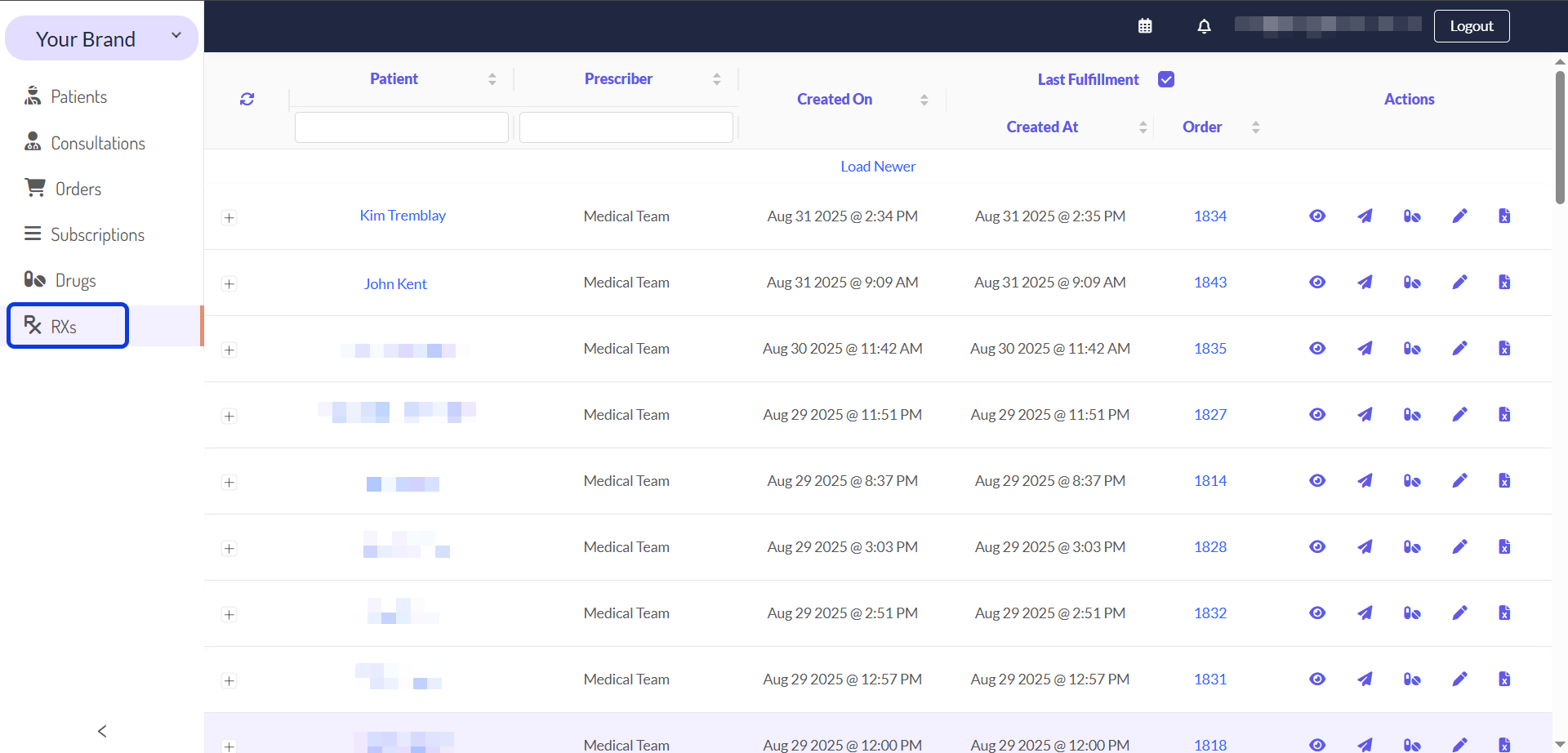
Understanding the Prescriptions (Rxs) List
When you navigate to the Rx manager, you will see a list of all prescriptions. Each row provides key information at a glance.
Searching and Sorting the RXs List
You can find prescriptions by sorting the list or using the available filters.
To sort, click any column header.
To filter, use the fields at the top of the list, such as Patient, Prescriber, or Last Fulfillment.
To clear all active filters, click the Reset icon (🔄).
Manage a Prescription
The Actions column provides several options for managing an individual prescription.
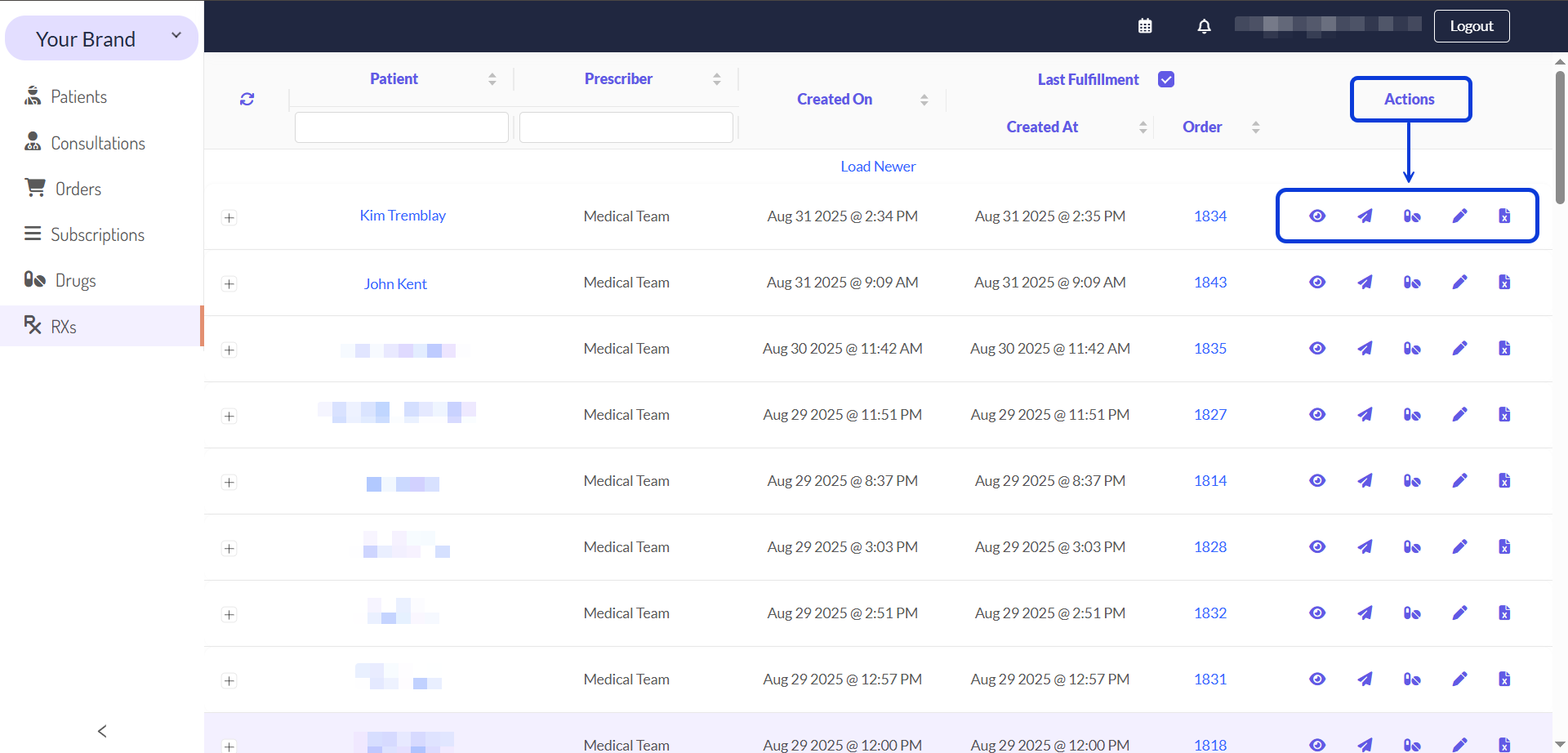
View Details: Clicking the View Rx (eye) icon lets you see the full details of the prescription. This action is tracked for security and auditing purposes and will increase the prescription's "print count" each time it is viewed.
Send Prescription: The Send Rx icon allows you to manually send the prescription details to the pharmacy via eFax, if configured.
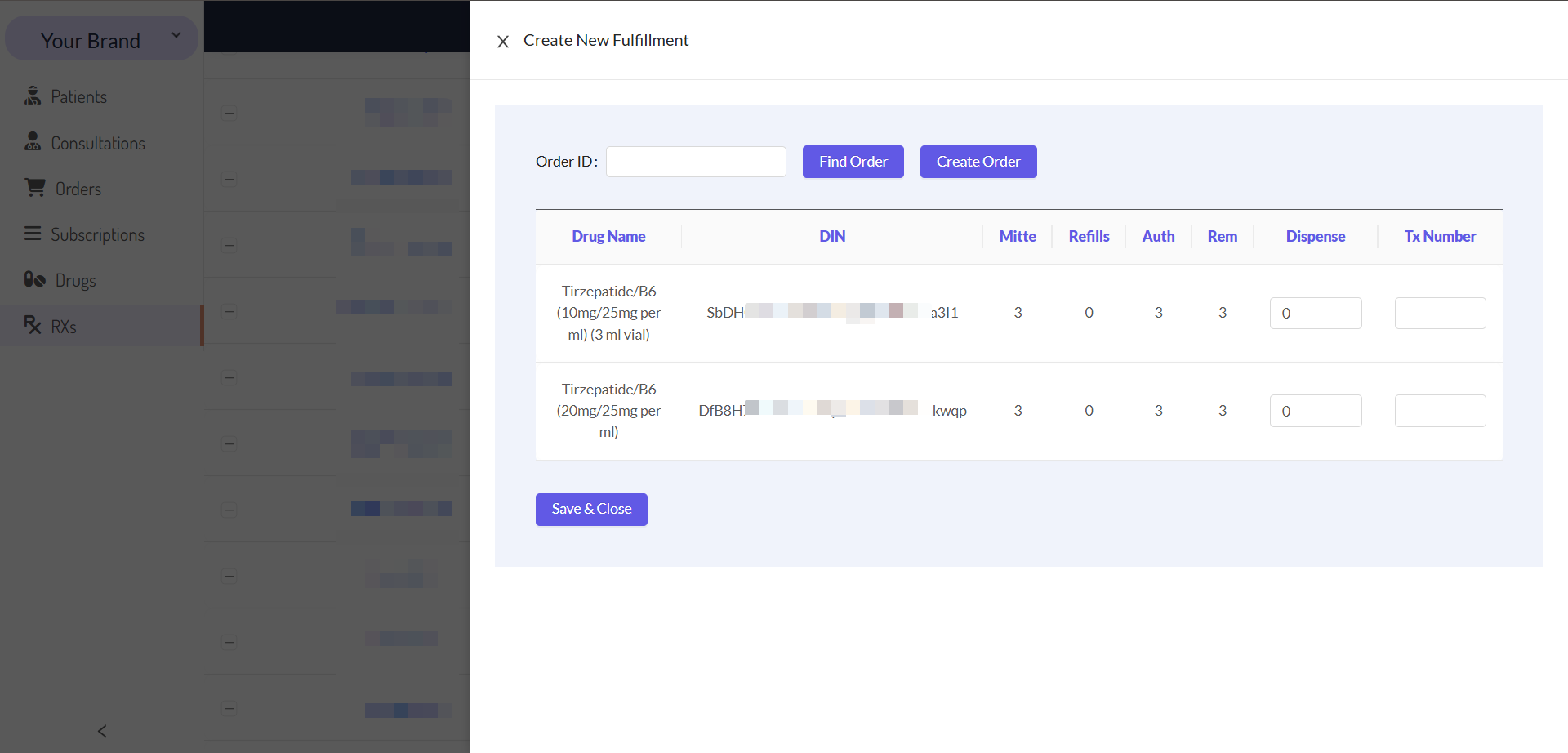
Open Fulfillment: This action opens the Create New Fulfillment window. Its purpose is to manually link the prescription to the relevant order.
Edit Prescription: The pencil icon allows you to edit the note associated with the prescription. When you click it, you can also access other management actions like voiding or canceling the prescription.
Void a Prescription: You may need to invalidate a prescription if it was created incorrectly or if a patient's treatment has changed. For example, if a physician sends a corrected prescription via API, the old one can be voided to ensure that the correct one will be fulfilled.
Once a prescription is viewed, it is locked and can’t be edited to preserve its integrity.
Next Steps
Now that you understand how to manage prescriptions, explore these related guides to see how prescriptions fit into the bigger picture.
Orders Manager: Get a comprehensive view of all patient orders and see how prescriptions are linked to them.
The Patient & Order Journey on CarePortals: Get a high-level overview of the entire order lifecycle, from initial purchase to final shipment.
Manage Your Drug Catalogue: Learn about the list of all available drugs that can be prescribed.
Was this helpful?
Still need help? Ask the team