Understanding Patient Profile
This guide breaks down the key data fields and actions available in a patient's profile. Understanding these fields is the first step in navigating a patient's complete record, which includes their history, submitted information, and all interactions with your brand.
Whether you are reviewing a patient's information for the first time or need to quickly perform an action, such as editing their details or initiating a chat, this reference will help you understand key fields, enabling you to know what to look for.
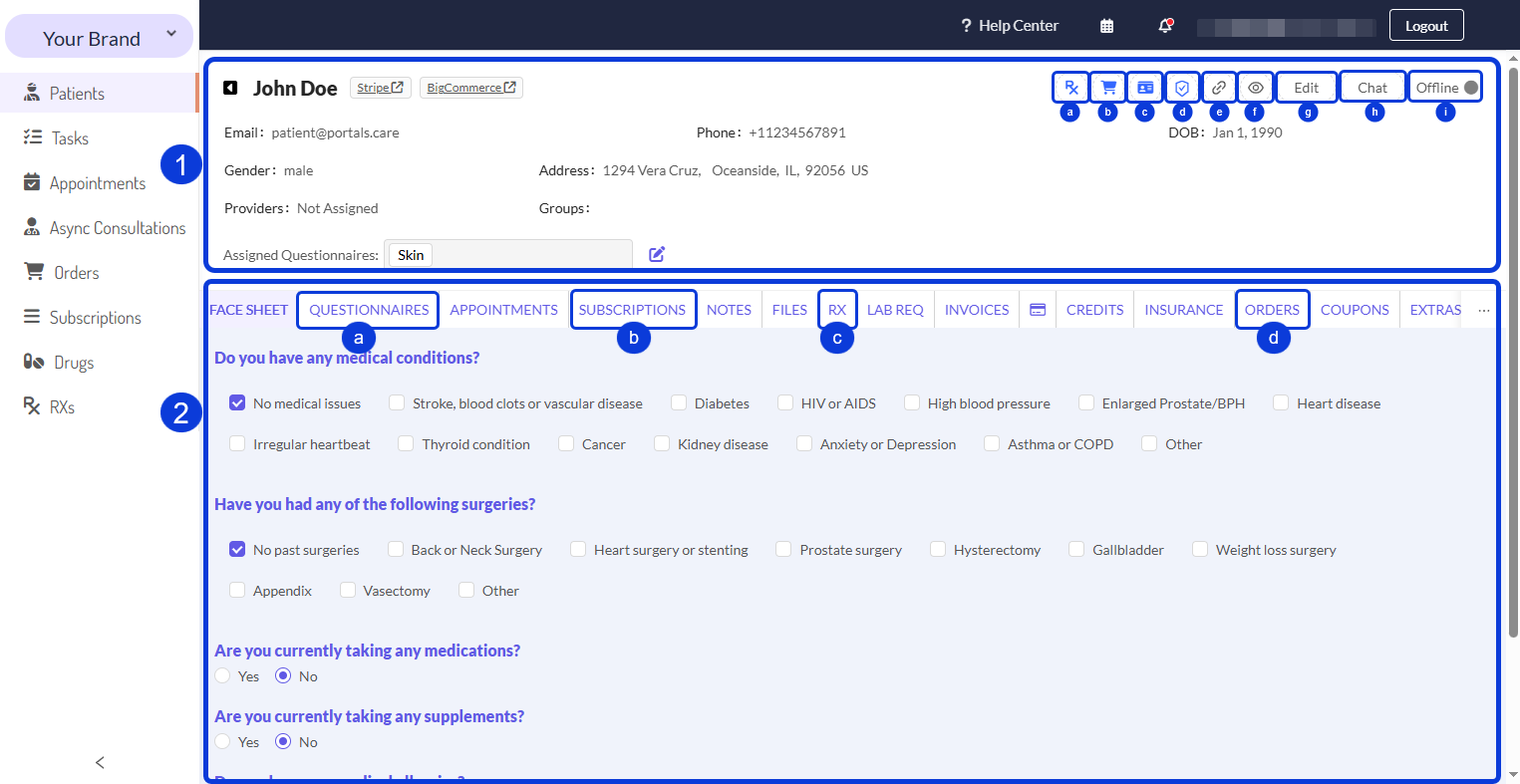
1. Patient Profile Header
The header provides a quick summary of the patient's essential information and gives you access to key actions.
Action Buttons
Located in the top-right corner of the header, you'll find several shortcut buttons for common actions:
a. Create RX (Prescription Pad Icon): Allows you to create a new prescription for the patient directly from their profile.
b. Create Order (Shopping Cart Icon): Quickly starts the process of creating a new order for the patient.
c. ID Verification (ID Card Icon): Manages the patient's ID verification status. You can set a verification with an expiration date or un-verify an ID.
d. Insurance (Shield Icon): Shows if the patient has insurance available. You can click it to change this status.
e. Copy Profile Link (Link/Chain Icon): Copies the direct link to the patient's profile to your clipboard.
f. Manage Watchlist (Eye Icon): Adds or removes the patient from the watchlist. The watchlist is a feature used to monitor specific patients.
g. Edit (Edit Button): Allows you to edit the patient's profile data, such as their name or contact details.
h. Chat (Chat Bubble Icon): Opens the chat window to communicate directly with the patient.
i. Online/Offline Status: Shows the patient's current activity status on the Patient Portal.
A patient’s activity status is updated every 15 seconds. The statuses are: Online (patient is active), Idle (patient is online but not active), and Offline.
2. Key Patient Data Tabs
Below the header, a series of tabs organizes the patient's detailed records. This guide highlights key fields in the Questionnaires, Subscriptions, Prescriptions, and Orders tabs.
Here is a breakdown of the data fields you will find within the patient profile tabs mentioned above.
a. Questionnaires
This tab lists all the medical questionnaires and files the patient has submitted.
b. Subscriptions
This tab shows all of the patient's active and past subscriptions for products or services.
c. RX (Prescriptions)
This tab manages the patient's prescriptions (Rx), showing a history of all prescriptions issued.
d. Orders
This tab contains a complete history of the patient's past and current orders.
Searching and Sorting the Patients List
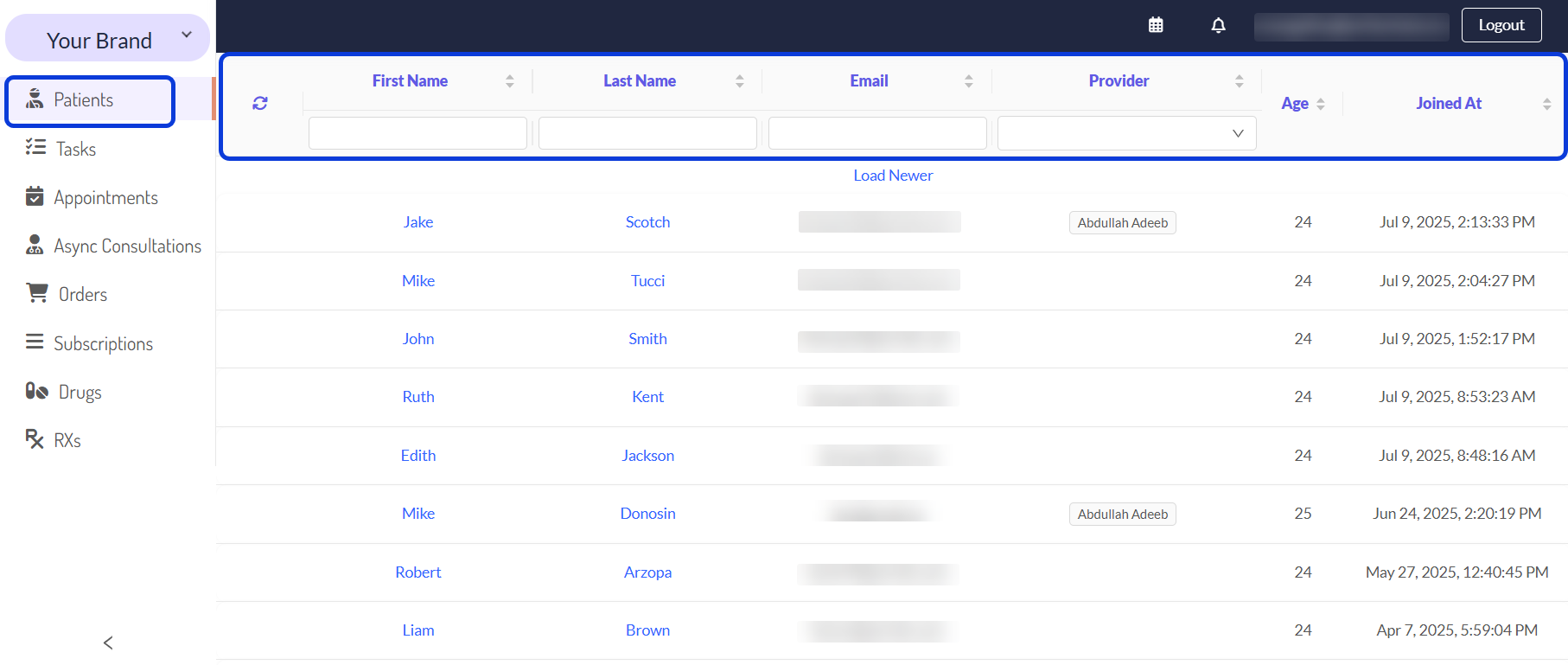
You can find patients by sorting the list or using the available filters.
To sort, click any column header.
To filter, use the fields at the top of the list, such as First or Last Name, Email, or Provider.
To clear all active filters, click the refresh icon (🔄).
Related Articles
To learn more about managing patients, you can consult these related guides:
How to Find and Manage a Patient's Profile: Learn how to access, edit, and actively manage information within a patient's record.
How to Use the Patient Chat: Learn more about the functions available when communicating with a patient.
A Tour of the EMR Portal: Get a general overview of all the management pages available in the EMR Portal.
Was this helpful?
Still need help? Ask the team