How to Monitor Patient Activity
Use the customer Activity Log to track a patient's communication with your brand. The log automatically records emails and SMS sent by the workflow automation engine, and you can manually add other interactions, such as phone calls or notes.
Access the Activity Log
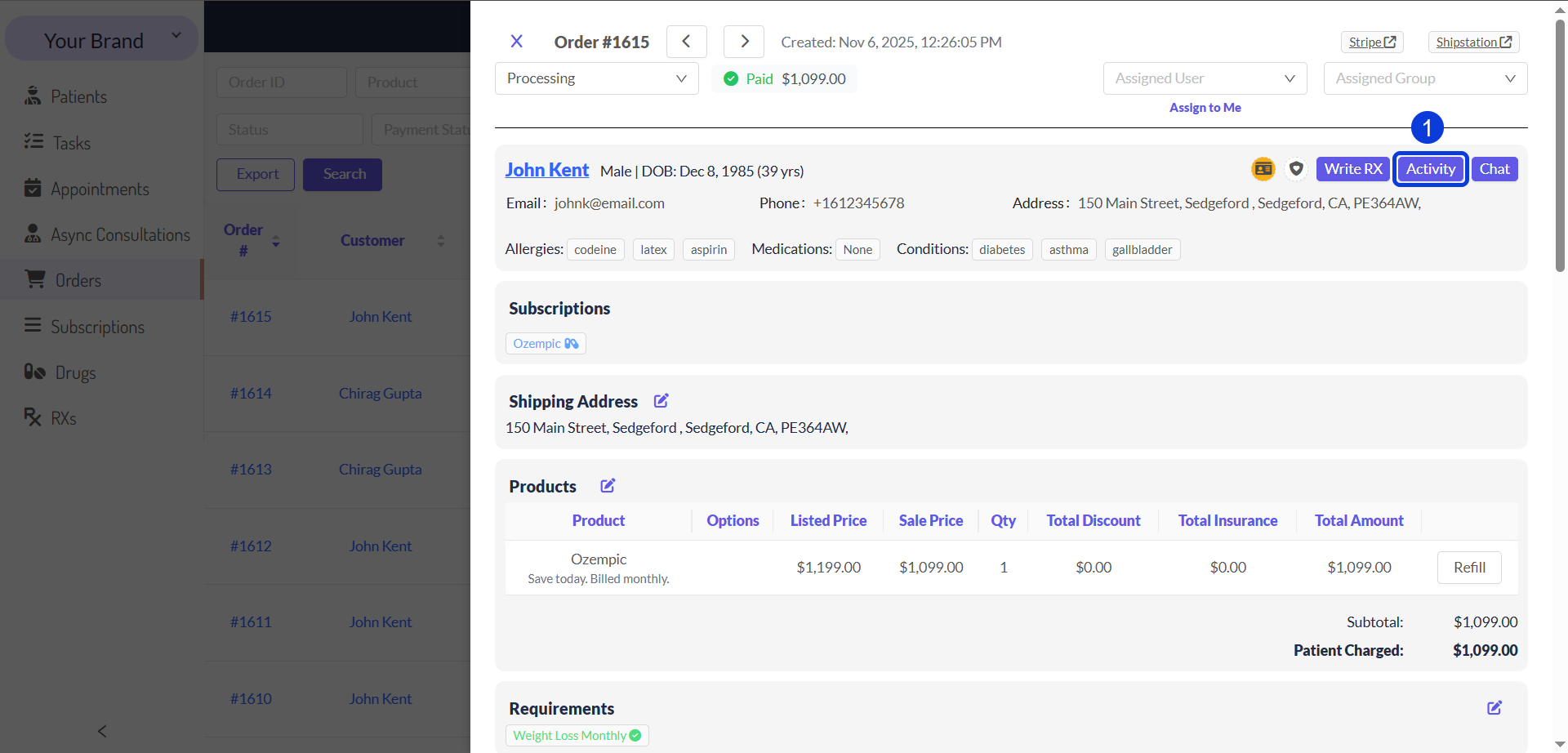
Within a Patient’s order details page, select the Activity button. The Customer Activity log will display. Alternatively, you can access the same log from the patient manager. Open a Patient record, and go to the Activity tab.
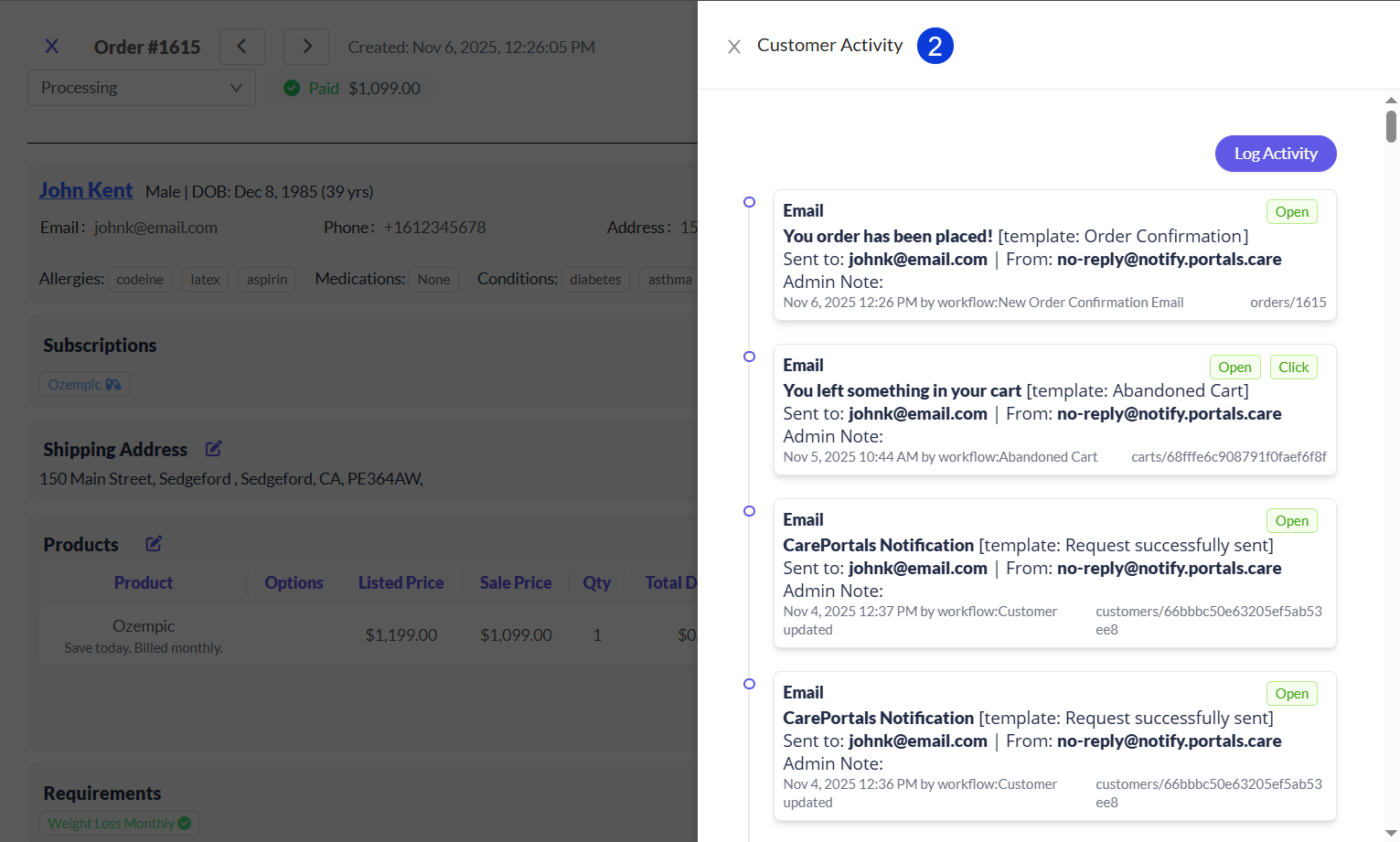
Review the automated history at the top of the log. This is a read-only record that shows:
Communications Sent: Emails and SMS messages sent to the patient by CarePortals workflow automation engine.
Patient Engagement: Tracking for email opens and clicks, if any.
Manually Log an Interaction
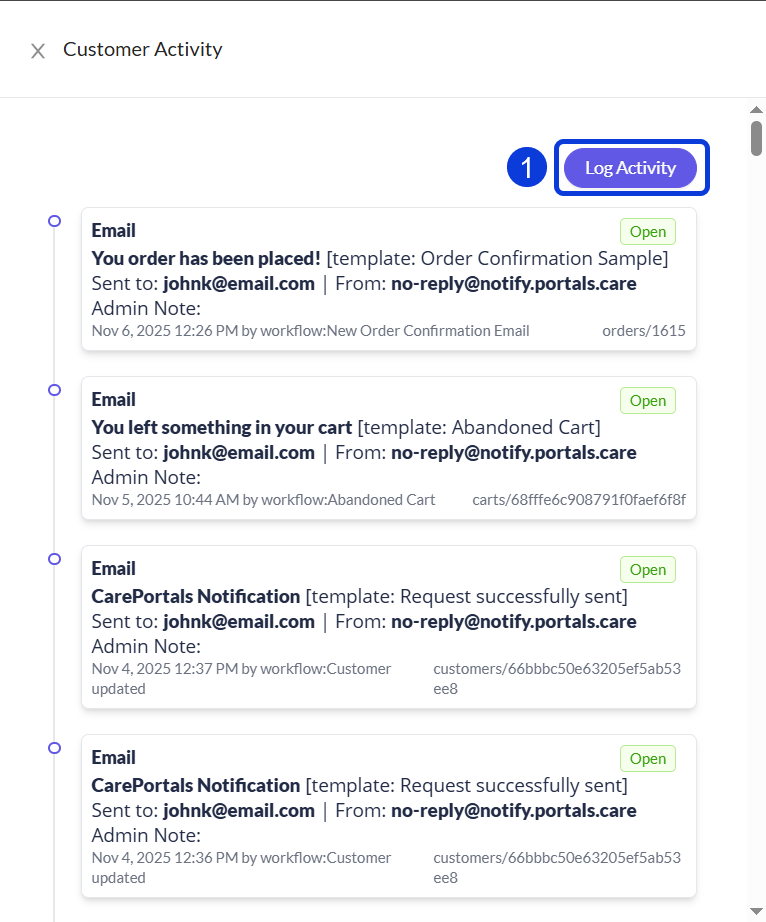
Sometimes you need to add an interaction to the patient's record, such as a phone call or an email sent from your personal inbox. The Log Activity button lets you do this.
To add a manual interaction to the record, click the Log Activity button in the Customer Activity window.
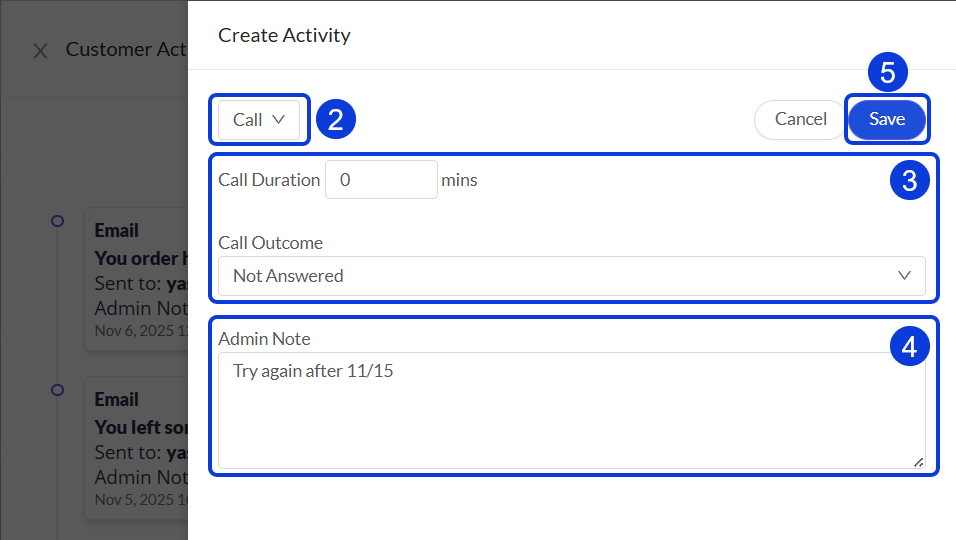
Select the type of interaction from the dropdown menu, such as Call, Email, SMS, or Other.
Fill in the specific fields for that activity. For example, if you select Call, you can enter the Call Duration and select a Call Outcome.
Enter any additional information in the Admin Note (optional) text box.
Click Save to add the entry to the log.
Next Steps
Now that you know how to monitor and log patient activity, here are a few guides that show what to do with that information.
Manage an Order from Start to Finish: Learn how to use a patient’s activity information to manage an order's entire lifecycle.
How to Use the Patient Chat: Learn how to communicate with patients directly inside the platform.
How to Find and Manage a Patient's Profile: Get a complete overview of all tabs and actions available in the patient manager.
Was this helpful?
Still need help? Ask the team