The Patient & Order Journey on CarePortals
An order on the CarePortals platform goes through a carefully designed journey that ensures patients get what they need safely, efficiently, and with minimal friction. From the moment a product is purchased on the DTC Brand’s website to the final shipment, every step is powered by smart automation, behind the scenes connections, and dedicated human support when needed.
The experience begins with the purchase of any product. What happens next depends on the type of product. If a medical prescription is required, the order will follow a specialized flow involving physician review and patient-submitted documentation. If not, it moves straight into processing and fulfillment.
Below, you can find a clear breakdown of each stage in the order lifecycle. This can help you understand exactly how everything works together to move the order forward.
Checkout Flow
When a patient decides to buy a product or service from a DTC brand's website, they are guided through the checkout flow. This process consists of three main steps:
Account Creation: The patient creates a new account or signs in to an existing one. Signing up automatically creates a new patient record in the EMR Portal.
Payment: The patient securely completes the payment for the selected item.
Once the payment is completed, a new order is automatically created in the EMR portal with Processing status, which indicates that the payment was successful.
Consultation: Once payment is successfully completed, the patient proceeds to the consultation step. This may involve completing medical questionnaires or intake forms, submitting lab results, or scheduling a video consultation with a licensed provider, depending on the clinical workflow and the treatment being requested.

Fulfilling Requirements
Once the order is placed, it begins moving through a series of statuses that reflect where it stands in the process. These statuses update automatically as key actions happen, like when patient requirements are submitted or a physician writes a prescription. This helps your team easily track what needs attention and what’s ready to move forward.
The CarePortals platform is powered by a workflow engine designed to automate the entire sales process. Each workflow is event-driven, triggered by specific actions, and in turn, it executes new actions within the system.
For example, a workflow can be set up to automatically update the order status to reflect the steps completed in a process. In addition, changes in an order’s status can also trigger a workflow action.
Because of this two-way interaction, changing the order status manually may trigger additional automated processes. Be cautious, only update the order status if you are certain it is appropriate, as it may have downstream effects on your system.
A. For Products Requiring a Prescription:
The order moves to the Awaiting Requirements status until the patient submits all necessary forms. Once the patient completes the requirements, the order status changes to Awaiting Script. At this stage, an automated process sends a visit request to a partnered physician group. As this is automatically done, your job here is to monitor this process runs smoothly. In case it doesn’t, consult the troubleshooting section to find out what can be happening.
Check the order extras for the masterId to confirm a successful visit submission to Beluga. Where to find it? Navigate to the order details page and look in the 'extras/metadata' section.
The partner group then reviews the patient's information and if the patient is eligible, a physician writes a prescription and sends it back to the CarePortals system.
When the prescription is received, the order status automatically updates to Awaiting Fulfillment. This means the prescription has been linked to the order and is ready for the next step.
B. For Products Not Requiring a Prescription:
The process is simpler for certain orders that can be sent directly to the pharmacy, bypassing a new provider visit. This applies in two main cases:
Products that do not require a prescription.
Refill orders where the patient has remaining refills on a matching, existing prescription.
In both scenarios, once the order is created and payment is confirmed, it moves directly to the pharmacy. The order status will then change to Awaiting Shipment.
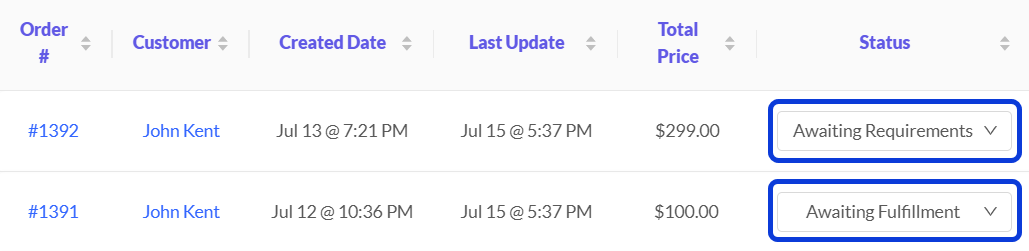
In some cases, a prescription may fail to attach properly, or the order status might not update automatically as expected. If you encounter these situations, please refer to our Troubleshooting guides. They are specifically designed to help you resolve these issues.
Fulfillment & Shipping
Once an order is ready, the fulfillment process begins. Technically, this starts with the CarePortals system automatically linking the appropriate prescription (Rx) to the order. After this step, the system sends the order and prescription to the designated fulfillment partner, which is a pharmacy. At this point, the order status changes to Awaiting Shipment.

The pharmacy prepares the order and ships it to the patient. Once shipped, the pharmacy sends an update with the tracking code back to the CarePortals system. The order status is then automatically updated to Shipped, marking the final stage of the journey.

Once the pharmacy ships the product, the tracking information is automatically sent to CarePortals. The system then updates the order with a Track link so you can follow the shipment's progress.

Typical Order Lifecycle Summary
The following table summarizes the typical journey of an order that requires a prescription:
Manual Intervention
While much of the order process is automated, there are times when manual action is needed. As a member of the operations team, your role is to regularly monitor orders in the EMR portal, identify any issues (like orders that get “stuck” in a certain status) and help resolve them. This might involve reviewing order details, checking the activity log, or reaching out to patients and partners to keep things moving smoothly.
For more information on common issues that can arise and how to handle them, you can visit the Troubleshooting section. It is specifically designed to help you understand these issues and the possible steps to solve them.
Next Steps
Now that you know how a typical order lifecycle develops in CarePortals, explore these related guides.
Manage an Order from Start to Finish: Review information, communicate with the patient, and ensure the order progresses smoothly.
How to Create an Order or Subscription Manually: Get step-by-step instructions for creating a new order or initiating a new subscription for a patient directly from the EMR portal.
How to Manage Patients Subscriptions: Pause, Cancel or Edit the renewal date of a patient’s subscription.
Was this helpful?
Still need help? Ask the team