How to Export Orders
Need to download your order data? Use the Export function found on your main Orders page. This feature allows you to create a CSV file of your order history, which is useful for accounting, record-keeping, or analysis.
Follow these steps to download your orders data:
Navigate to the Orders page in the EMR portal.
Look for and click the Export button.
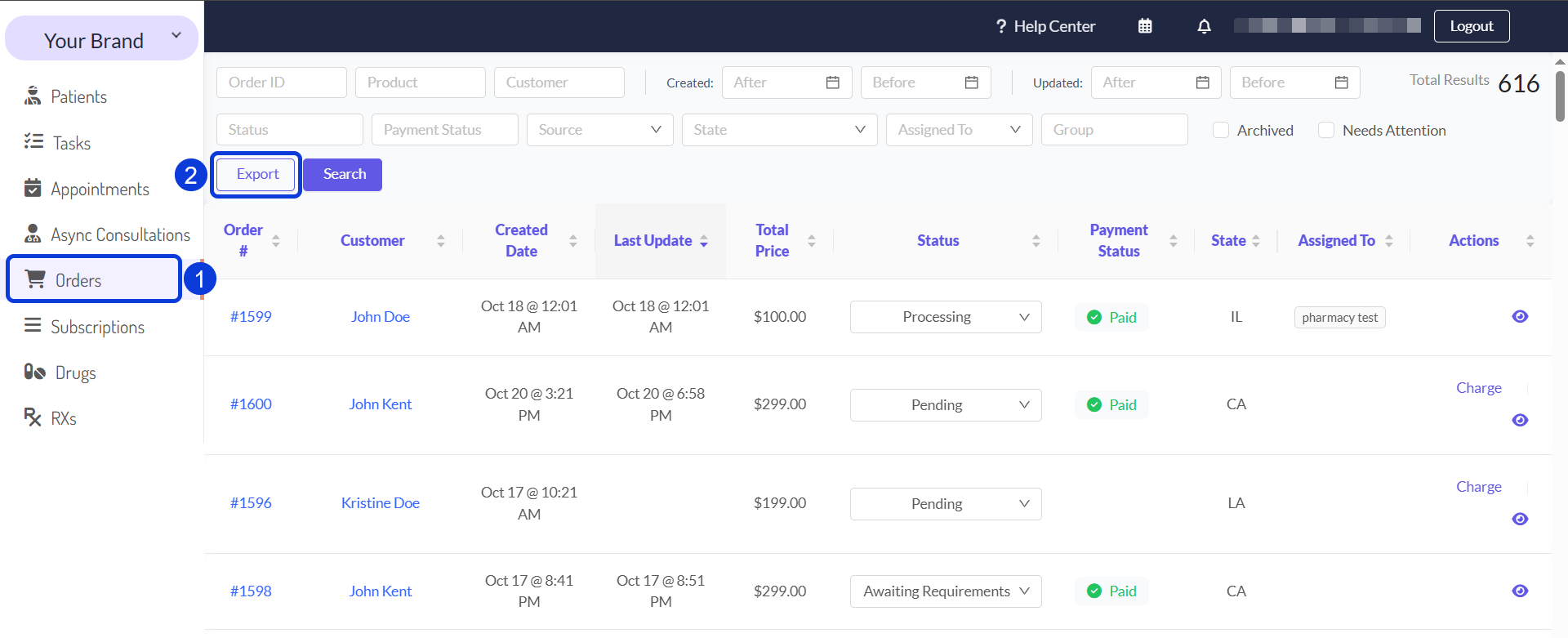
A pop-up or new section will appear, asking you to select a date range for the orders you want to export (e.g., "Last 30 days," "This month," or a "Custom range").
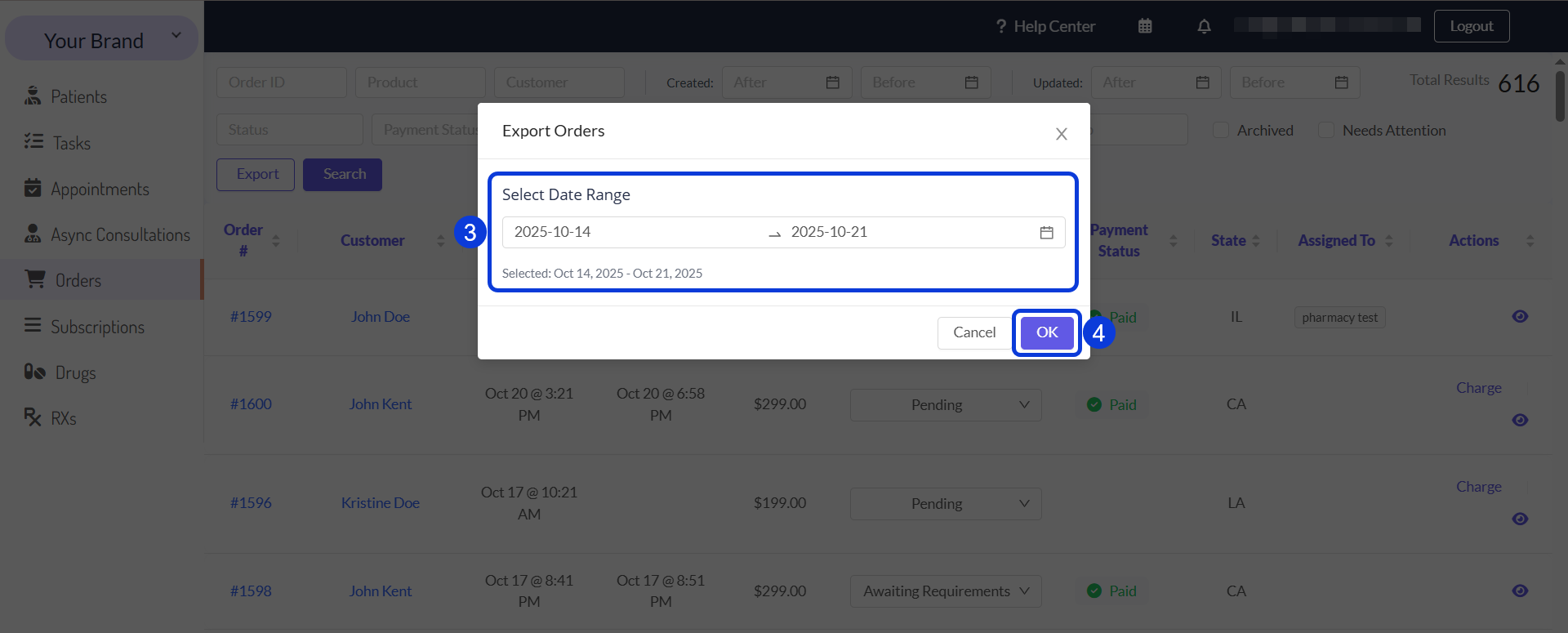
After choosing your dates, confirm the export. Your system will then generate a CSV file containing your selected order data, which will download directly to your computer.
To protect sensitive patient information, the Export function is only available to users with specific permissions. If you need to export data, please contact your admin.
Next Steps
Now that you understand how to export orders, here are some related guides to continue learning:
How to Create a Prescription: A step-by-step guide on writing and sending new prescriptions from the order page or the patient's file.
How to Manage Patients Subscriptions: See how to create, edit, or cancel the patient subscriptions listed on the order page.
Was this helpful?
Still need help? Ask the team