How to Add a New Drug to Your Catalog
This guide shows you how to add a new medication to your brand's drug catalog in the EMR portal. Following these steps ensures that the new drug is available for selection when writing prescriptions.
The details you enter here are crucial for your medical team. When a prescription (RX) is created, the system pulls information directly from this drug record, including the Name, Strength, and SIG (patient instructions). Taking the time to add complete and accurate details ensures that prescriptions are written correctly and efficiently, saving your team time and preventing errors.
Add a New Drug
Follow these steps to add a new drug to your catalog:
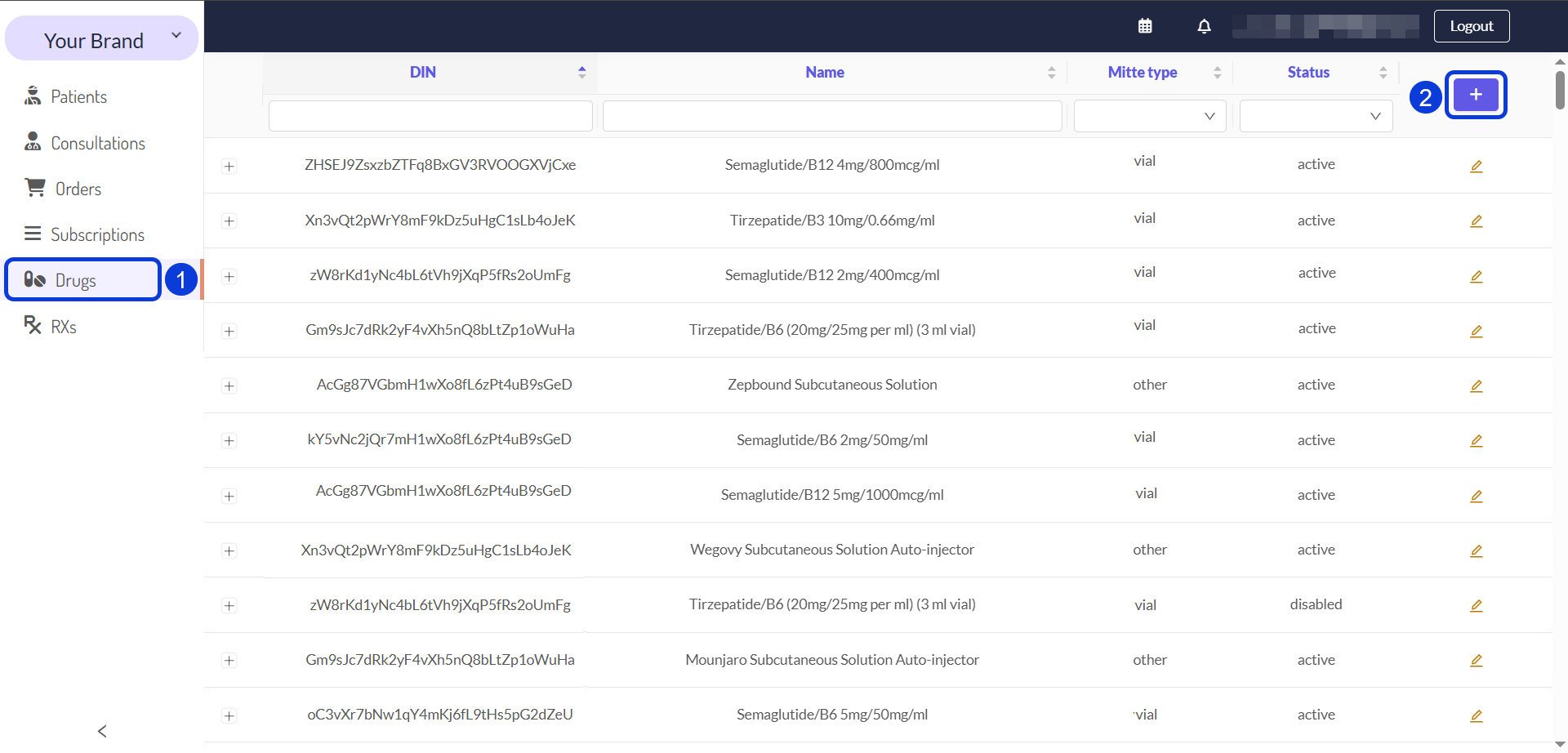
Access the EMR portal and navigate to Drugs. The main page displays a list of all existing drugs in your catalog, organized into columns for a quick overview.
Click the plus icon (+) located in the top-right corner of the drugs list to open the Create Drug form.
In the new form that opens, enter all the medication's information. The fields marked with a red asterisk are mandatory. For detailed instructions on completing each field in the Create Drug form, see the Manage Your Drug Catalog article.
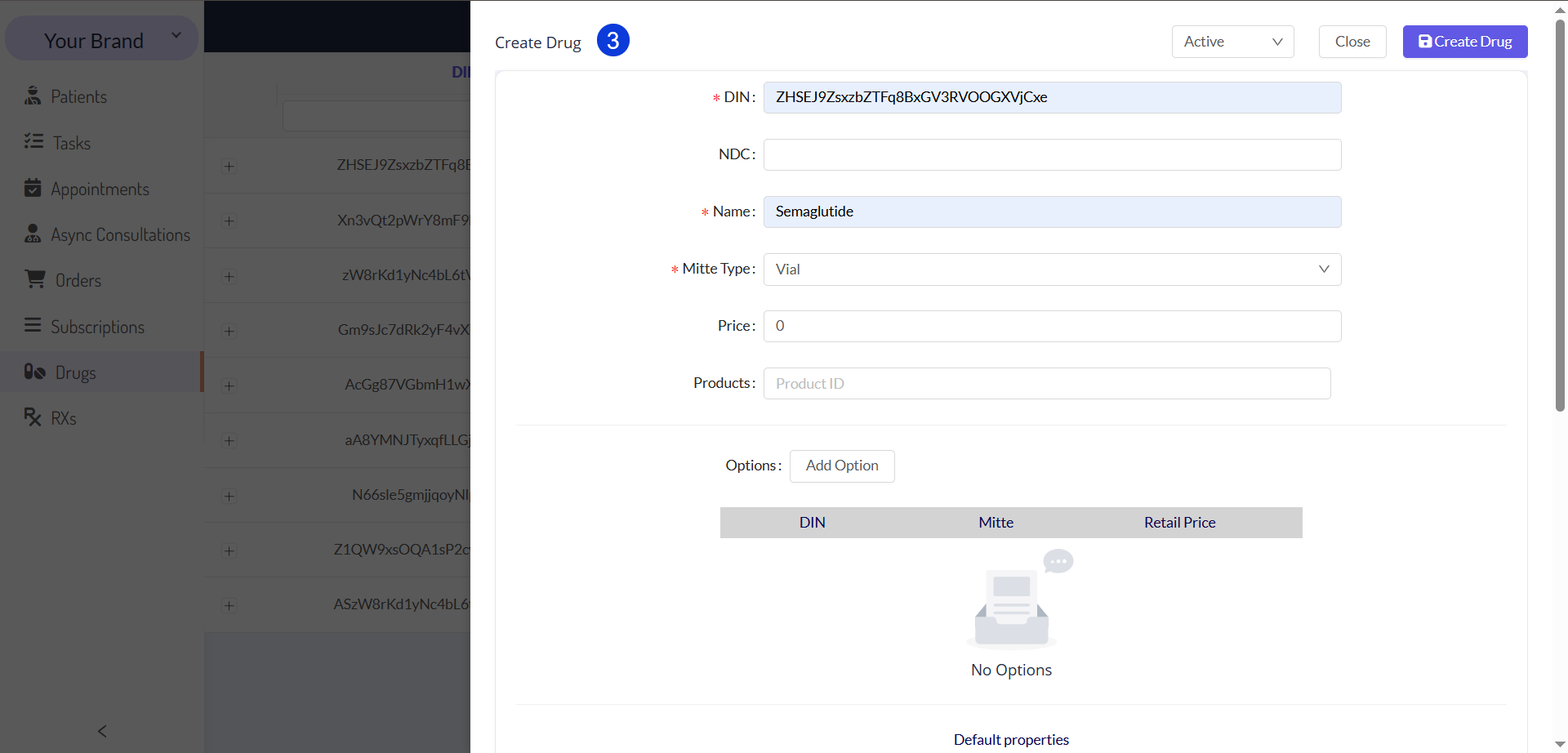
For brands that partner with an external physician group, it is crucial that the drug information in CarePortals perfectly matches the medication details provided by that partner. Your team can cross-check this information by accessing the physician group's dashboard to ensure all data is consistent.
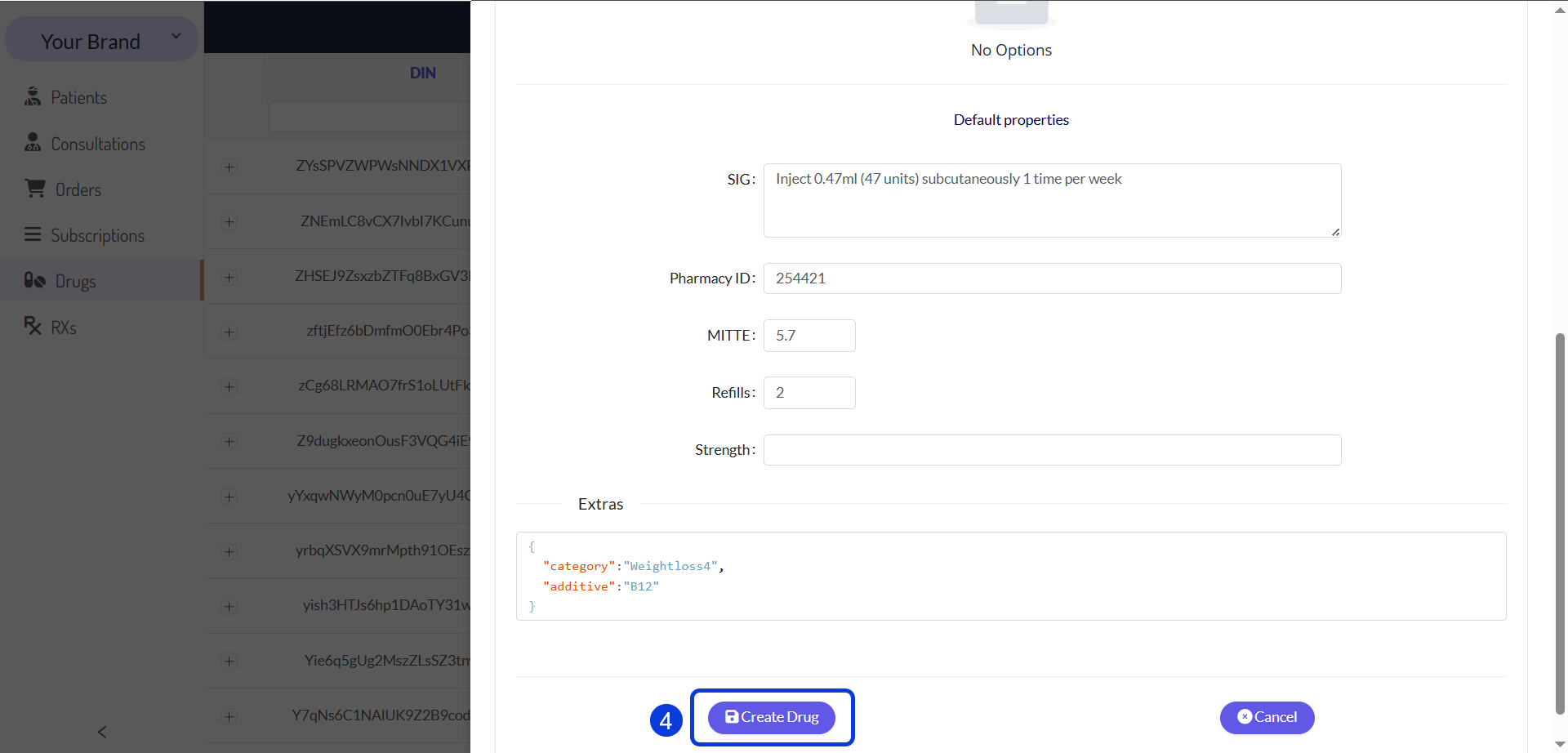
Once you have finished entering all the necessary information, click on Create Drug. The drug will now be part of your catalog and can be used in prescriptions.
Set the Drug Status
At the top of the Create Drug form, you will see a toggle to set the drug's status.
Active: By default, new drugs are created as Active. This means the drug is available and can be selected by your medical team when writing new prescriptions.
Disabled: You can set this if the drug should not be used for new prescriptions.
You can change this status at any time after the drug is created. To learn more about managing existing drugs, refer to the related guide Manage Your Drug Catalog.

Next Steps
Now that you understand how to create a new drug in your EMR portal, explore these related guides.
Manage Your Drug Catalog: Keep your central catalog of all medications accurate and up-to-date for writing and fulfilling correct prescriptions.
How to Create a Prescription: Learn how to add a new prescription and how to complete its fields.
Prescriptions Management: Learn how to manage patient prescriptions, where you will use the drugs you have configured.
Managing Orders in CarePortals: Get a comprehensive view of all patient orders, which are directly linked to prescriptions.
Create a Product: Understand how to set up Products in the CRM portal.
Was this helpful?
Still need help? Ask the team