How to Use Adapters
The Adapter is your gateway to connecting CarePortals workflows with the external, third-party tools your business relies on. Think of it as a bridge that allows CarePortals to communicate with other platforms.
This enables you to automate powerful actions like processing payments with Stripe, subscribing leads to a list in Klaviyo, or updating your CRM in HubSpot, all from a single workflow.
How the Adapter Works
Setting up an Adapter involves telling it which service to connect to, what action to perform, and what data to use:
Select Adapter Type: Choose the external service (e.g., Stripe, Klaviyo, HubSpot) you want to interact with from the dropdown menu.
Select Function: After selecting a service, choose the specific action you want to perform from the Function dropdown menu. Each function corresponds to an available operation supported by that integration.
Configure Parameters: Fill in the required parameter fields for the chosen function. This is where you'll provide the data needed to perform the action, such as a customer ID, an email address, or an order amount. You can use dynamic variables to pull this data directly from your workflow.
Configure Extras (Optional): Some adapter actions may include an Extras section. This allows you to pass additional, non-required information or custom metadata to the third-party service, which can be useful for tracking or advanced integrations.
Using Dynamic Variables in Adapters
To build truly automated workflows, you must use dynamic variables instead of static, hard-coded values. By using a dynamic variable like {{customer.email}}, you ensure the workflow pulls the email address from the current trigger's data.
This means the new patient who just signed up gets the email. Therefore, dynamic variables make your workflows contextual and responsive.
An Adapter step can pull data from two sources:
Trigger Payload: This is the data that initiated the workflow. For example, if a new order trigger starts the workflow, the payload will contain all the details of that specific order (e.g.,
{{customer.email}},{{totalAmount}}).Previous Step Results: The Adapter can also use results from steps that ran earlier in the same workflow. This data is accessed using the
historyobject. For example, to get the first name from the result of the first step, you would use{{history.1.result.first_name}}.
Access the Trigger Events Payload Index page to check payload information available for each different trigger.
Adapters Use Case
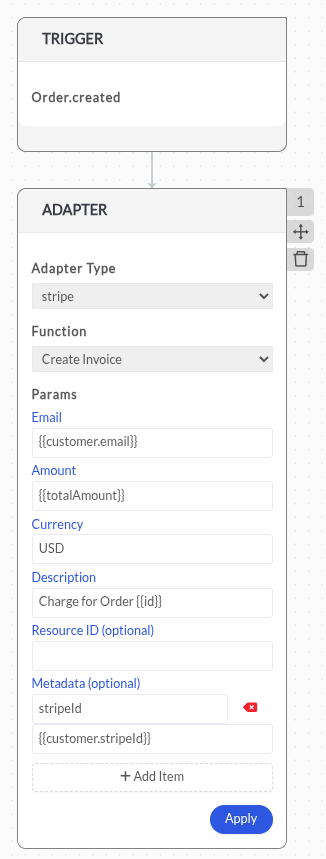
Consider you need to create a workflow to automatically create a Stripe invoice as soon as a new order is created in your system. The workflow will start for all order.created. The trigger payload contains the customer's ID, the order total, and a description.
Add an Adapter step to your workflow.
Set the Adapter Type to
Stripe.Set the Function to
Create Charge.In the Parameters section, map the dynamic variables from the
order.createdpayload to the corresponding Stripe fields.
You can also use the Extras section to pass additional metadata for easier tracking and reconciliation between your systems and Stripe.
Understanding Adapter Results
When an Adapter runs successfully, its response is not added to the main trigger payload, but it is stored in the workflow's history object. This allows later steps to reference the result.
For example, if a LifeFile Adapter returns a new order_id, you can access it in a later Condition step using history.{{step_number}}.result.{{variable_name}}:
{{history.3.result.order_id}} This approach supports branching logic and conditional workflows based on external service responses.
Available Adapters
The following table lists the third-party integrations available as Adapters within the workflow automation engine:
Related Articles
Now that you understand what Adapters are and how they can be set, you may want to explore the following pages.
Available CRM Actions: Configure your workflow to automatically send messages, update CRM records, and more.
How to Use the Wait Component: Add delays to control when actions happen within a workflow.
How to Use Conditions: Create logic paths by setting rules that split your workflow’s behavior.
Was this helpful?
Still need help? Ask the team