How to Find Your Google Tag Manager ID (Container ID)
To unlock powerful analytics and marketing insights via CarePortals, you need to connect your Google Tag Manager (GTM) account. Our platform automatically signals key patient actions, such as adding items to a cart or completing an order, through a centralized event stream known as the dataLayer.
By linking your GTM container, you can monitor these events and trigger tracking tags for tools like Google Analytics or Meta Pixel without modifying your site’s core code. The first step is locating your unique GTM ID (Container ID), which is required to configure the integration within the CRM Portal
What is a Google Tag Manager ID?
The GTM ID serves as a specific address for your container. It ensures the right contents are delivered to your website. The ID always starts with GTM- followed by a combination of letters and numbers. For example: GTM-A1B2C3D.
Locate Your ID
If you already have a Google Tag Manager account and container setup, follow these steps to find your ID:
Log in to your Google Tag Manager account.
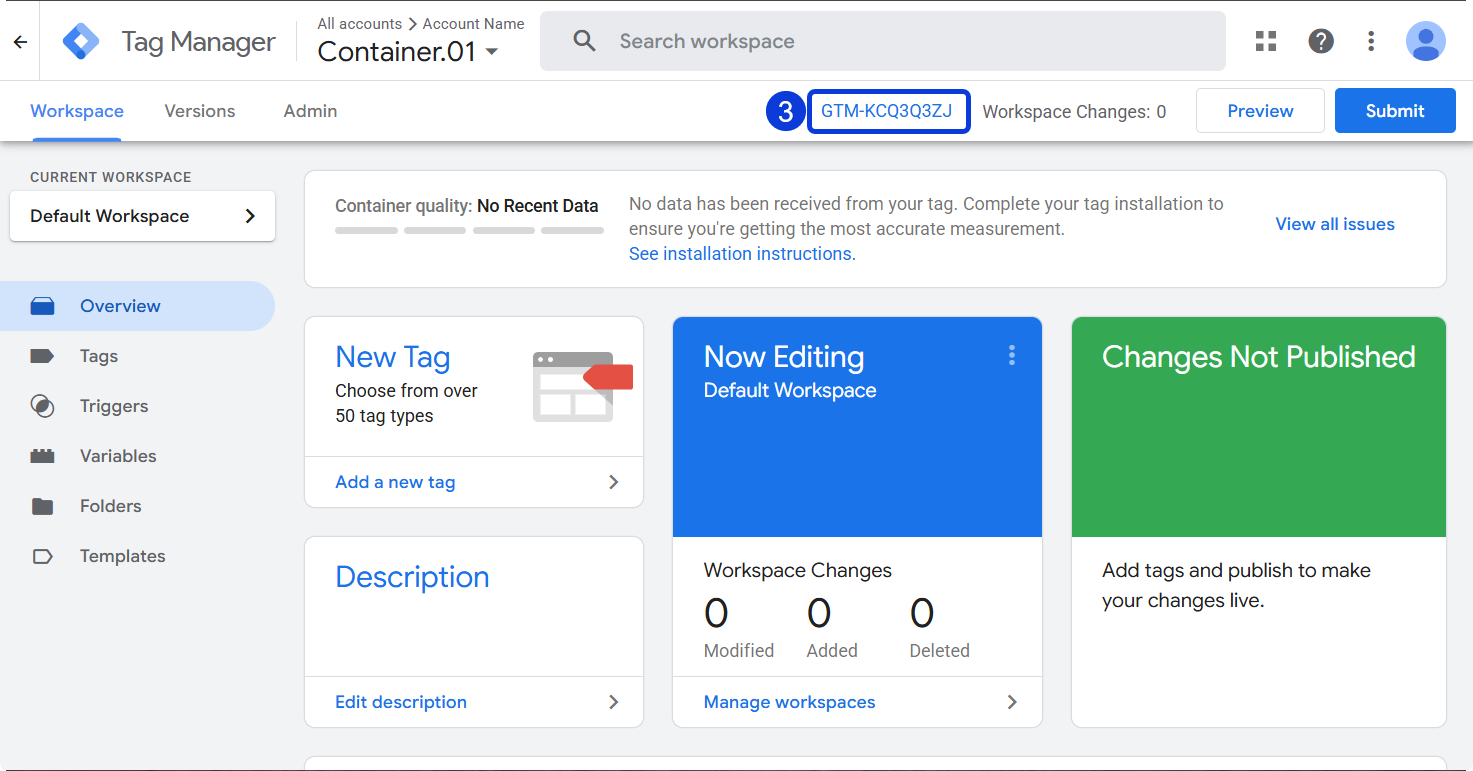
Click on the Container name you wish to use. This is usually named after your website.
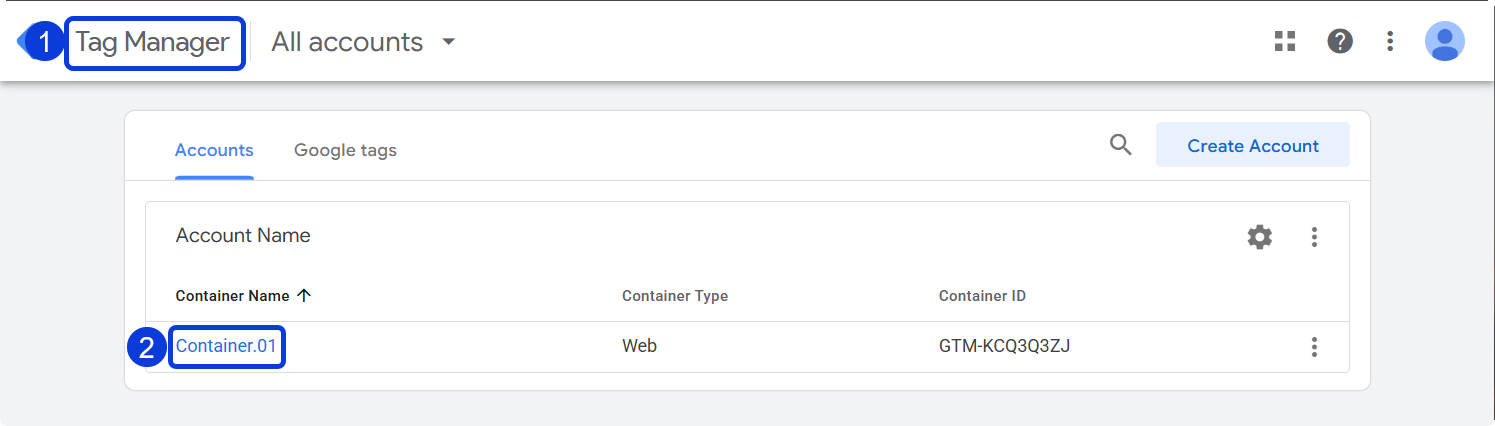
Copy the code starting with GTM- to use in your CarePortals configuration.
Create a GTM Account and Container
If you do not have an account yet, you must create one to get an ID.
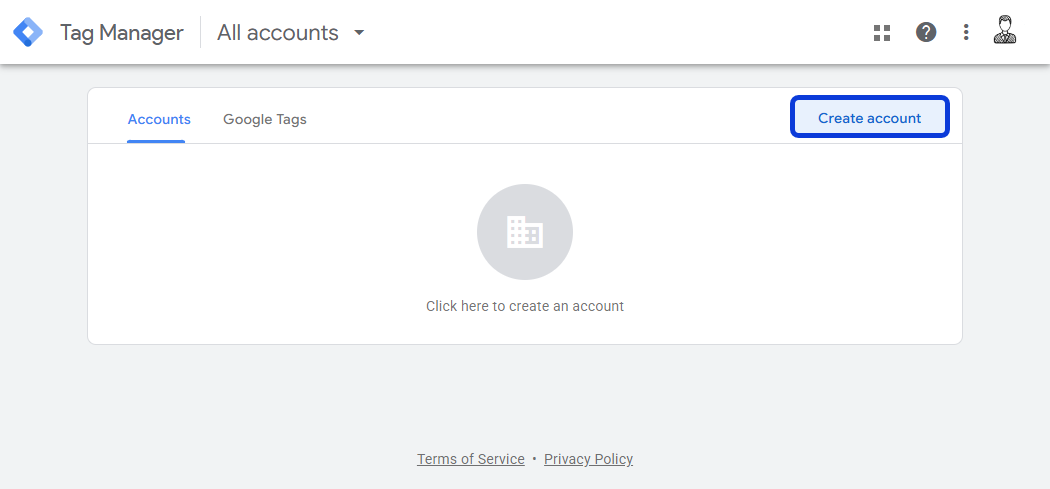
Go to the Google Tag Manager website.
Select Create account.
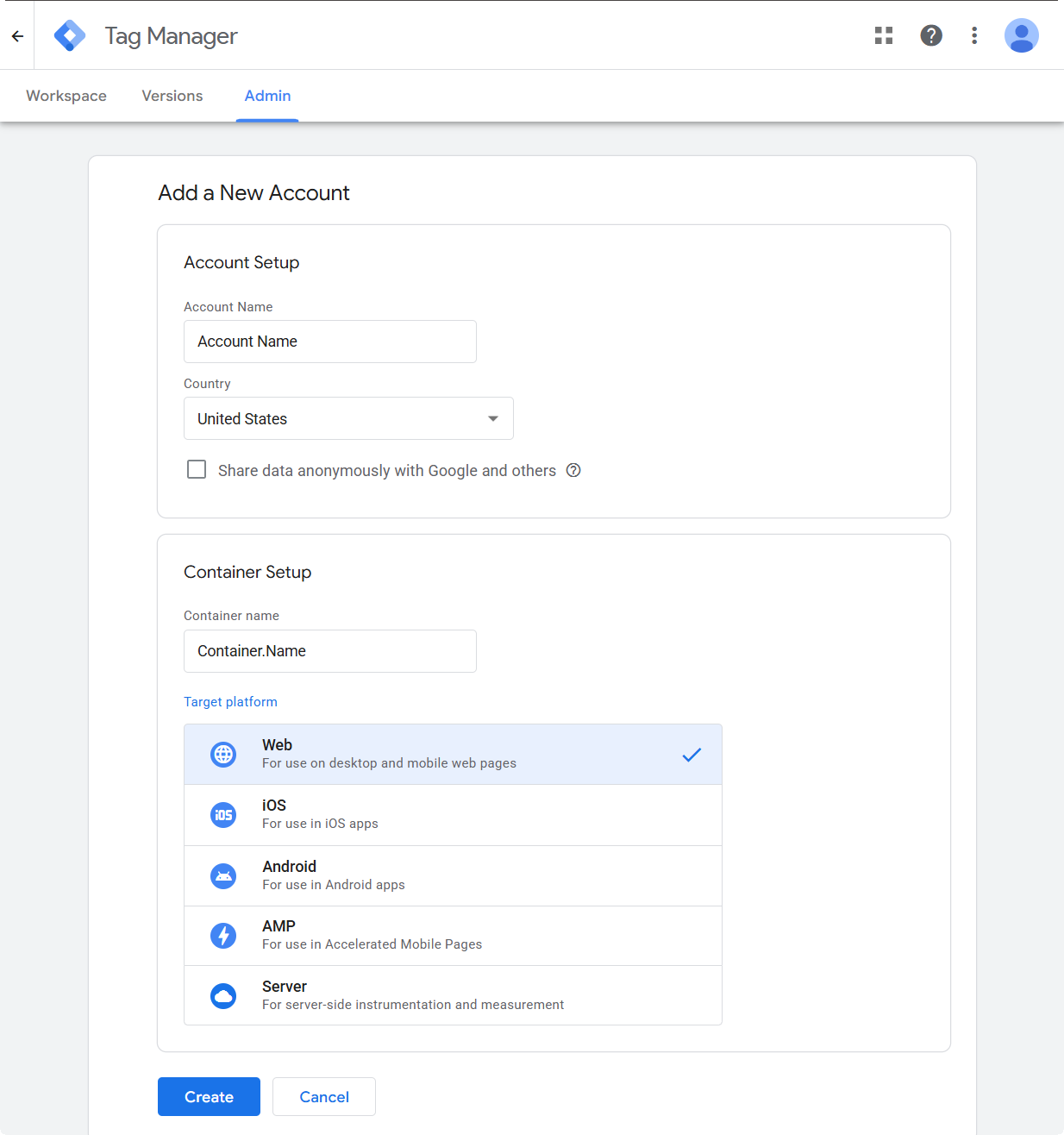
Follow the steps to set up your Account and Container. Click Create when ready.
Typically, an Account represents a brand, while a Container represents a specific website.
Once created, you will see two code snippets containing your new ID. Close the popup to see the ID in the workspace header.
Check an ID on a Live Website
If you need to confirm which ID is currently active on a website, you can check the site's code.
Method A: View Source Code
Open the website in your browser.
Right-click on the background and select View page source.
Use the Find feature (CTRL + F or CMD + F).
Search for "GTM-" or “GM-”. If installed, the ID will appear in the code.
Method B: Developer Tools
Open the Developer tools in your browser (often F12 or CTRL + Shift + I).
Select the Network tab.
Refresh the page to load data.
Type "gtm" in the search field.
Look for a line containing
gtm.js?id=GTM-XXXXX. The text afterid=is the Container ID.
Next Steps
Now that you have your ID, you can proceed with your platform configuration and start tracking patients behavior:
Patient Portal DataLayer Events: View the specific event payloads (like
add_to_cartandorder-created) that CarePortals sends to GTM.Set up Tracking Scripts: Learn how to configure triggers for Page Views, Session Linkers, and Conversion events.
Was this helpful?
Still need help? Ask the team