How to Find and Manage a Patient's Profile
The patient profile serves as the central hub for all patient information, consolidating every record in one convenient location. It's an active workspace where your team can manage every part of the patient journey.
From here, you can navigate through tabs to review and manage a patient's orders, subscriptions, uploaded files, completed questionnaires, saved payment methods, and more.
While our Patient Management Overview guide introduces all the available tabs, this article focuses on how you can access, edit, and actively manage the information within a patient's record.
Accessing a Patient's Profile
There are several ways to access a patient's profile in the EMR Portal, allowing you to find the information you need from various starting points.
1. From the Patients List
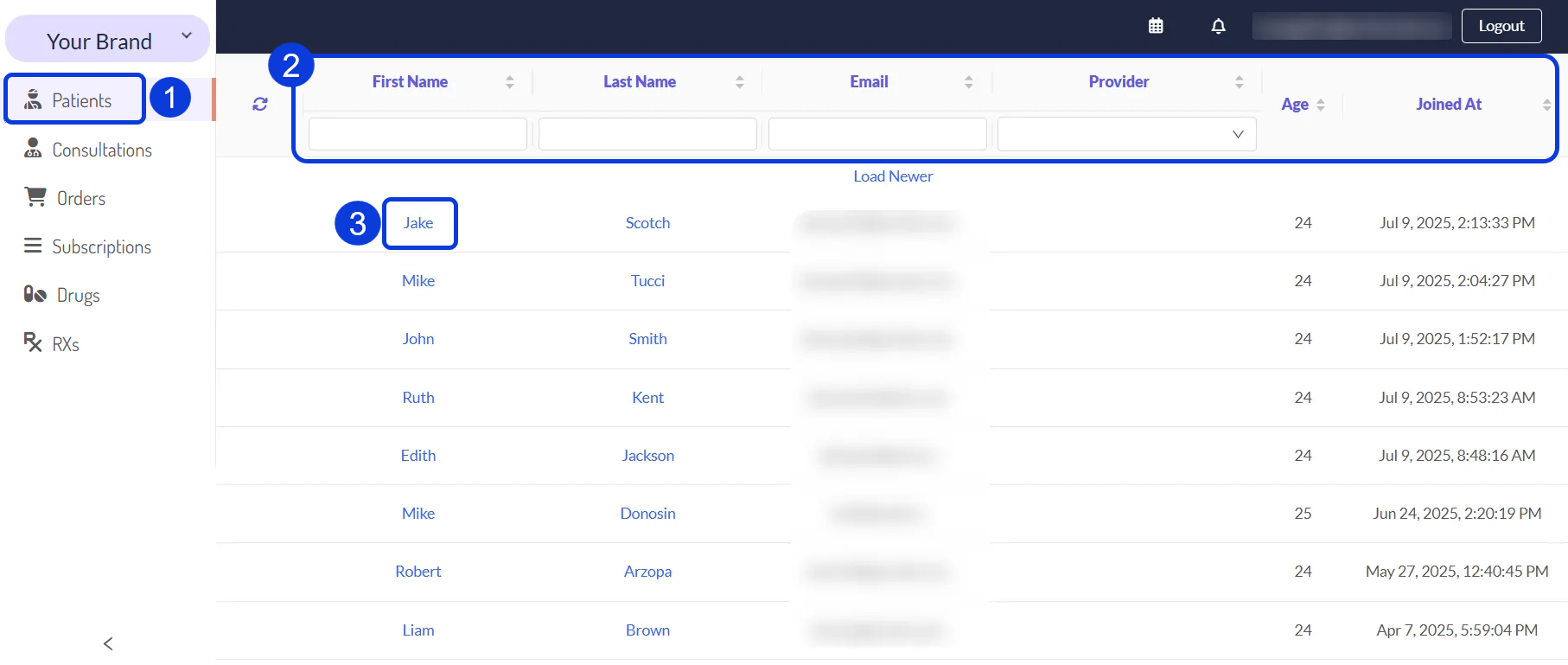
The most direct way to find a patient is by navigating to the main patient directory:
Go to Patients from the main menu. This will display a list of all patients.
Use the search and filter options to locate the patient you are looking for.
Click on the patient's name or last name in the list to open their complete profile.
2. From Other EMR Sections
You can also access a patient's profile directly from other sections within the EMR. This is helpful when you are already working on a specific task, such as reviewing an order or a subscription.
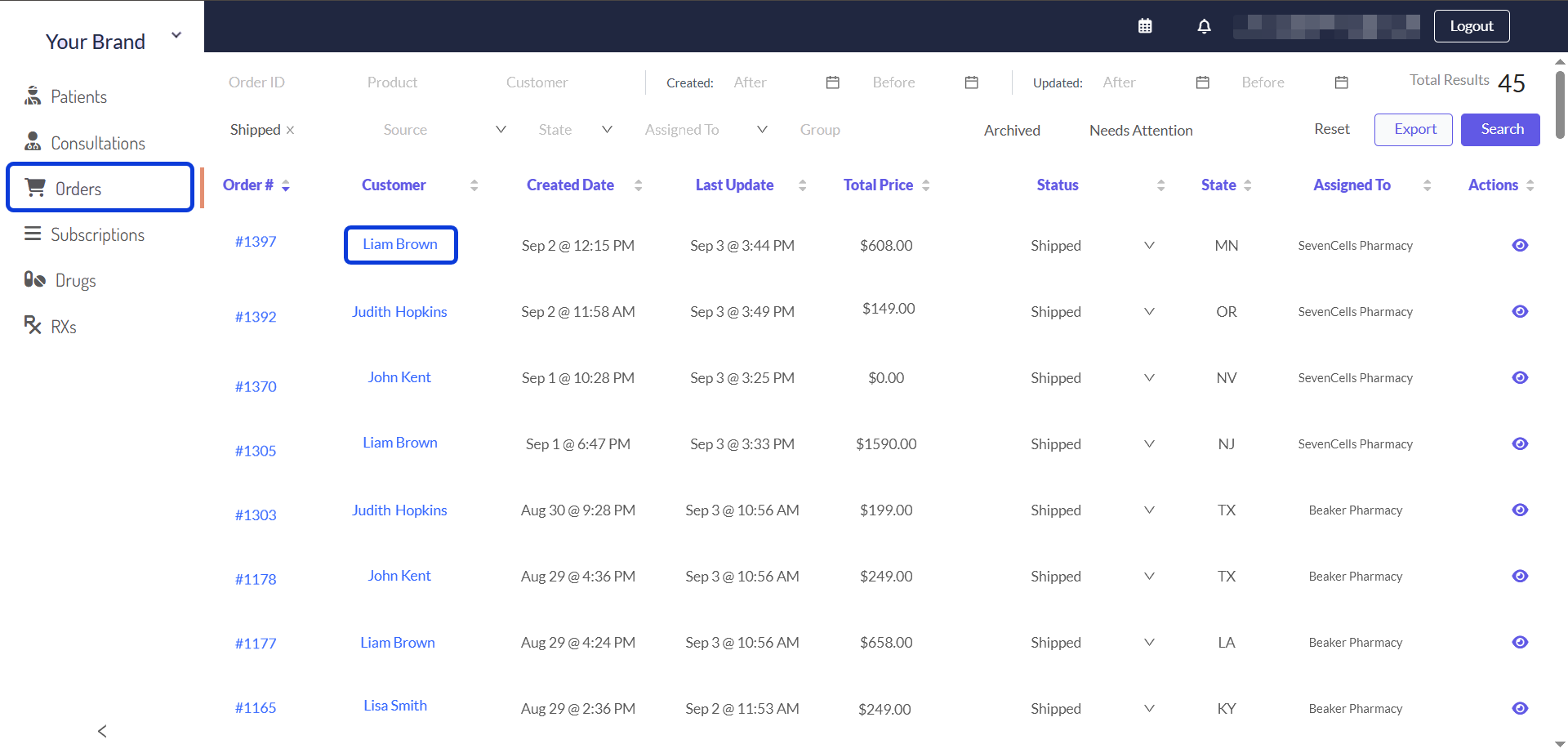
As a general rule, if you see a Patient or Customer column in a list, you can click on the patient's name to go directly to their profile. This works in several key areas, including:
Orders: When viewing the list of orders, click the patient's name in the Customer column.
Subscriptions: From the subscriptions list, click the patient's name in the Customer column.
Prescriptions (RXs): In the prescriptions list, click the name in the Patient column.
Consultations: When reviewing consultations or appointments, navigate to the patient's profile from the list view, located under the Patient column.
Managing a Patient Profile
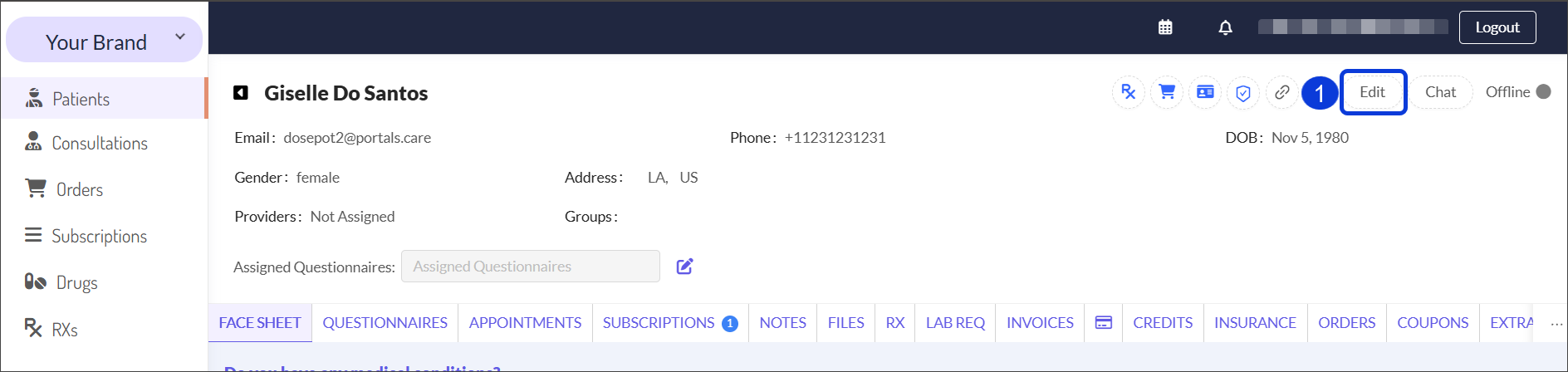
Once you access a patient’s profile, you will see the complete patient record. From here, you can manage their profile data as well as each aspect of their journey. Authorized users can update the patient’s information within tabs, such as questionnaire answers or their credit balance.
Edit a Patient’s Profile
An authorized user can modify a patient’s data. However, we recommend handling this sensitive data with great caution.
From the patient’s record, click the Edit button.
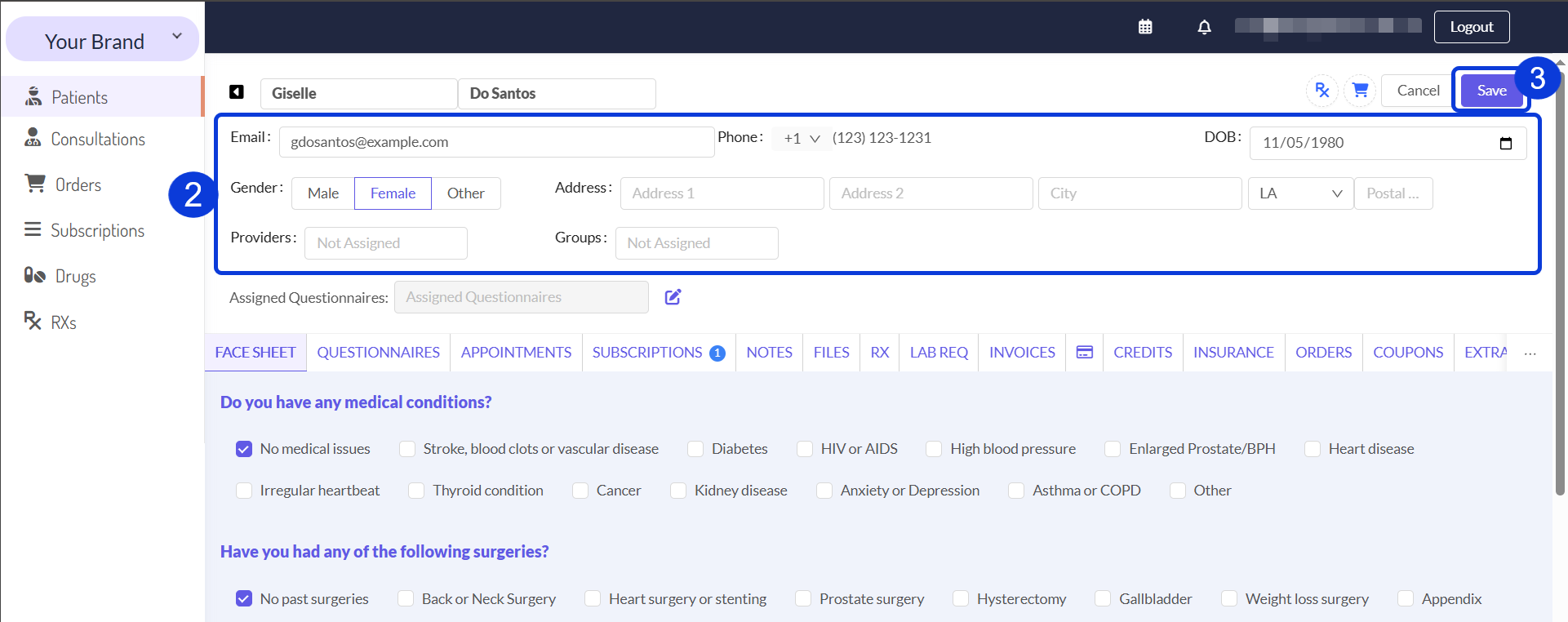
From the editing view, you can:
Update the patient’s email address, gender, address, and date of birth.
Assign a Provider, Group, or Questionnaire.
A Provider is a licensed healthcare professional, such as a Physician, Nurse Practitioner (NP), or Doctor, whose main activities within the CarePortals platform include handling patient visits, writing prescriptions, and communicating with patients on CarePortals.
When you finish making modifications, click the Save button.
Managing Tabs
Each tab in the patient profile covers a specific aspect of the patient’s journey. Detailed descriptions for each tab and its actions are provided in the Patient Management Overview guide.
In many cases, the actions you can take in a tab are the same as those available in its corresponding manager. For example, the process for managing prescriptions in the RXs tab is consistent with the one described in the Prescriptions Management guide.
Next Steps
Now that you know how to navigate and manage an individual patient's record, you can explore related tasks and features.
Managing Records for All Patients
If you want to manage these areas for all patients, not just an individual, you can go to the main management page for each section. See the following guides for a platform-wide view:
Managing Orders in CarePortals: Gain a comprehensive view of all patient orders and access key features to manage them effectively.
How to Manage Patient Subscriptions: See how to manage all subscriptions.
Prescriptions Management: Learn how to review all prescriptions.
Consultations Overview: See where to find the medical intake forms that patients submit.
Performing Specific Actions
To learn how to perform specific actions within a patient's profile, such as using the chat window or deducting a patient's credit, refer to these detailed guides:
How to Use the Patient Chat: Learn how to interact with patients directly from the EMR portal.
How to Add or Deduct Patient Credit: Learn how to add or deduct credits to a patient's profile for future use or debit from their account.
Was this helpful?
Still need help? Ask the team