How to Access Stripe's Customer or Payment directly from the EMR
This guide explains how to directly access Stripe's customer records and payment details from within the CarePortals EMR portal.
You will find a direct link on the patient profile to access the patient's Stripe customer record, and another link on the order details view to access a linked payment. This allows for a seamless workflow when you need to manage or review financial information.
Accessing a Patient's Stripe Customer Profile
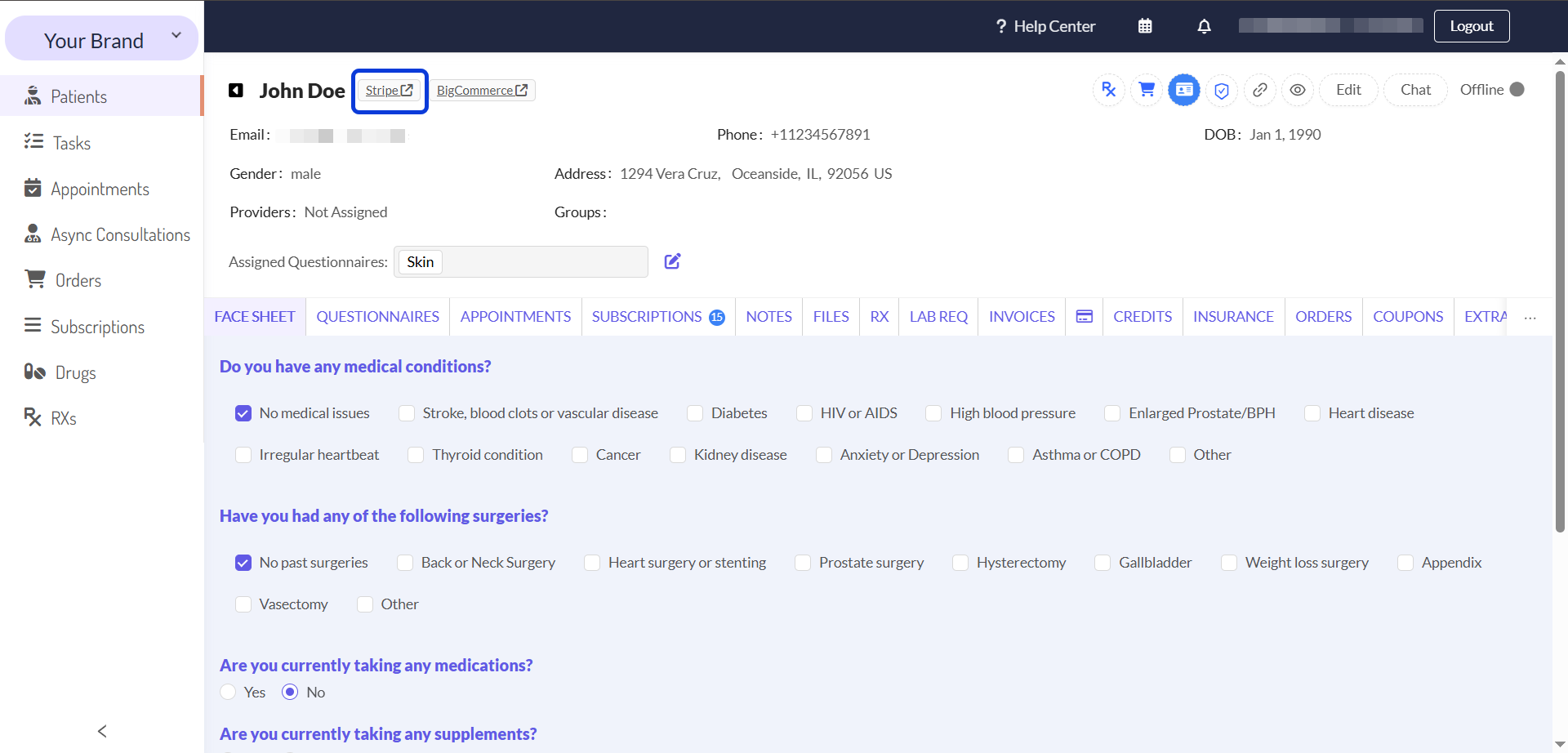
You can go directly to a patient's customer profile in Stripe from their EMR profile page.
From the EMR portal, navigate to the Patients section.
Search for and open the desired patient's profile.
Next to the patient’s name, click the Stripe button.
Accessing a Stripe Payment from an Order
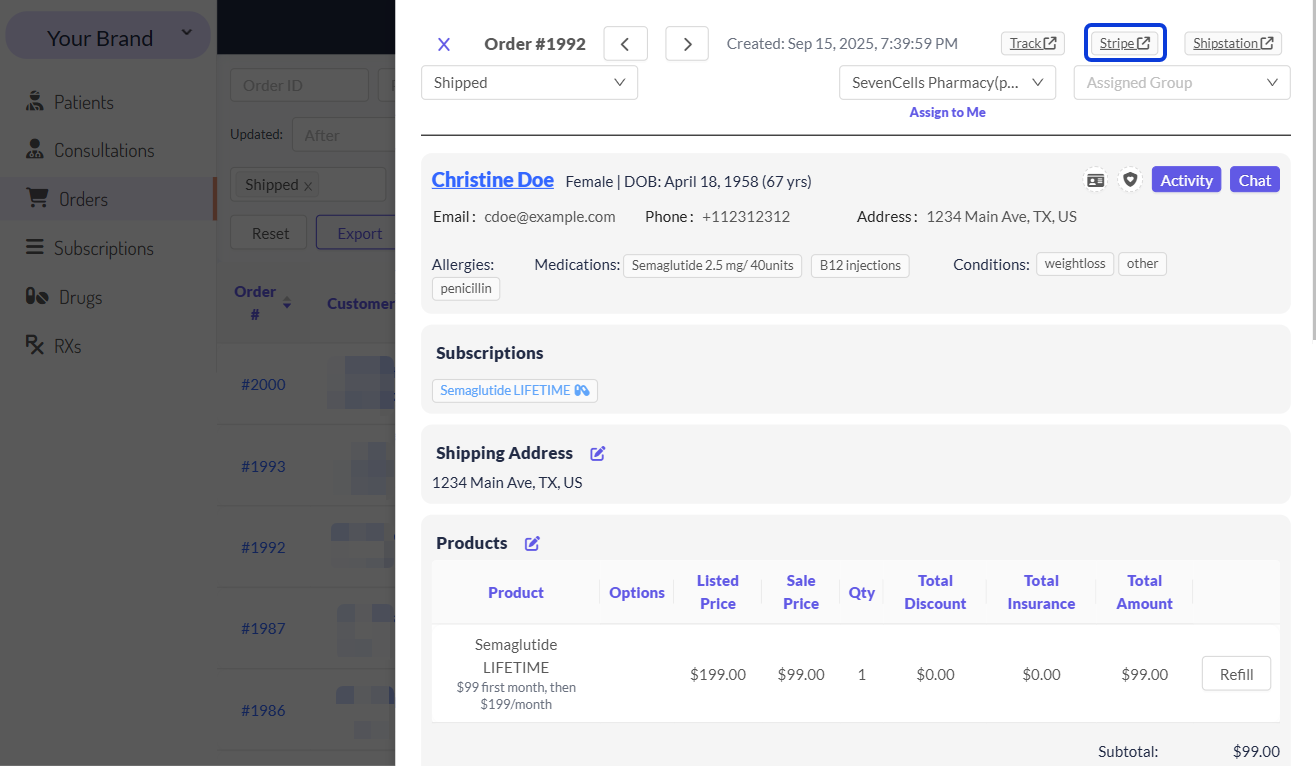
You can navigate directly to a specific payment's page in Stripe from the corresponding order in the EMR portal.
From the EMR portal, navigate to the Orders section.
Find the order you wish to review and click on it to open the order details page.
In the order header, locate and click on the Stripe link.
Logging into Stripe
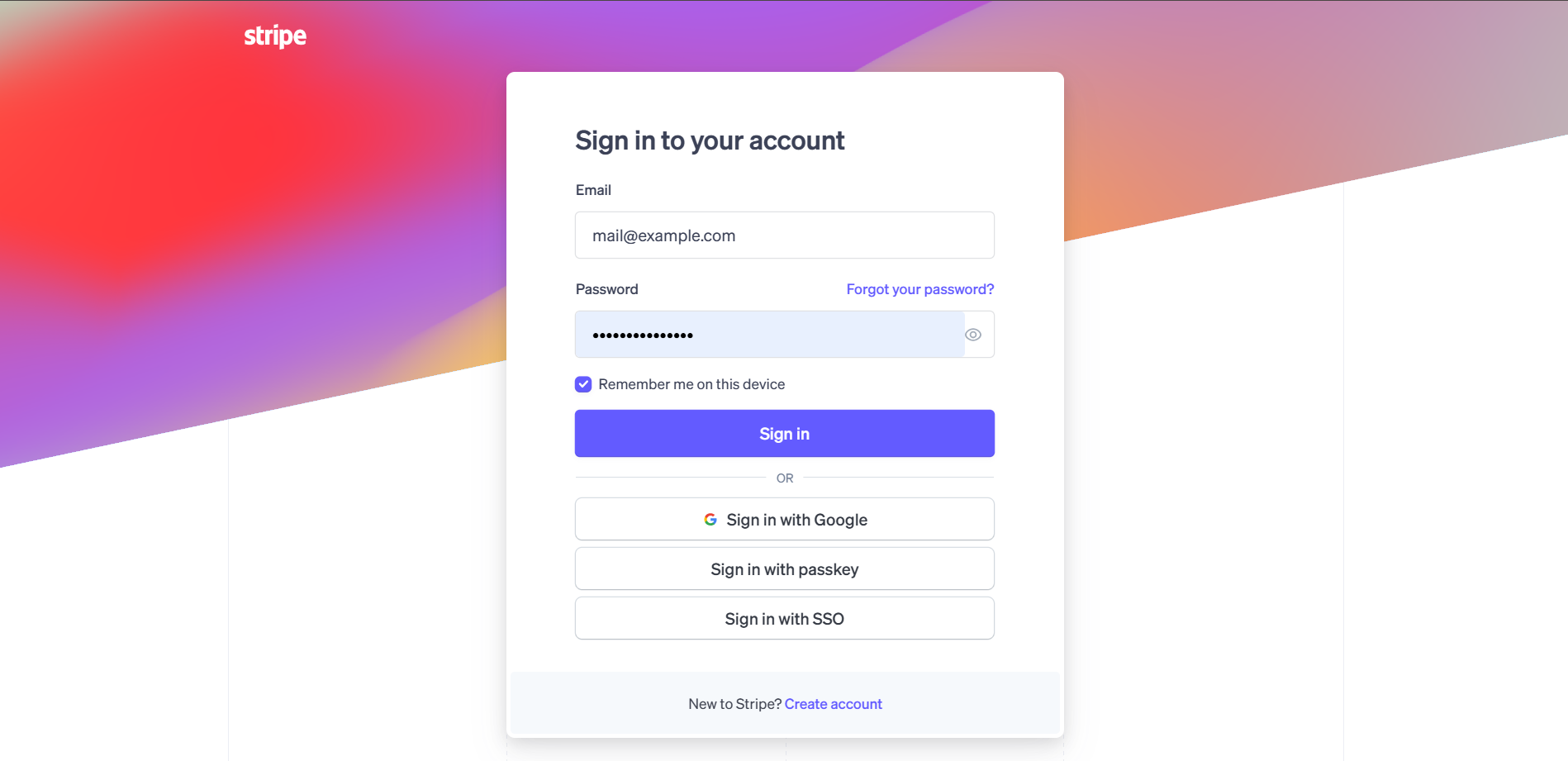
In both cases, clicking the link will open a new tab and take you to the Stripe login page. After you sign in, you will be taken directly to the specific customer profile or payment you selected.
Next Steps
Continue learning about the EMR portal with these articles:
A Tour of the EMR Portal: Manage all day-to-day patient interactions and order fulfillment.
How to Find and Manage a Patient's Profile: Navigate through different tabs to manage every part of a patient's journey.
Manage an Order from Start to Finish: Learn how to conduct the complete lifecycle of a patient order from the initial payment to the final shipment.
Was this helpful?
Still need help? Ask the team